Table of Content
General Information
01. Search Options
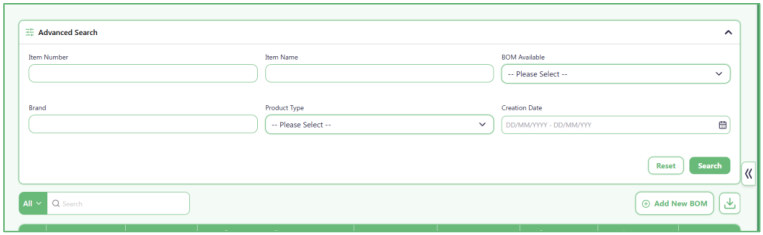
- In most pages, we have two types of search: single search bar and advanced search.
- Single search bar : Here, you can search using a single value across one or multiple items.
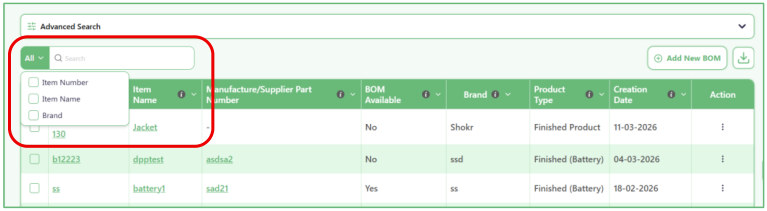
- Advanced Search : In the advanced search, you search for a specific item that matches all of these values together.
02. Download Button
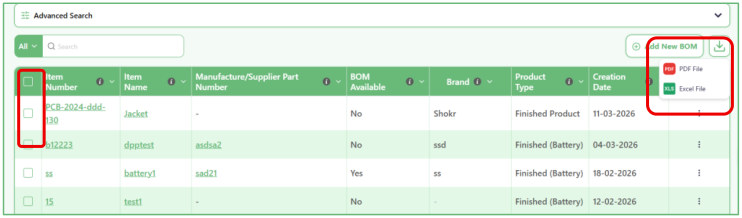
- On most pages, you will find a Download button that allows you to export the table content as a PDF or an Excel sheet.
- By default, the Download button exports the entire table.
However, if you select specific rows and then click Download, only the selected rows will be included in the downloaded file.
03. Home Page
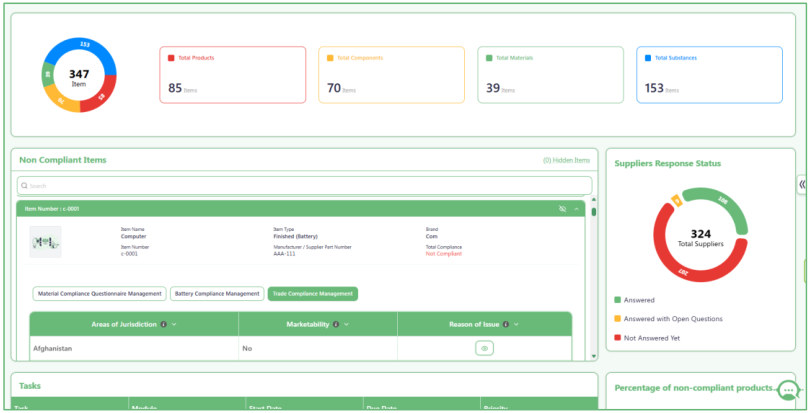
- The home page displays the overall status of your items and their total count in the system.
- The status for Non-Compliant Items shows each item that is not compliant, including the module and legislation causing it to be non-compliant.
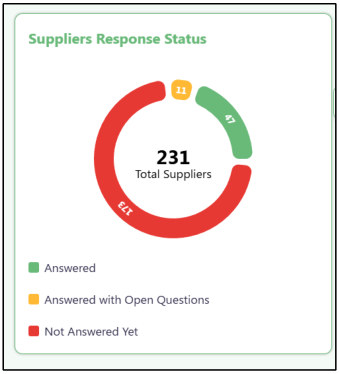
- You also have Suppliers Response Status and status for Percentage of Non- Compliant Products.
04. Account Information
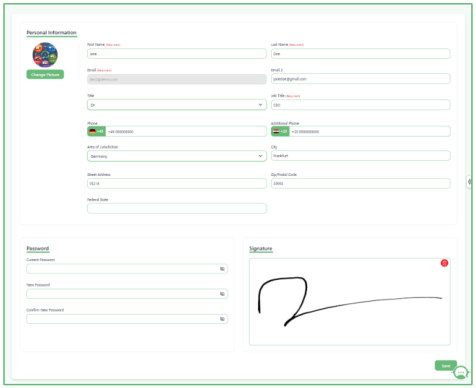
- Any user account includes Account Information, where the user can enter or update details such as their name, phone number, and address.
- After that, the user can also set up their signature, which is used in different places across the system and is retrieved automatically from this section.
- Users can change their password if needed.
05. My Company
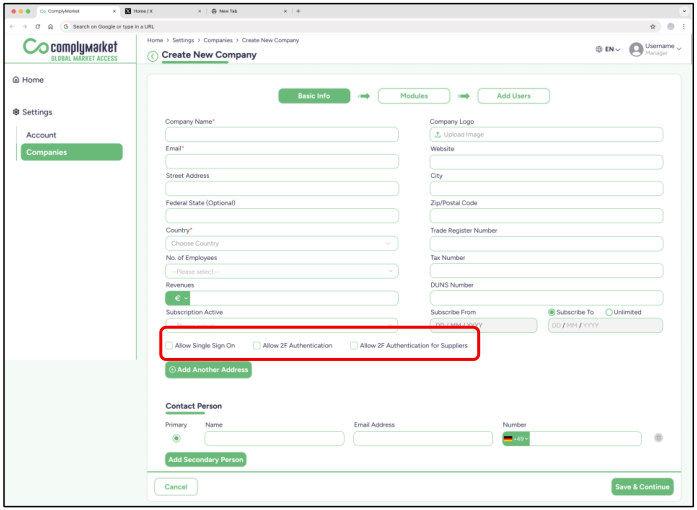
- The company admin can update company details such as Company Logo, Company Address, Trade Register Number, and Revenues.
- The admin can also enable or disable 3 features:
- Allow Single Sign-On.
- Allow 2-Factor Authentication.
- Allow 2-Factor Authentication for Suppliers.
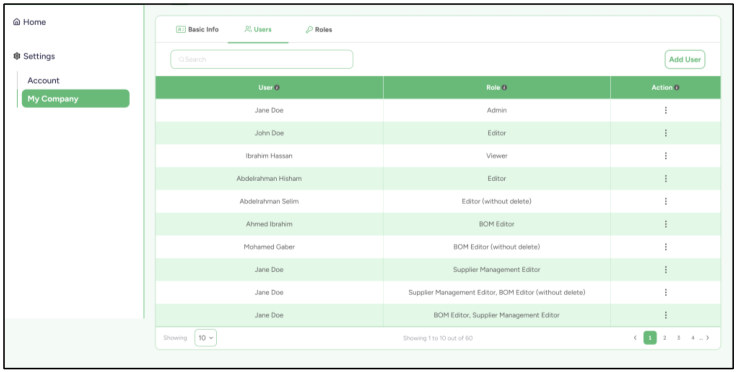
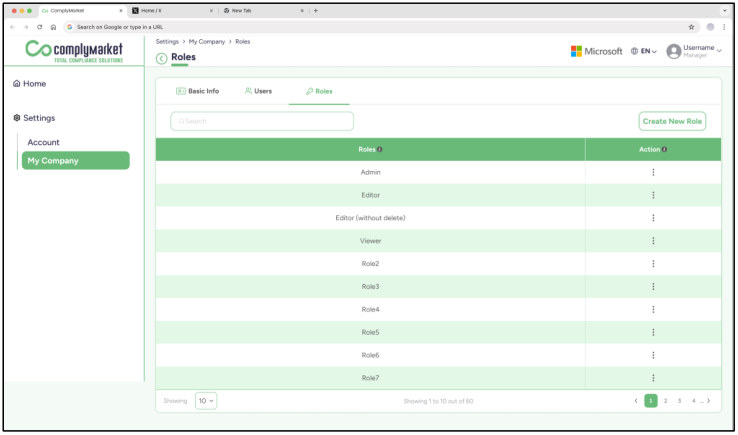
- The admin can add users to the company and create roles, assigning the desired roles to each user.
01. Home Page
- This is the Home page.
- It gives you a quick overview of the most important information in the system. You can use this page to quickly see item counts, non-compliant items, and supplier response status.
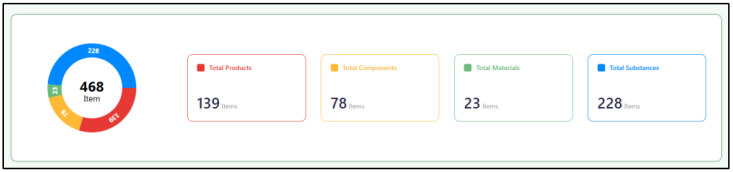
- At the top of the page, you can see the summary section.
This section shows the total number of items and a quick breakdown of:
o Total Products o Total Components o Total Materials o Total Substances
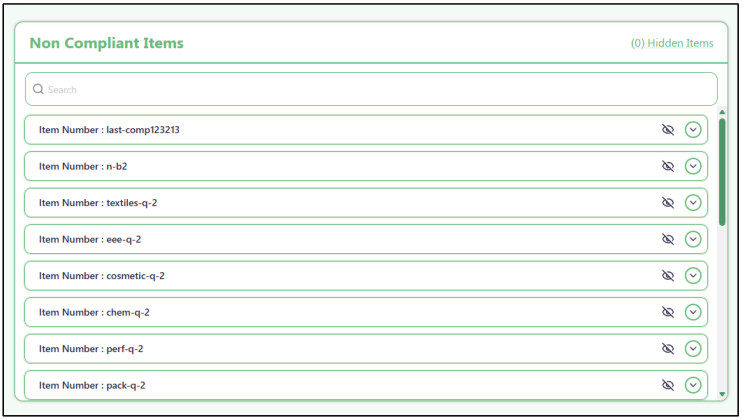
- Use the "Non-Compliant Items" section to see items that are not compliant.
- This section lists all items that currently have a Not-Compliant status. It helps you quickly find the items that may need review or action.
- Use the search box inside "Non-Compliant Items" to find a specific item.
Type the item name or item number in the search field to quickly locate the item you want.
- Click an item row to open its details.
When you open an item, you can see more information about it, such as:
o Item Name o Item Number o Item Type o Brand o Manufacturer / Supplier Part Number o Total Compliance Status
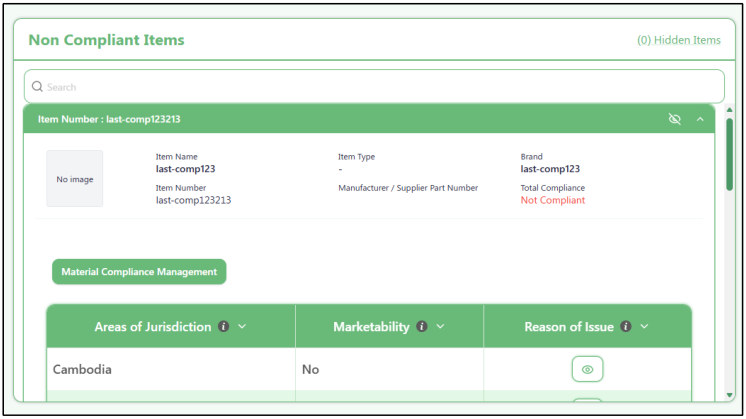
- Inside the opened item, you can review the related compliance details.
- The item may show one or more related compliance modules, such as:
- o Sustainability Compliance Management o Battery Compliance Management You can also review the table below, which shows:
- o Areas of Jurisdiction o Marketability o Reason of Issue
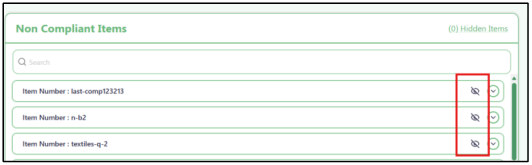
- Use the Hide button to hide an item from the list.
Each item has a Hide icon. If you click it, the item will be removed from the visible "Non- Compliant Items" list. This is useful if you want to temporarily remove items from the current view.
- Use the "Hidden Items" link to see the items you hid.
At the top-right of the "Non-Compliant Items" section, click Hidden Items to open a popup window that shows the hidden items.
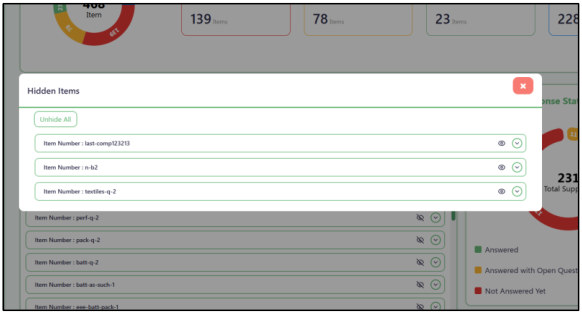
- In the "Hidden Items" window, you can review hidden items and bring them back.
- This window shows the items that were hidden from the main list. You can use Unhide All to return all hidden items back to the "Non-Compliant Items" section.
- Use the "Suppliers Response Status" section to check supplier responses.
This section gives you a quick summary of supplier response statuses. It shows:
- Answered
- Answered with Open Questions
- Not Answered Yet This helps you quickly understand the response progress of your suppliers.
02. Bill of Material Management
01.1 Products Inventory
01.1.1 Add New BOM
- Use this page to create a new BOM.
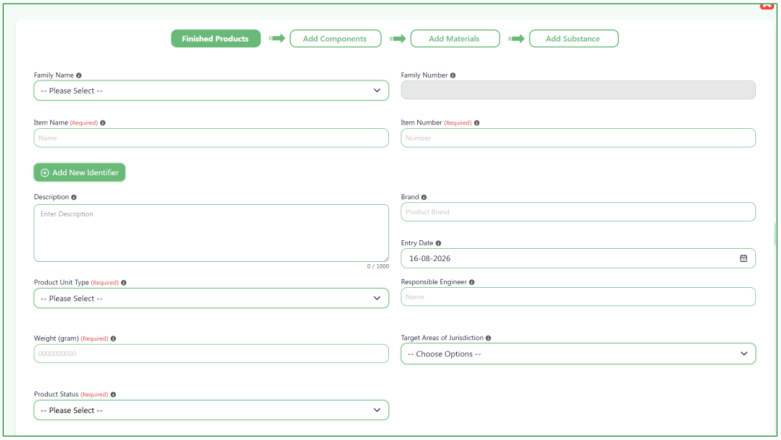
A BOM shows how an item is built. You can start with a Finished Product , then connect Components , Materials , and Substances to it.
The process has four steps:
Finished Products → Add Components → Add Materials → Add Substance

- Start by entering the Finished Product information.
Fill in the information you know about the product, such as its name, number, description, brand, weight, status, category, and other details.
Fields marked Required must be completed before you continue.
- Choose a Family for the product.
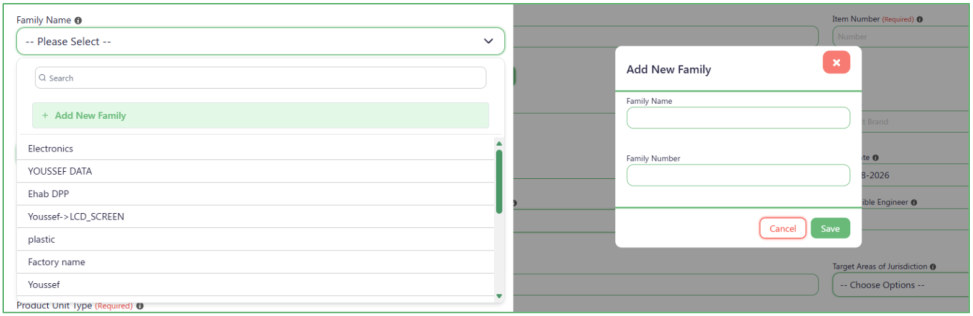
Open Family Name and select the correct family from the list.
The Family Number is connected to the Family Name. After you select a family, its Family Number is filled in automatically. You do not need to type it yourself.
If the family does not exist:
o Open the Family Name list.
o Click Add New Family .
o Enter the Family Name and Family Number .
o Click Save .
The new family can then be selected from the list.
- Enter the Item Name and Item Number.
Enter the main name and number used to identify the product.
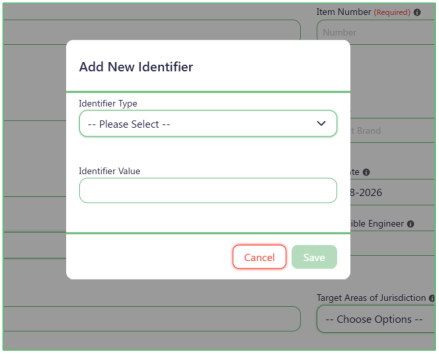
If the product has another identifier, click Add New Identifier .
In the window that opens:
o Select the Identifier Type .
o Enter the Identifier Value .
o Click Save .
You can add more than one additional identifier if needed.
- Choose the Product Status.
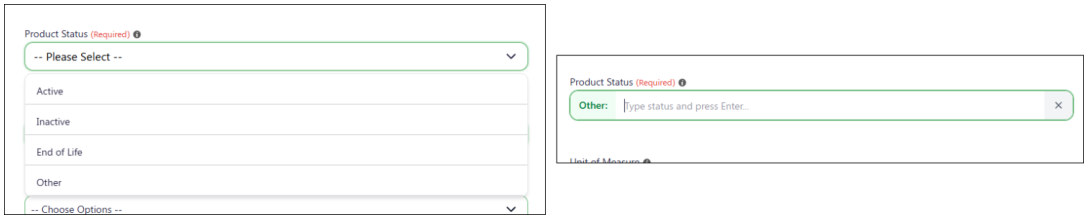
Select one of the available statuses:
o Active o Inactive o End of Life If none of these statuses is correct, select Other . A new field will appear where you can type your own status.
- Choose the Unit of Measure before entering the Product Amount.
The Product Amount field is not available at first.
First, select a Unit of Measure . After you select it, the Product Amount field becomes available and you can enter the amount.

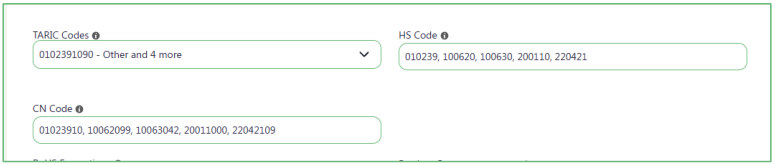
- Use TARIC Codes to help fill the HS Code and CN Code.
Select one or more values from TARIC Codes .
The system uses each selected TARIC Code to automatically fill:
o HS Code using the first 6 digits.
o CN Code using the first 8 digits.
After the values are filled in, you can still change the HS Code or CN Code manually if needed.
- Choose whether to use the standard safe instructions.
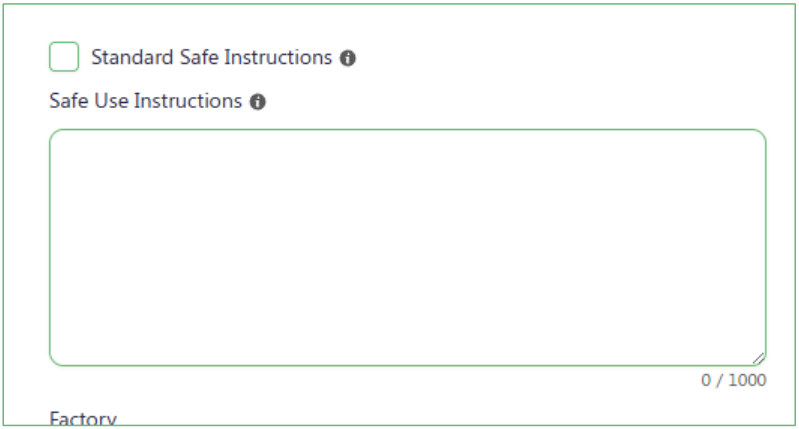
Standard Safe Instructions is selected by default.
While it is selected, the Safe Use Instructions field is locked.
If you want to write your own instructions:
o Remove the check from Standard Safe Instructions .
o The Safe Use Instructions field will become available.
o Type your instructions in the field.
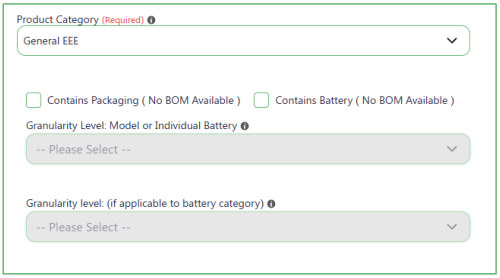
- Choose the Product Category and related options.
Select the correct Product Category .
You can also select:
o Contains Packaging (No BOM Available) o Contains Battery (No BOM Available) If you select Contains Battery , the two Granularity Level fields below it become available. Select the required values from these fields.
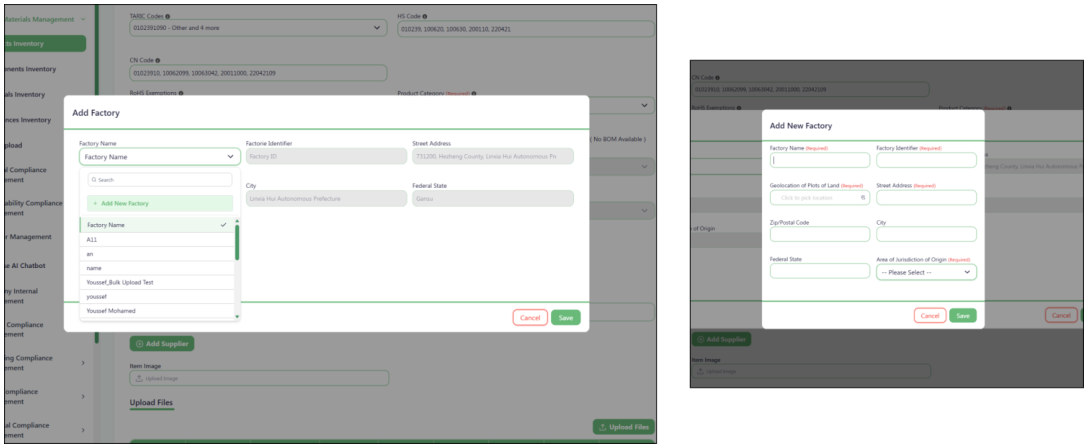
- Add the factories where the product is made.
Click the + button under Factory .
In the Factory window, select a Factory Name .
After you select the factory, the system automatically fills its saved information, including:
o Factory Identifier o Street Address o Zip/Postal Code o City o Federal State o Area of Jurisdiction of Origin If the factory is not in the list, open Factory Name and click Add New Factory to create it.
You can add more than one factory if the product is made in different factories.
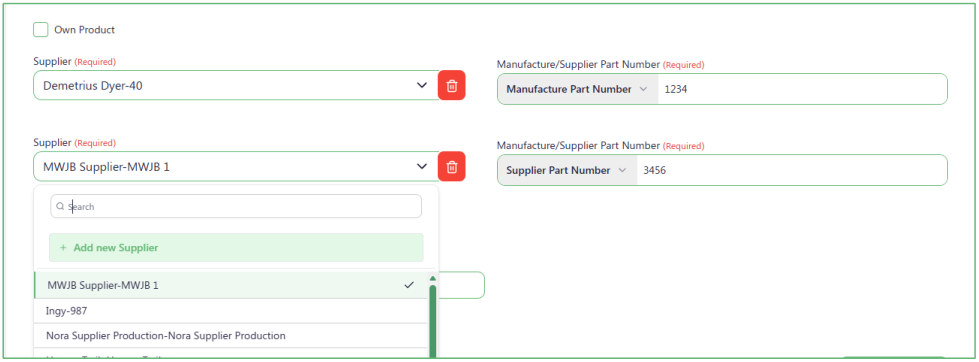
- Tell the system whether this is your own product.
If this is an Own Product , select the Own Product checkbox.
When it is selected, the Supplier and Manufacture/Supplier Part Number fields are hidden because an external supplier is not needed.
If it is not an Own Product:
o Select the supplier you receive the item from.
o Enter its Manufacture/Supplier Part Number .
You can add more than one supplier. Each supplier can have its own Manufacture/Supplier Part Number.
If the supplier does not exist, open the Supplier list and click Add new Supplier .
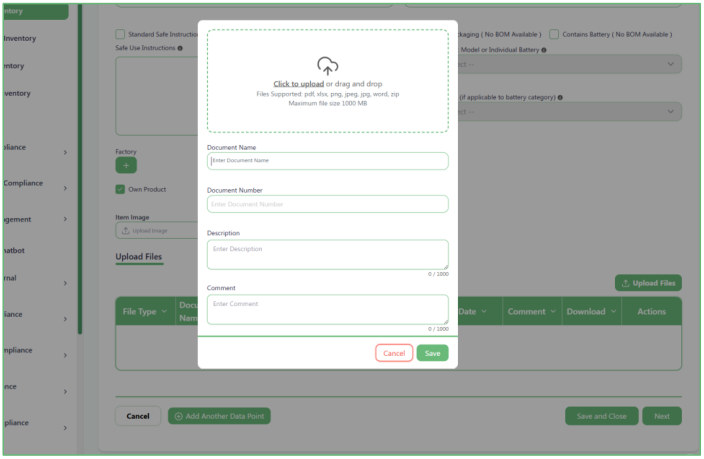
- Upload documents if the product has any.
Uploading documents is optional.
If you have a document related to the product, click Upload Files .
Select the file or drag and drop it into the upload area. Then enter the document information:
o Document Name o Document Number o Description o Comment Click Save to add the document.
If the product does not have any documents, you can continue without uploading a file.
- Add any extra information that does not have a field on the page.
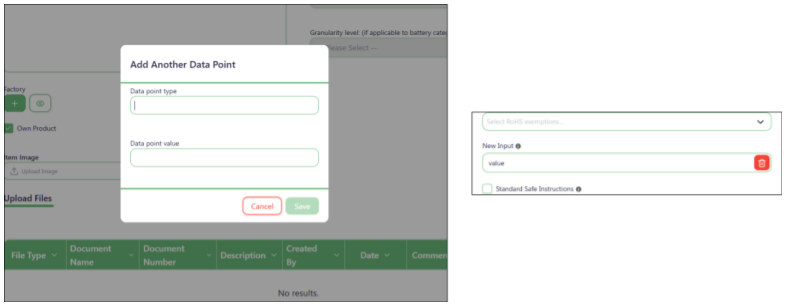
Click Add Another Data Point if you need to save extra information.
Enter:
o Data point type — the name of the information.
o Data point value — the value you want to save.
Click Save and the new field will appear with the other product information.
You can add more than one extra data point.
- Click Next to start adding Components.
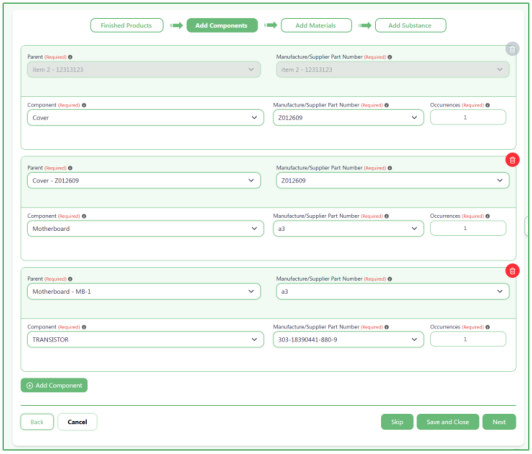
- Components are items that are used to build the product.
- In the Component field, select a component that has already been created in the system.
- Each component also has a Parent . The Parent tells the system what the component belongs directly to.
- The first component must be placed under the Finished Product.
- After that, a new component can be placed under:
- o The Finished Product.
- o Or a component that was added before it.
- For example:
- Finished Product
- Component 1 o Component 2 o Component 3
- Component 4 This means Component 2 and Component 3 are inside Component 1, while Component 1 and Component 4 are directly inside the Finished Product.
Use Add Component to add more components.
- Click Next to add Materials.
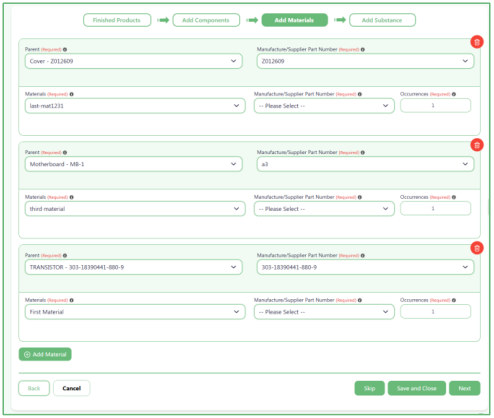
Materials work in a similar way to Components.
Select a Material that has already been created in the system, then choose its Parent .
A Material can be placed directly under:
o The Finished Product.
o Or one of the Components you added earlier.
Unlike the first Component, the first Material does not have to be directly under the Finished Product.
You can choose its Parent from the available items.
Use Add Material if you need to add more materials.
- Click Next to add Substances.
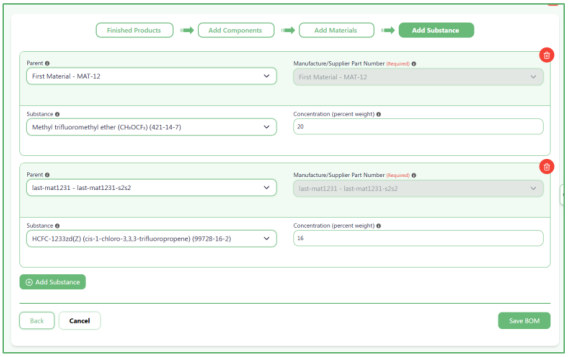
This is the last step of the BOM.
Select the Parent where the substance belongs, then select the Substance .
Enter the substance amount in Concentration (percent weight) .
Use Add Substance if you need to add more substances.
- Use the navigation buttons to move through the BOM.
While creating the BOM:
o Back takes you to the previous step.
o Next takes you to the next step.
o Skip lets you continue without adding anything in that step when it is available.
o Save and Close saves your work and closes the BOM form.
o Cancel leaves the process without continuing.

- Save the completed BOM.
After you finish adding the required Products, Components, Materials, and Substances, click Save BOM .
The system will save the BOM with the structure and relationships you created.
01.1.2 Created items table
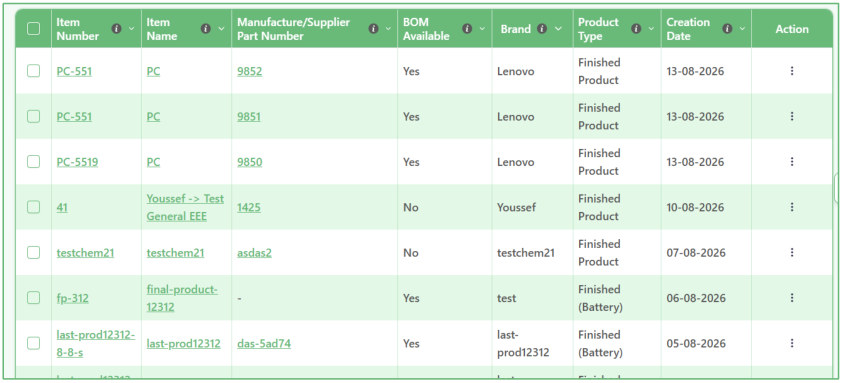
- Use this page to view all items in the system.
The table shows the items that have already been created. Each row represents one item and shows information such as:
o Item Number o Item Name o Manufacture/Supplier Part Number o BOM Available o Brand o Product Type o Creation Date
- Click "Add New BOM" to create a new item.
- Use the Add New BOM button when you want to add a new item and build its BOM.
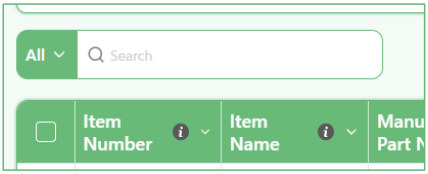
- Use the small Search box to quickly find text in the table.
Type a word or value in the Search box above the table.
The system searches for that value across the information shown in the table, so you do not need to choose a specific field first.
For example, you can search for an item name, item number, brand, or another value shown in the table.
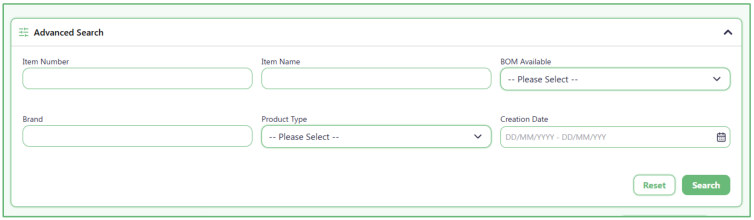
- Use Advanced Search when you know specific information about the item.
Open Advanced Search and enter one or more details you want to search by.
You can search using:
o Item Number o Item Name o BOM Available o Brand o Product Type o Creation Date You do not need to fill in every field. Enter only the information you know, then click Search .
Click Reset if you want to clear the search fields and start again.
- Download the table when you need a copy of the item list.
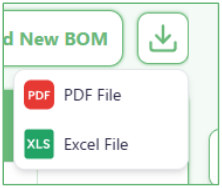
Click the Download button above the table to export the table.
You can download the information as a PDF or Excel file.
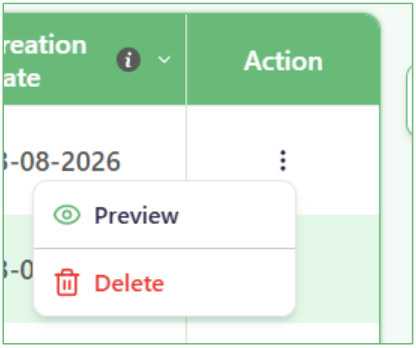
- Use the Action menu to work with a specific item.
At the end of each row, click the three-dot Action menu .
You can choose:
o Preview to open and review the item information.
o Delete to remove the item.
Make sure you select the correct row before using Delete.
01.1.2 Item Preview
- The Item Preview page shows the information that was entered when the item was created. It also shows the files, suppliers, BOM structure, connected items, substances, and supplier responses related to this item.
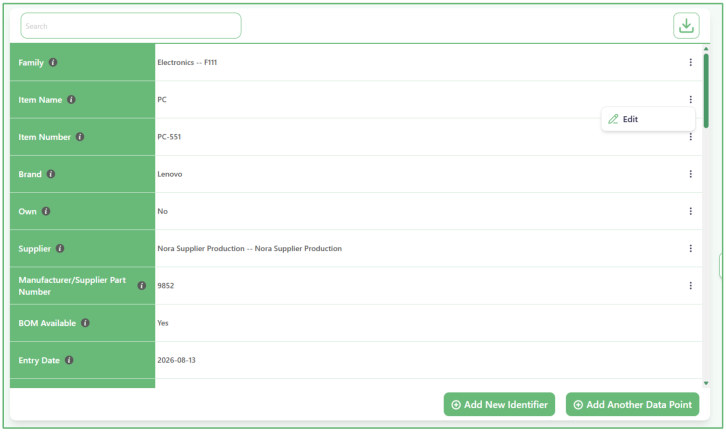
- Review or edit the item information.
The first section shows the saved information for the item, such as:
o Family o Item Name o Item Number
o Brand o Own Product status o Supplier o Manufacturer/Supplier Part Number o BOM Available o Entry Date o Other saved fields Each row shows the field name and its current value.
To change a value, click the three-dot menu at the end of its row and use the available Edit action.
You can also use the Search field at the top to quickly find a specific field.
- Add more identifiers or additional information when needed.
Use Add New Identifier if you want to add another identifier to the item.
Use Add Another Data Point if you want to add a new piece of information that does not already have a field on the item.
These work in the same way as when the item was first created.
- Review and manage the files attached to the item.
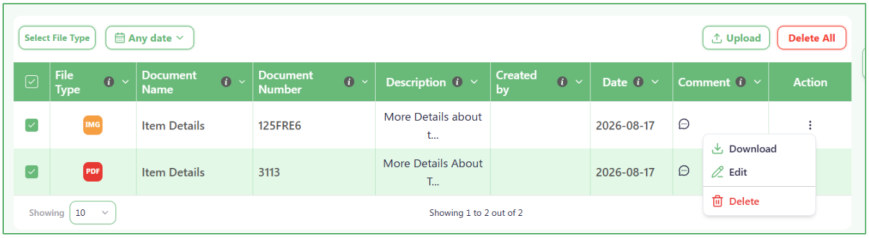
The Files section shows the documents that have already been uploaded for this item.
You can:
o Filter the files by File Type .
o Filter them by Date .
o Click Upload to add another file.
o Use the Action menu of a row to manage a specific file.
You can also select one or more files using the checkboxes in the first column. After selecting them, use Delete All to delete the selected files together.
- See the suppliers and manufacturer part numbers connected to this item.
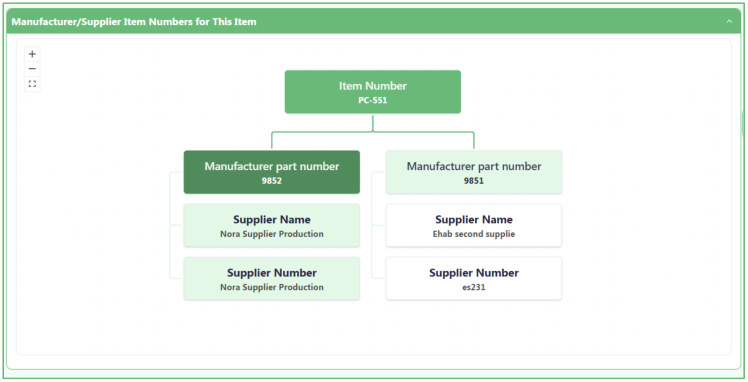
The Manufacturer/Supplier Item Numbers for This Item section shows all suppliers connected to the item.
It starts with the main Item Number , then shows each supplier together with:
o Manufacturer Part Number o Supplier Name o Supplier Number This is useful when the same item is supplied by more than one supplier and each supplier uses a different manufacturer or supplier part number.
- Use the Bill of Materials Tree to understand how the item is built.
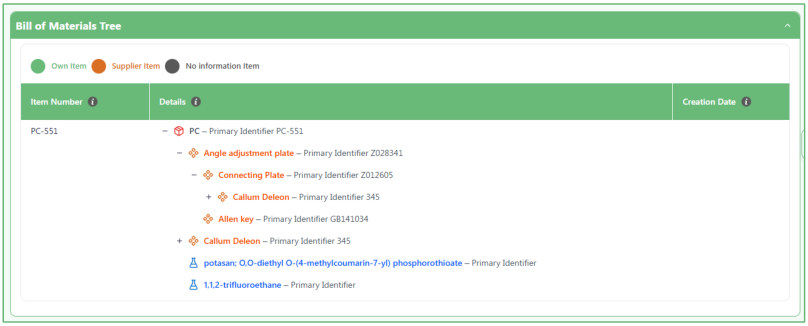
The Bill of Materials Tree shows the complete BOM structure as a hierarchy.
The selected item appears at the top. Under it, you can see its Components, Materials, Substances, and any additional levels connected below them.
For example, a Component may contain another Component, which may contain a Material, and that Material may contain a Substance.
The tree helps you understand which item is the Parent, and which items are connected underneath it.
The colors in the legend also help you identify:
o Own Item o Supplier Item o No information Item
- Review all substances contained within the item.
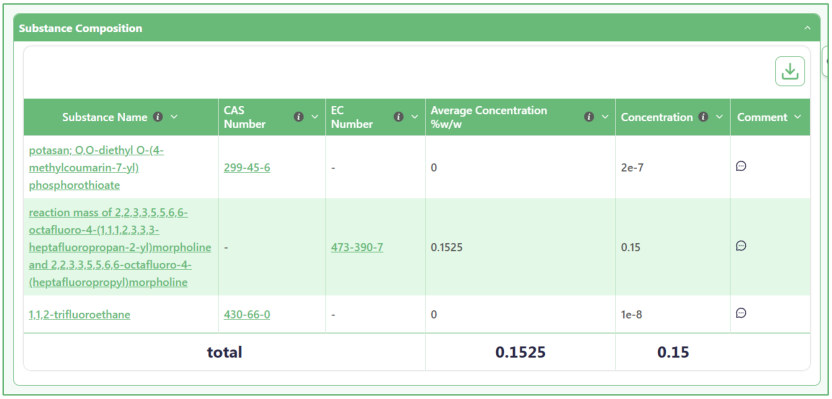
The Substance Composition section collects all substances contained anywhere under this item in the BOM.
A substance does not need to be connected directly to the item to appear here.
For example, the substance may be inside a Material, and that Material may be inside a Component. It will still appear in this table because it is part of the complete item structure.
The table shows information such as:
o Substance Name o CAS Number o EC Number o Average Concentration %w/w o Concentration o Comment At the bottom, the Total row shows the total Average Concentration %w/w and Concentration for the substances listed.
Substances Average Composition Logic:
- The system calculates the average composition, minimum, and maximum values for substances sourced from multiple suppliers.
- Each substance may be obtained from multiple suppliers, with variations in composition, assembly, or strength considered in all calculations.
- Minimum: Determined as the lowest measured value among all units from all suppliers.
- Maximum: Determined as the highest measured value among all units from all suppliers.
- Average: Computed by summing all unit measurements and dividing by the total number of units, reflecting the overall distribution across suppliers.
- For minimum and maximum calculations, units may be sorted from smallest to largest to ensure proper aggregation.
- Average calculations include all units without prioritizing size or strength.
- The multi-supplier calculation only applies when a material or component comes from more than one manufacturer . If all units are sourced from a single manufacturer, the system treats the substance as a regular item, calculating its composition based on percentage and weight normally.
- For complex or mixed compositions, calculated values are approximate , as real values cannot be accurately determined without actual production batches. The system assumes a combination of units from different suppliers (e.g., one unit from each supplier) to derive the approximate composition.
- The calculated values serve as estimates : minimum represents the lowest possible composition, maximum the highest, and average a combined estimate from all possible units. True composition can only be determined with real production data specifying which exact components were used.
- This approach ensures a practical approximation for multi-sourced substances while clearly distinguishing between estimated and actual compositions.
- See the Components connected directly under this item.
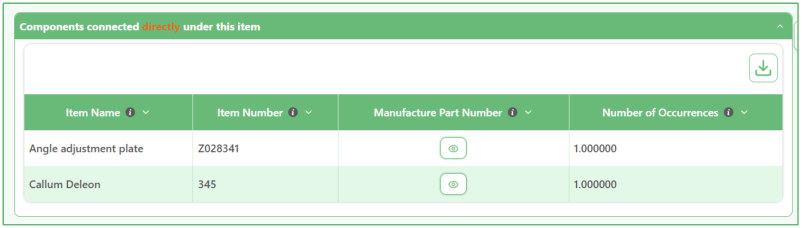
The Components connected directly under this item section show only the Components whose Parent is the current item.
For example:
Current Item → Component A → → Component B → Component C In this case, this section shows Component A and Component C . Component B is not shown here because it is under Component A, not directly under the current item.
The table shows:
o Item Name o Item Number o Manufacture Part Number o Number of Occurrences
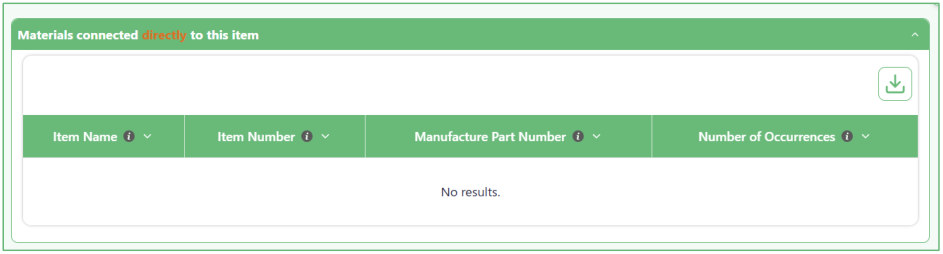
- See the Materials connected directly to this item.
The Materials connected directly to this item section works in the same way as the direct Components section.
It shows only Materials whose Parent is the current item.
A Material that is inside a Component will not appear in this section because it is not directly connected to the current item.
If there are no directly connected Materials, the table shows No results .
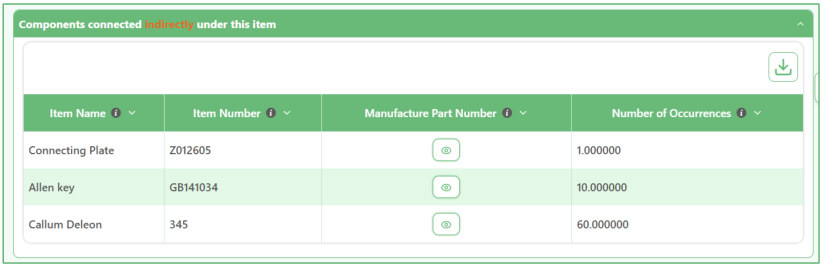
- See Components connected indirectly under this item.
The Components connected indirectly under this item section show Components that are part of this item's BOM but are not directly under the current item.
For example:
Current Item → Component A →→ Component B →→ Component C Component A is directly connected to the item. Component B and Component C are indirectly connected because they are under Component A.
The table shows:
o Item Name
o Item Number o Manufacture Part Number o Number of Occurrences
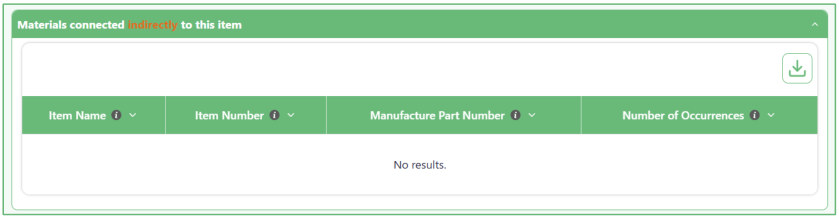
- See Materials connected indirectly to this item.
The Materials connected indirectly to this item section shows Materials that exist somewhere below the current item but are not directly connected to it.
For example, a Material may be under a Component, or under a Component that is itself inside another Component.
These Materials are still part of the BOM, so they appear in this section.
If there are no indirectly connected Materials, the table shows No results .
- Add new items directly under the current item.
Use the buttons below the BOM information when you want to add something directly under this item.
You can choose:
o Add Component under this Item o Add Material under this Item o Add Substance under this Item o Add RoHS Exemptions
The Component, Material, or Substance you add from these buttons will be connected directly to the current item.

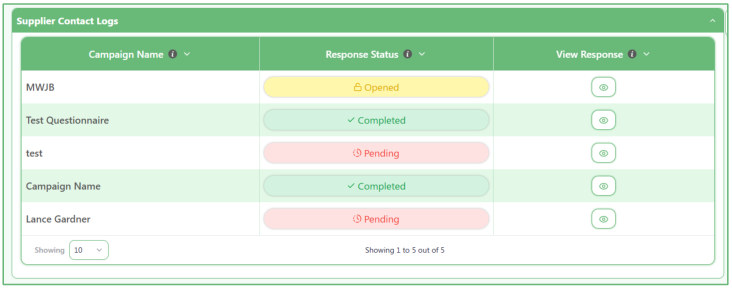
- Check supplier questionnaire and campaign responses.
The Supplier Contact Logs section shows questionnaires or campaigns that were sent to suppliers connected to the item.
For each campaign, you can check the Response Status , such as:
o Pending o Opened o Completed Use View Response to open and review the supplier's response when available.
More detailed information about supplier communication and questionnaires is explained in the Supplier Management Module .
01.2 Components Inventory
01.2.1 Add New BOM
- Use this page to create a new Component.
Start by entering the Component information. After that, you can build its BOM by adding Components, Materials, and Substances under it.
The process has four steps:
Component → Add Components → Add Materials → Add Substance

- Start by entering the main Component information.
Fill in the information you know about the Component, such as its name, number, description, brand, weight, status, category, and other details.
Fields marked Required must be completed before you continue.
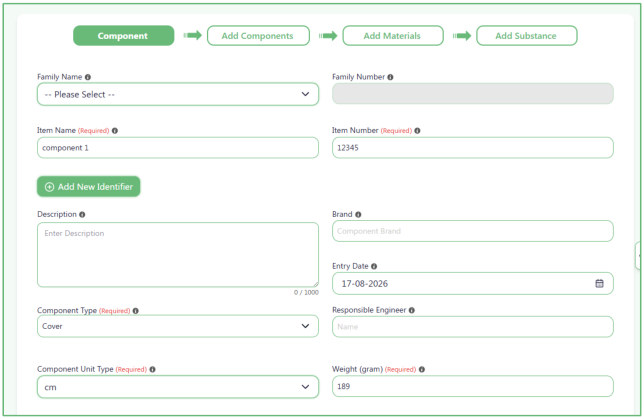
- Choose a Family for the Component.
Open Family Name and select the correct family from the list.
The Family Number is connected to the Family Name. After you select a family, its Family Number is filled in automatically. You do not need to type it yourself.
If the family does not exist:
o Open the Family Name list.
o Click Add New Family .
o Enter the Family Name and Family Number .
o Click Save .
The new family can then be selected from the list.
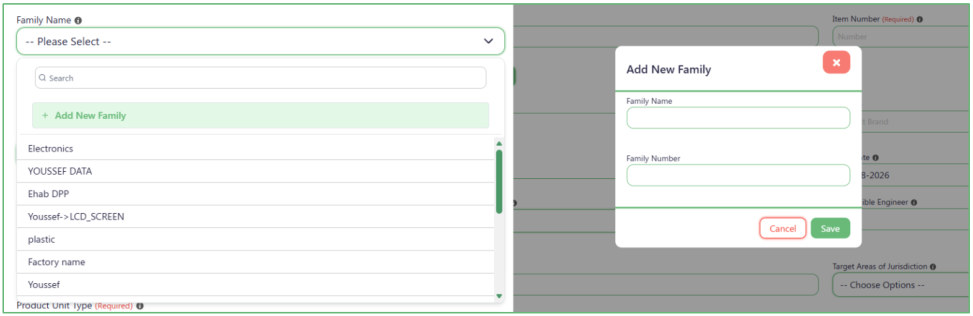
- Enter the Item Name and Item Number.
Enter the main name and number used to identify the product.
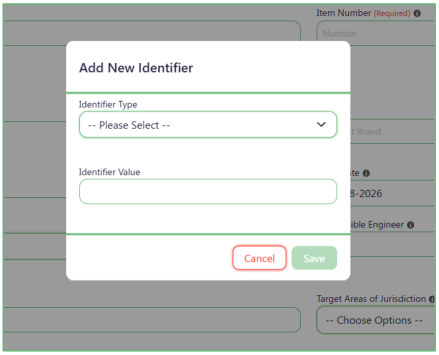
If the product has another identifier, click Add New Identifier .
In the window that opens:
o Select the Identifier Type .
o Enter the Identifier Value .
o Click Save .
You can add more than one additional identifier if needed.
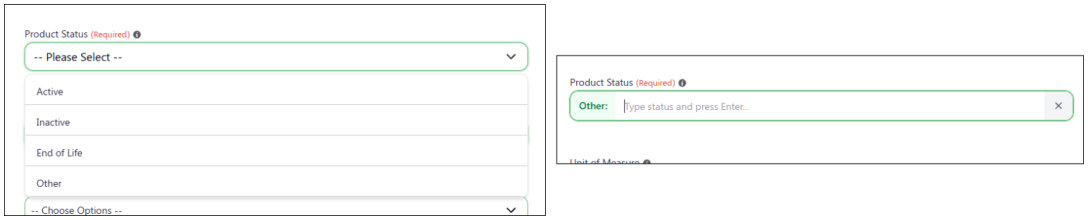
- Choose the Component Status.
Select one of the available statuses:
o Active o Inactive o End of Life If none of these statuses is correct, select Other . A new field will appear where you can type your own status.
- Choose the Unit of Measure before entering the Component Amount.
The Component Amount field is not available at first.
First, select a Unit of Measure . After you select it, the Component Amount field becomes available and you can enter the amount.

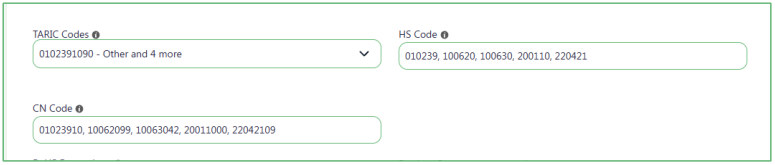
- Use TARIC Codes to help fill the HS Code and CN Code.
Select one or more values from TARIC Codes .
The system uses each selected TARIC Code to automatically fill:
o HS Code using the first 6 digits.
o CN Code using the first 8 digits.
After the values are filled in, you can still change the HS Code or CN Code manually if needed.
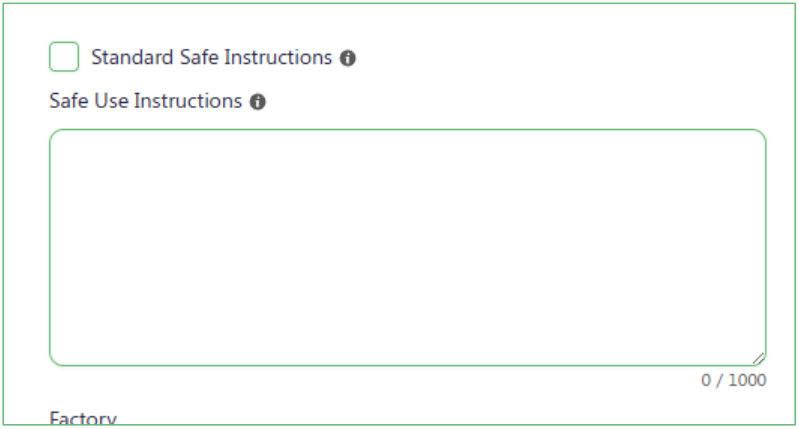
- Choose whether to use the standard safe instructions.
Standard Safe Instructions is selected by default.
While it is selected, the Safe Use Instructions field is locked.
If you want to write your own instructions:
o Remove the check from Standard Safe Instructions .
o The Safe Use Instructions field will become available.
o Type your instructions in the field.
- Use Additional Categories to select any additional categories that apply to the Component.
For Mixture Categories and Material Category , you can use only one of them.
- If you select a Mixture Category , the Material Category field becomes unavailable.
- If you select a Material Category , the Mixture Categories field becomes unavailable.
You cannot select values from both fields at the same time.
The Resin Sources field is locked by default.
If you select a Material Category that is related to resin, the Resin Sources field becomes available and is required.
Select one of the available Resin Sources:
- Virgin fossil-based resin
- Virgin bio-based resin
- Post-consumer recycled resin
- Post-industrial recycled resin

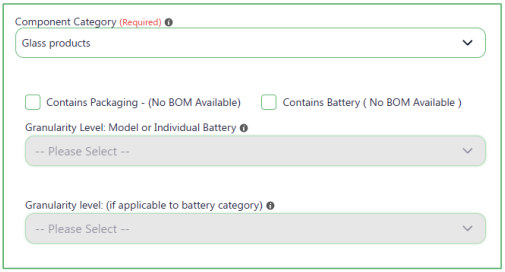
- Choose the Component Category and related options.
Select the correct Component Category .
You can also select:
o Contains Packaging (No BOM Available) o Contains Battery (No BOM Available) If you select Contains Battery , the two Granularity Level fields below it becomes available. Select the required values from these fields.
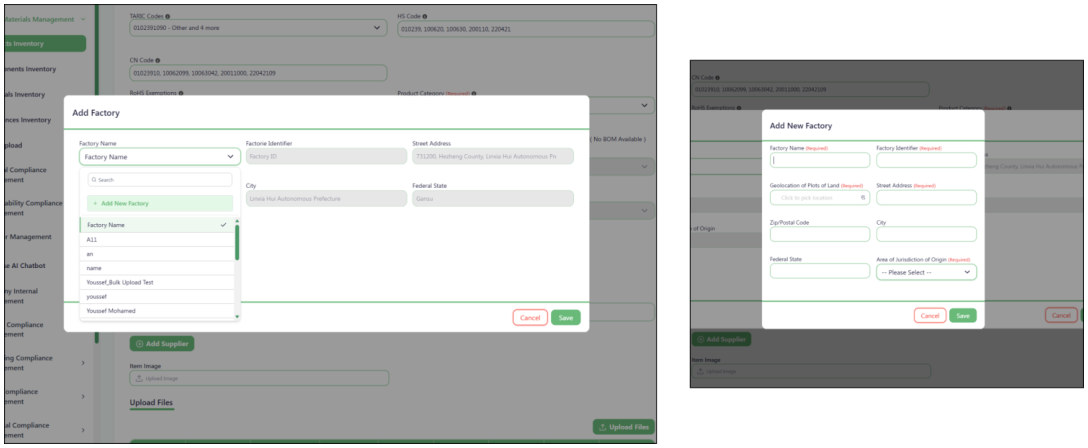
- Add the factories where the Component is made.
Click the + button under Factory .
In the Factory window, select a Factory Name .
After you select the factory, the system automatically fills its saved information, including:
o Factory Identifier o Street Address o Zip/Postal Code o City o Federal State o Area of Jurisdiction of Origin If the factory is not in the list, open Factory Name and click Add New Factory to create it.
You can add more than one factory if the Component is made in different factories.
- Tell the system whether this is your own Component.
If this is an Own Component , select the Own Component checkbox.
When it is selected, the Supplier and Manufacture/Supplier Part Number fields are hidden because an external supplier is not needed.
If it is not an Own Component:
o Select the supplier you receive the item from.
o Enter its Manufacture/Supplier Part Number .
You can add more than one supplier. Each supplier can have its own Manufacture/Supplier Part Number.
If the supplier does not exist, open the Supplier list and click Add new Supplier .
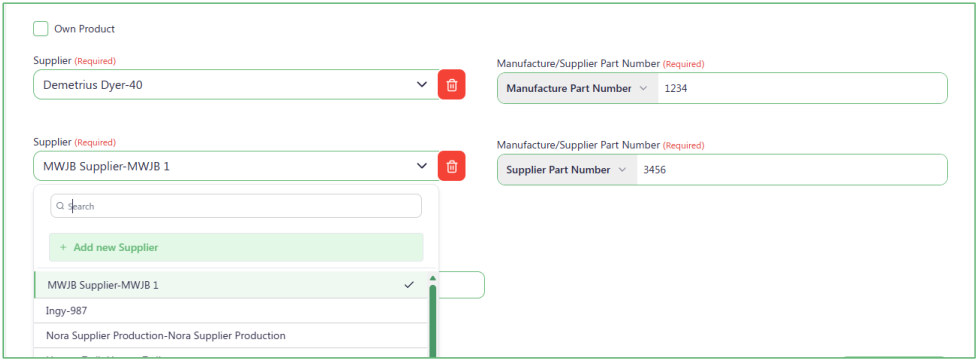
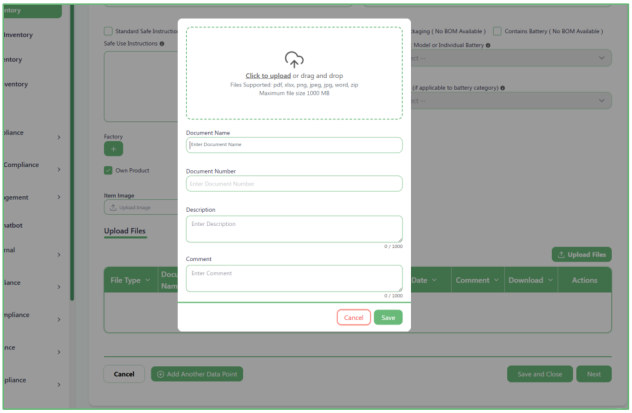
- Upload documents if the Component has any.
Uploading documents is optional.
If you have a document related to the Component, click Upload Files .
Select the file or drag and drop it into the upload area. Then enter the document information:
o Document Name o Document Number o Description o Comment Click Save to add the document.
If the Component does not have any documents, you can continue without uploading a file.
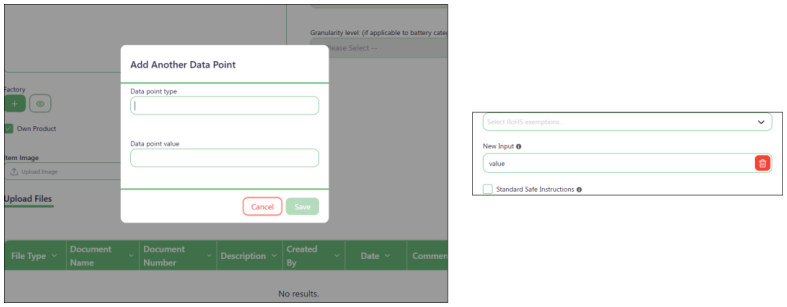
- Add any extra information that does not have a field on the page.
Click Add Another Data Point if you need to save extra information.
Enter:
o Data point type — the name of the information.
o Data point value — the value you want to save.
Click Save and the new field will appear with the other product information.
You can add more than one extra data point.
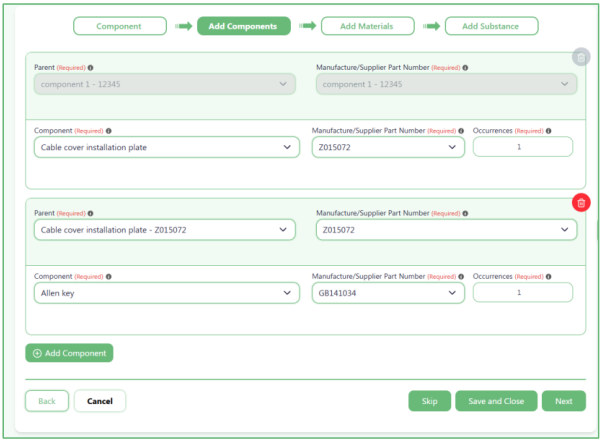
- Click Next to start adding Components under this Component.
- Components are items that are used to build this Component.
- In the Component field, select a component that has already been created in the system.
- Each component also has a Parent . The Parent tells the system what the component belongs directly to.
- The first component must be placed under the Component you are currently creating.
- After that, a new component can be placed under:
- o The Component you are currently creating.
- o Or a component that was added before it.
- For example:
- Component you are currently creating
- Component 1 o Component 2 o Component 3
- Component 4
This means Component 2 and Component 3 are inside Component 1, while Component 1 and Component 4 are directly inside the Component you are currently creating.
Use Add Component to add more components.
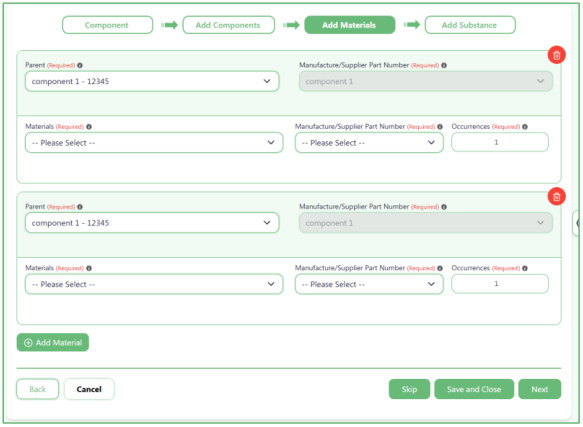
- Click Next to add Materials.
Materials work in a similar way to Components.
Select a Material that has already been created in the system, then choose its Parent .
A Material can be placed directly under:
o The main Component you are creating.
o Or one of the Components you added earlier.
Unlike the first Component, the first Material does not have to be directly under the main Component you are creating. You can choose its Parent from the available items.
Use Add Material if you need to add more materials.
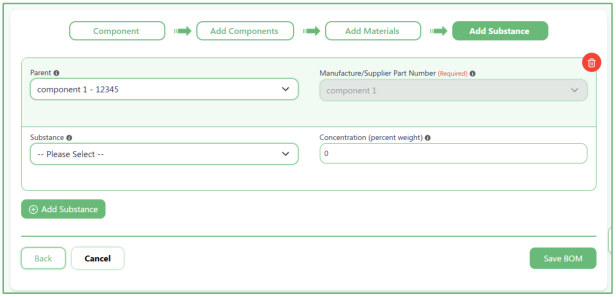
- Click Next to add Substances.
This is the last step of the BOM.
Select the Parent where the substance belongs, then select the Substance .
Enter the substance amount in Concentration (percent weight) .
Use Add Substance if you need to add more substances.
- Use the navigation buttons to move through the BOM.
While creating the BOM:
o Back takes you to the previous step.
o Next takes you to the next step.
o Skip lets you continue without adding anything in that step when it is available.
o Save and Close saves your work and closes the BOM form.
o Cancel leaves the process without continuing.

- Save the completed BOM.
After you finish adding the required Components, Materials, and Substances, click Save BOM .
The system will save the BOM with the structure and relationships you created.
01.2.2 Created items table
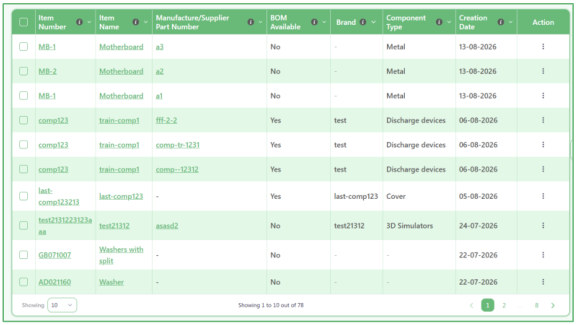
- Use this page to view all items in the system.
The table shows the items that have already been created. Each row represents one item and shows information such as:
o Item Number o Item Name o Manufacture/Supplier Part Number o BOM Available o Brand o Product Type o Creation Date
- Click "Add New BOM" to create a new item.
Use the Add New BOM button when you want to add a new item and build its BOM.
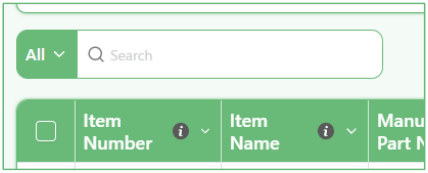
- Use the small Search box to quickly find text in the table.
Type a word or value in the Search box above the table.
The system searches for that value across the information shown in the table, so you do not need to choose a specific field first.
For example, you can search for an item name, item number, brand, or another value shown in the table.
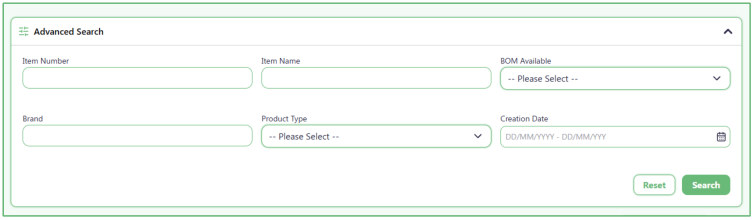
- Use Advanced Search when you know specific information about the item.
Open Advanced Search and enter one or more details you want to search by.
You can search using:
o Item Number o Item Name o BOM Available o Brand o Product Type o Creation Date You do not need to fill in every field. Enter only the information you know, then click Search .
Click Reset if you want to clear the search fields and start again.
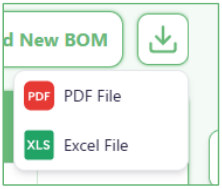
- Download the table when you need a copy of the item list.
Click the Download button above the table to export the table.
You can download the information as a PDF or Excel file.
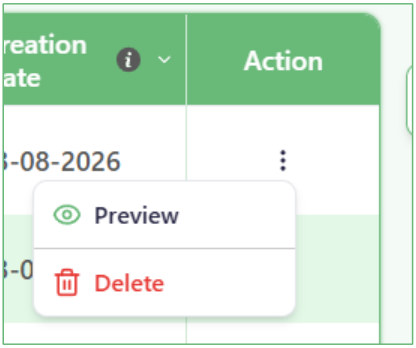
- Use the Action menu to work with a specific item.
At the end of each row, click the three-dot Action menu .
You can choose:
o Preview to open and review the item information.
o Delete to remove the item.
Make sure you select the correct row before using Delete.
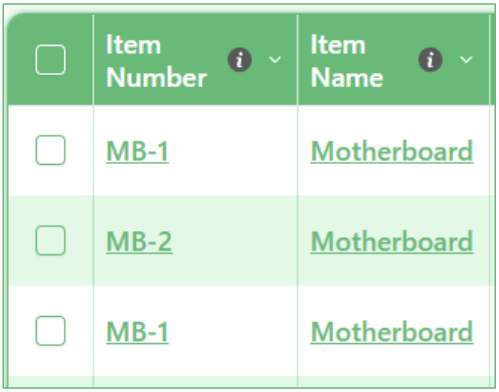
- Open a Component to review its details.
Click the Item Number or Item Name link in a row to open the selected Component and review its full information.
01.2.3 Created items table
- The Item Preview page shows the information that was entered when the item was created. It also shows the files, BOM structure, connected items and substances
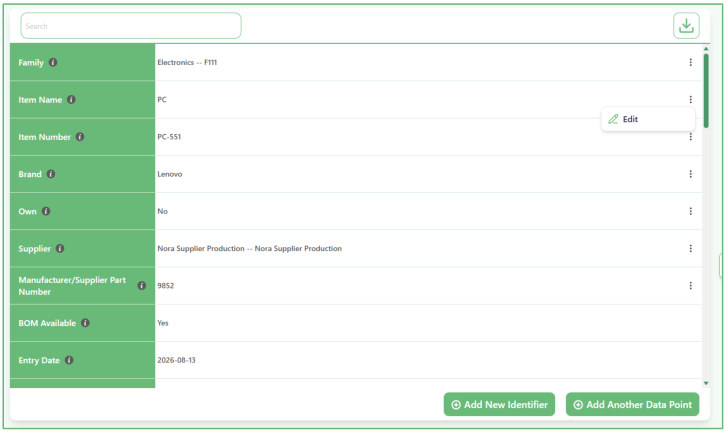
- Review or edit the item information.
The first section shows the saved information for the item, such as:
o Family o Item Name o Item Number o Brand o Own Product status o Supplier o Manufacturer/Supplier Part Number o BOM Available o Entry Date o Other saved fields Each row shows the field name and its current value.
To change a value, click the three-dot menu at the end of its row and use the available Edit action.
You can also use the Search field at the top to quickly find a specific field.
- Add more identifiers or additional information when needed.
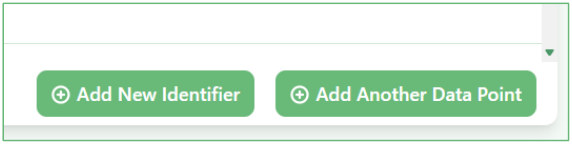
Use Add New Identifier if you want to add another identifier to the item.
Use Add Another Data Point if you want to add a new piece of information that does not already have a field on the item.
These work in the same way as when the item was first created.
- Review and manage the files attached to the item.
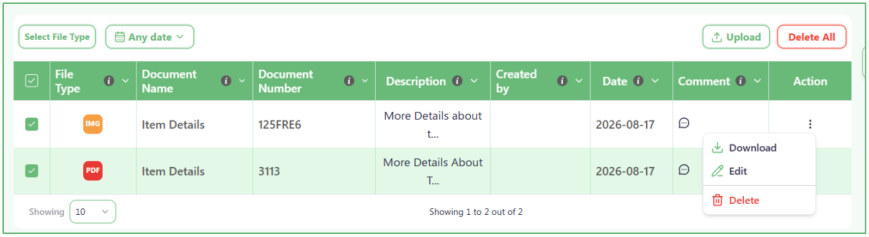
The Files section shows the documents that have already been uploaded for this item.
You can:
o Filter the files by File Type .
o Filter them by Date .
o Click Upload to add another file.
o Use the Action menu of a row to manage a specific file.
You can also select one or more files using the checkboxes in the first column. After selecting them, use Delete All to delete the selected files together.
- See the suppliers and manufacturer part numbers connected to this item.
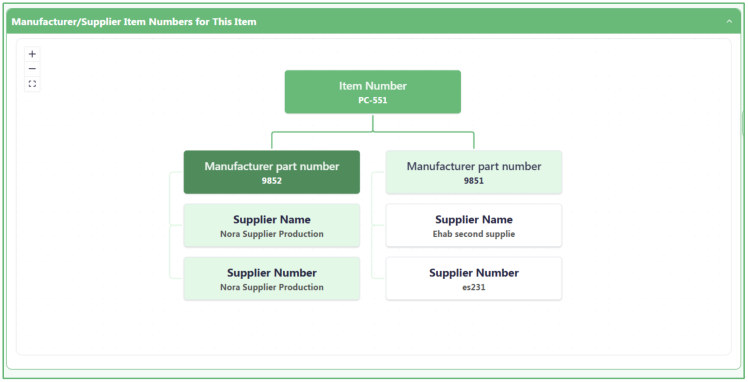
The Manufacturer/Supplier Item Numbers for This Item section shows all suppliers connected to the item.
It starts with the main Item Number , then shows each supplier together with:
o Manufacturer Part Number o Supplier Name o Supplier Number This is useful when the same item is supplied by more than one supplier and each supplier uses a different manufacturer or supplier part number.
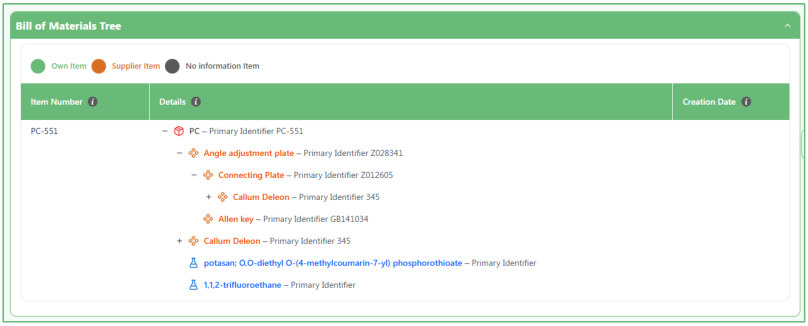
- Use the Bill of Materials Tree to understand how the item is built.
The Bill of Materials Tree shows the complete BOM structure as a hierarchy.
The selected item appears at the top. Under it, you can see its Components, Materials, Substances, and any additional levels connected below them.
For example, a Component may contain another Component, which may contain a Material, and that Material may contain a Substance.
The tree helps you understand which item is the Parent, and which items are connected underneath it.
The colors in the legend also help you identify:
o Own Item o Supplier Item o No information Item
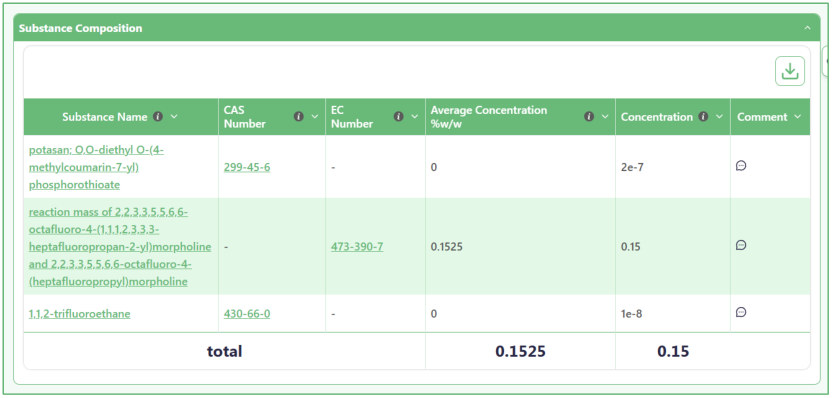
- Review all substances contained within the item.
The Substance Composition section collects all substances contained anywhere under this item in the BOM.
A substance does not need to be connected directly to the item to appear here.
For example, the substance may be inside a Material, and that Material may be inside a Component. It will still appear in this table because it is part of the complete item structure.
The table shows information such as:
o Substance Name o CAS Number o EC Number o Average Concentration %w/w o Concentration o Comment At the bottom, the Total row shows the total Average Concentration %w/w and Concentration for the substances listed.
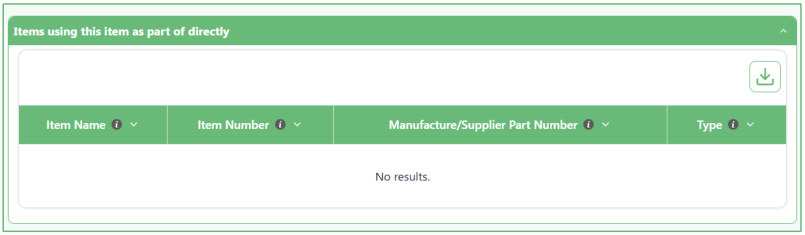
- Items using this item as part of directly.
The Items using this item as part of directly section shows the items where the current Component is connected directly under them.
For example:
Product A → Component X If you are viewing Component X , Product A will appear in this section because the Component is directly connected to it.
The table shows information such as:
- Item Name
- Item Number
- Manufacture/Supplier Part Number
- Type
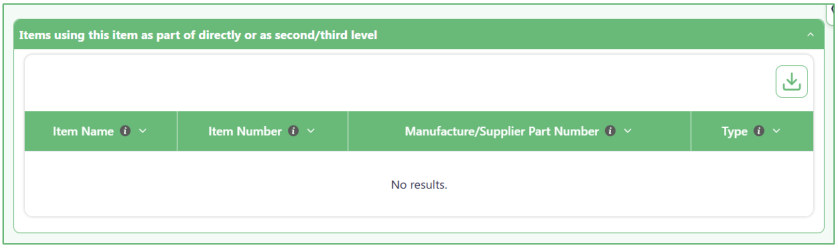
- Items using this item as part of directly or as second/third level.
The Items using this item as part of directly or as second/third level section shows items that contain the current Component anywhere in their BOM structure.
The Component may be connected:
- Directly under the item.
- Under a Component.
- Or several levels below the item.
For example:
Product A → Component B → → Component X Component X is not directly under Product A, but it is still part of Product A's BOM. Because of this, Product A will appear in this section.
The table shows:
- Item Name
- Item Number
- Manufacture/Supplier Part Number
- Type
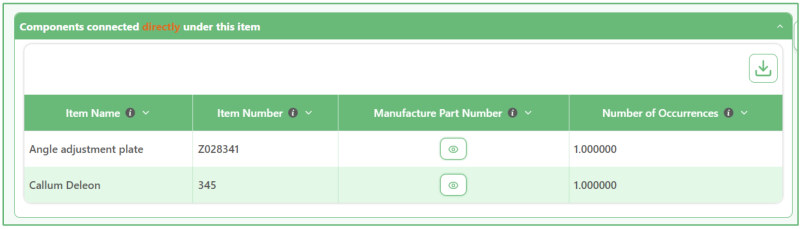
- See the Components connected directly under this item.
The Components connected directly under this item section show only the Components whose Parent is the current item.
For example:
Current Item → Component A → → Component B → Component C In this case, this section shows Component A and Component C . Component B is not shown here because it is under Component A, not directly under the current item.
The table shows:
o Item Name o Item Number o Manufacture Part Number o Number of Occurrences
- See the Materials connected directly to this item.
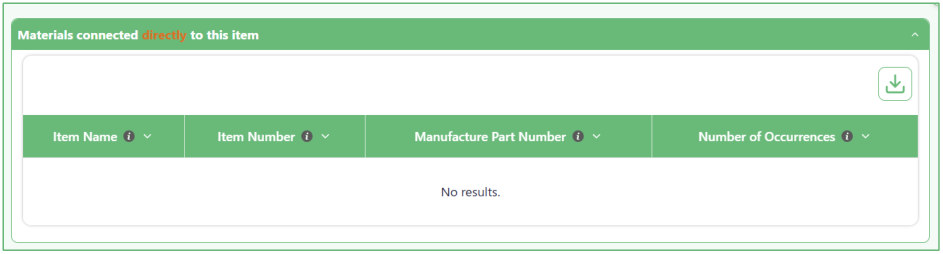
The Materials connected directly to this item section works in the same way as the direct Components section.
It shows only Materials whose Parent is the current item.
A Material that is inside a Component will not appear in this section because it is not directly connected to the current item.
If there are no directly connected Materials, the table shows No results .
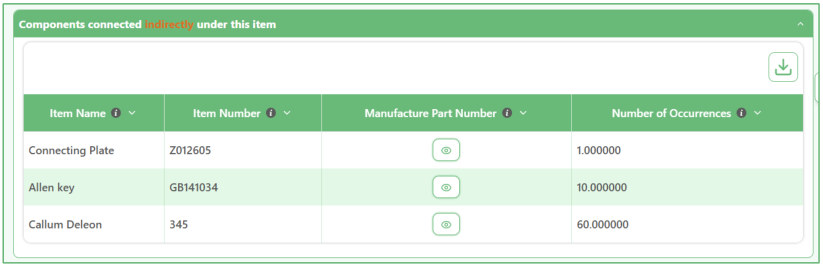
- See Components connected indirectly under this item.
The Components connected indirectly under this item section show Components that are part of this item's BOM but are not directly under the current item.
For example:
Current Item → Component A →→ Component B →→ Component C Component A is directly connected to the item. Component B and Component C are indirectly connected because they are under Component A.
The table shows:
o Item Name o Item Number o Manufacture Part Number o Number of Occurrences
- See Materials connected indirectly to this item.
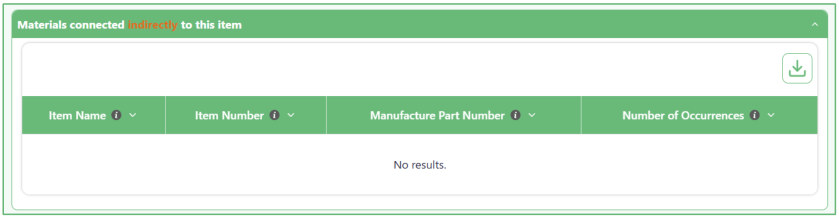
The Materials connected indirectly to this item section shows Materials that exist somewhere below the current item but are not directly connected to it.
For example, a Material may be under a Component, or under a Component that is itself inside another Component.
These Materials are still part of the BOM, so they appear in this section.
If there are no indirectly connected Materials, the table shows No results .
- Add new items directly under the current item.
Use the buttons below the BOM information when you want to add something directly under this item.
You can choose:
o Add Component under this Item o Add Material under this Item o Add Substance under this Item o Add RoHS Exemptions The Component, Material, or Substance you add from these buttons will be connected directly to the current item.

01.3 Materials Inventory
01.3.1 Add New BOM
- Use this page to create a new Material.
Start by entering the Material information. After that, you can build its BOM by adding Materials and Substances under it.
The process has three steps:
Material → Add Materials → Add Substance

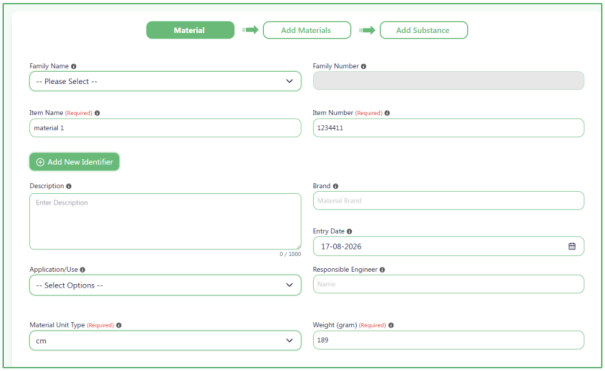
- Start by entering the main Material information.
Fill in the information you know about the Material, such as its name, number, description, brand, weight, status, category, and other details.
Fields marked Required must be completed before you continue.
- Choose a Family for the Material.
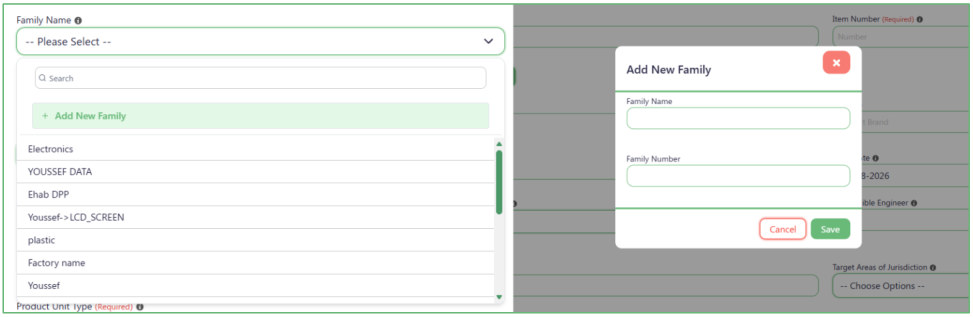
Open Family Name and select the correct family from the list.
The Family Number is connected to the Family Name. After you select a family, its Family Number is filled in automatically. You do not need to type it yourself.
If the family does not exist:
o Open the Family Name list.
o Click Add New Family .
o Enter the Family Name and Family Number .
o Click Save .
The new family can then be selected from the list.
- Enter the Item Name and Item Number.
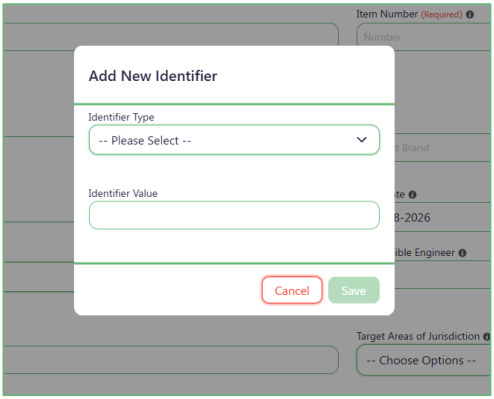
Enter the main name and number used to identify the Material.
If the Material has another identifier, click Add New Identifier .
In the window that opens:
o Select the Identifier Type .
o Enter the Identifier Value .
o Click Save .
You can add more than one additional identifier if needed.
- Choose Material Status.
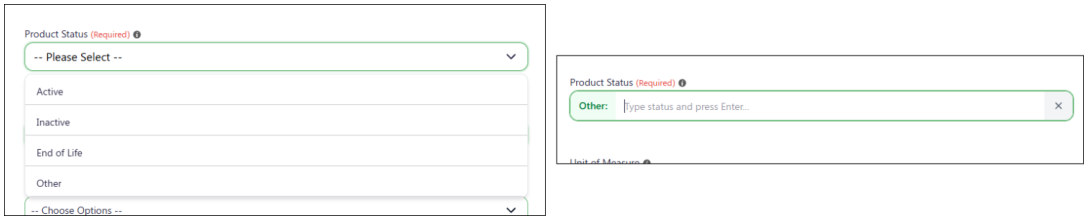
Select one of the available statuses:
o Active o Inactive o End of Life If none of these statuses is correct, select Other . A new field will appear where you can type your own status.
- Choose the Unit of Measure before entering the Material Amount.
- The Material Amount field is not available at first First, select a Unit of Measure . After you select it, the Material Amount field becomes available, and you can enter the amount.
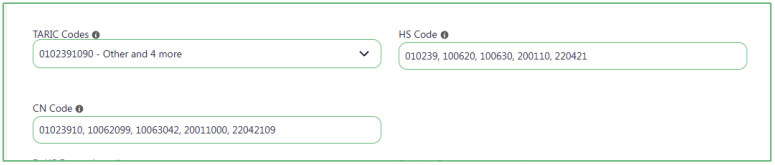
- Use TARIC Codes to help fill the HS Code and CN Code.
Select one or more values from TARIC Codes .
The system uses each selected TARIC Code to automatically fill:
o HS Code using the first 6 digits.
o CN Code using the first 8 digits.
After the values are filled in, you can still change the HS Code or CN Code manually if needed.
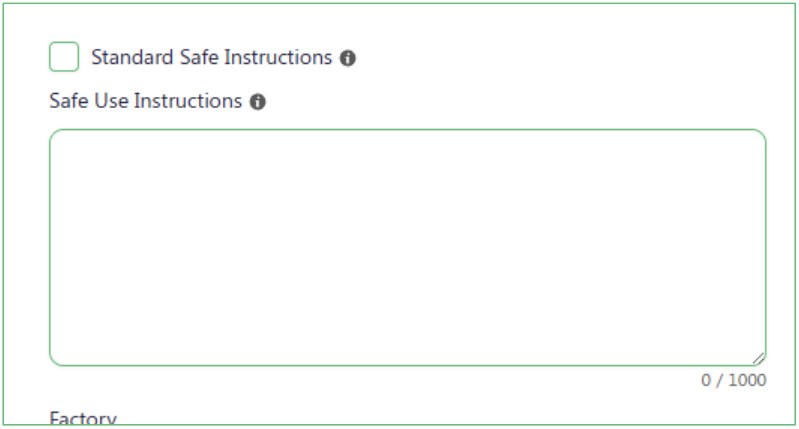
- Choose whether to use the standard safe instructions.
Standard Safe Instructions is selected by default.
While it is selected, the Safe Use Instructions field is locked.
If you want to write your own instructions:
o Remove the check from Standard Safe Instructions .
o The Safe Use Instructions field will become available.
o Type your instructions in the field.
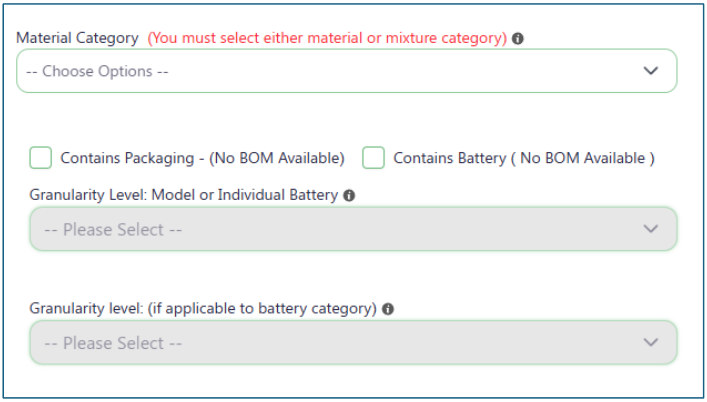
- Use Additional Categories to select any additional categories that apply to the Material.
For Mixture Categories and Material Category , you can use only one of them.
- If you select a Mixture Category , the Material Category field becomes unavailable.
- If you select a Material Category , the Mixture Categories field becomes unavailable.
You cannot select values from both fields at the same time.
The Resin Sources field is locked by default.
If you select a Material Category that is related to resin, the Resin Sources field becomes available and is required.
Select one of the available Resin Sources:
- Virgin fossil-based resin
- Virgin bio-based resin
- Post-consumer recycled resin
- Post-industrial recycled resin

- Choose the Material Category and related options.
Select the correct Material Category .
You can also select:
o Contains Packaging (No BOM Available) o Contains Battery (No BOM Available) If you select Contains Battery , the two Granularity Level fields below it becomes available. Select the required values from these fields.
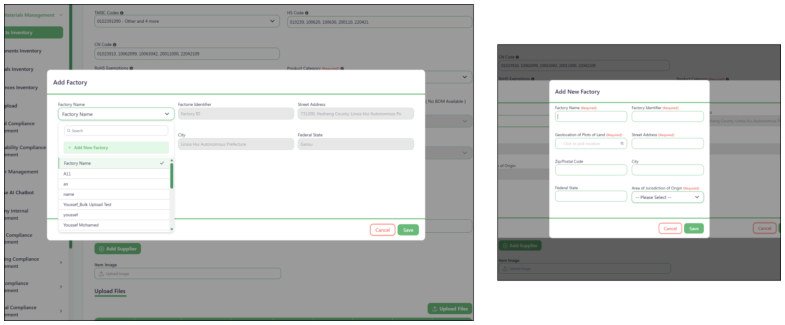
- Add the factories where the Material is made.
Click the + button under Factory .
In the Factory window, select a Factory Name .
After you select the factory, the system automatically fills its saved information, including:
o Factory Identifier o Street Address o Zip/Postal Code o City o Federal State o Area of Jurisdiction of Origin If the factory is not in the list, open Factory Name and click Add New Factory to create it.
You can add more than one factory if the Component is made in different factories.
- Tell the system whether this is your own Material.
If this is an Own Material , select the Own Material checkbox.
When it is selected, the Supplier and Manufacture/Supplier Part Number fields are hidden because an external supplier is not needed.
If it is not an Own Material:
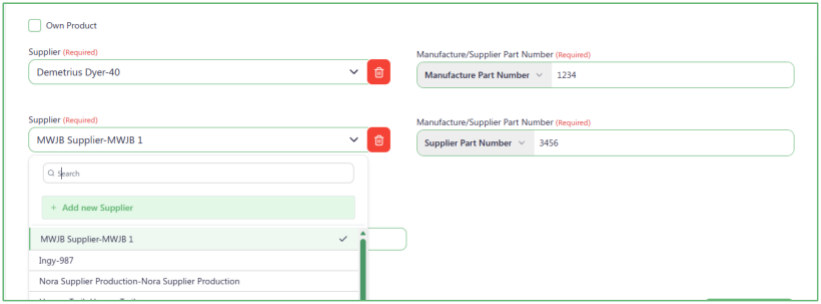
o Select the supplier you receive the item from.
o Enter its Manufacture/Supplier Part Number .
You can add more than one supplier. Each supplier can have its own Manufacture/Supplier Part Number.
If the supplier does not exist, open the Supplier list and click Add new Supplier .
- Upload documents if the Material has any.
Uploading documents is optional.
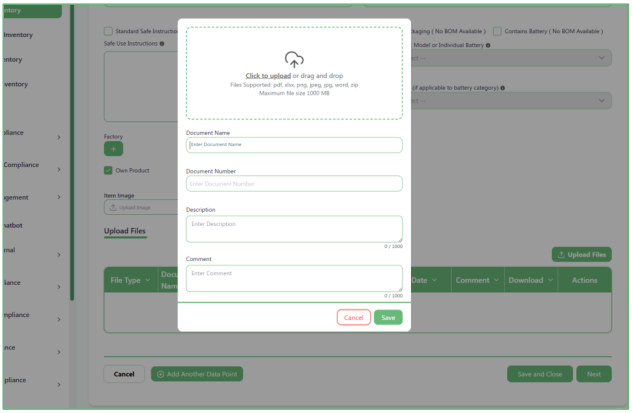
If you have a document related to the Material, click Upload Files .
Select the file or drag and drop it into the upload area. Then enter the document information:
o Document Name o Document Number o Description o Comment Click Save to add the document.
If the Material does not have any documents, you can continue without uploading a file.
- Add any extra information that does not have a field on the page.
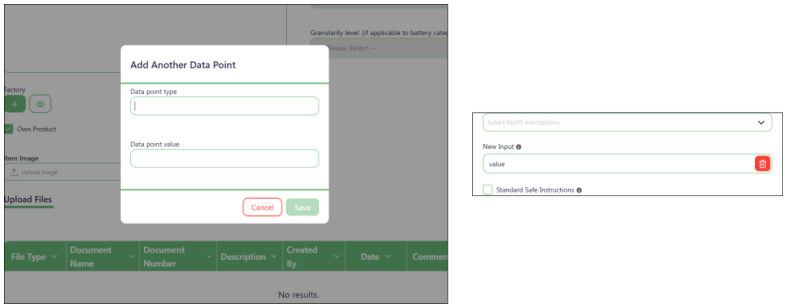
Click Add Another Data Point if you need to save extra information.
Enter:
o Data point type — the name of the information.
o Data point value — the value you want to save.
Click Save and the new field will appear with the other product information.
You can add more than one extra data point.
- Click Next to start adding Material under this Material.
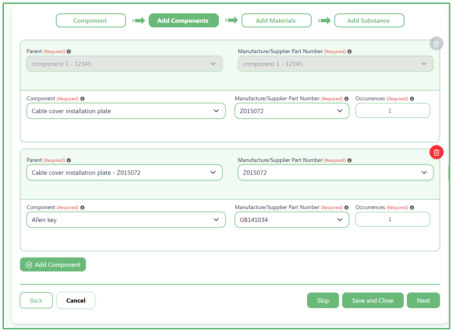
- Material are items that are used to build this Material.
- In the Material field, select a Material that has already been created in the system.
- Each Material also has a Parent . The Parent tells the system what the Material belongs directly to.
- The first Material must be placed under the Material you are currently creating.
- After that, a new Material can be placed under:
- o The Material you are currently creating.
- o Or a Material that was added before it.
- For example:
- Material you are currently creating
- Material 1 o Material 2 o Material 3
- Material 4 This means Material 2 and Material 3 are inside Material 1, while Material 1 and Material 4 are directly inside the Material you are currently creating.
Use Add Material to add more Material.
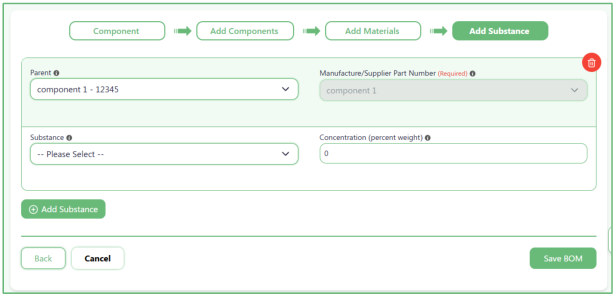
- Click Next to add Substances.
This is the last step of the BOM.
Select the Parent where the substance belongs, then select the Substance .
Enter the substance amount in Concentration (percent weight) .
Use Add Substance if you need to add more substances.
- Use the navigation buttons to move through the BOM.
While creating the BOM:
o Back takes you to the previous step.
o Next takes you to the next step.
o Skip lets you continue without adding anything in that step when it is available.
o Save and Close saves your work and closes the BOM form.
o Cancel leaves the process without continuing.

- Save the completed BOM.
After you finish adding the required Components, Materials, and Substances, click Save BOM .
The system will save the BOM with the structure and relationships you created.
01.3.2 Created items table
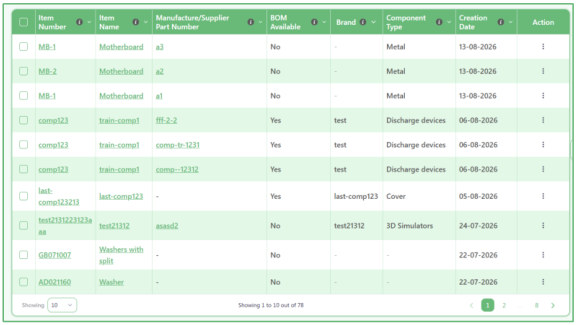
- Use this page to view all items in the system.
The table shows the items that have already been created. Each row represents one item and shows information such as:
o Item Number o Item Name o Manufacture/Supplier Part Number o BOM Available o Brand o Product Type o Creation Date
- Click "Add New BOM" to create a new item.
Use the Add New BOM button when you want to add a new item and build its BOM.
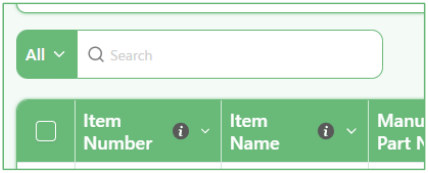
- Use the small Search box to quickly find text in the table.
Type a word or value in the Search box above the table.
The system searches for that value across the information shown in the table, so you do not need to choose a specific field first.
For example, you can search for an item name, item number, brand, or another value shown in the table.
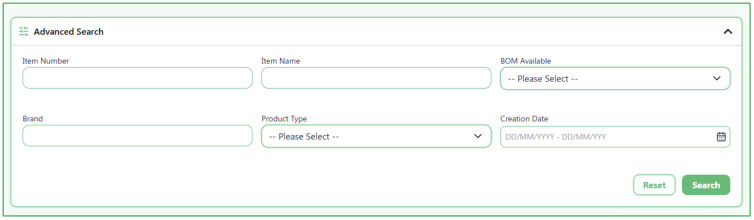
- Use Advanced Search when you know specific information about the item.
Open Advanced Search and enter one or more details you want to search by.
You can search using:
o Item Number o Item Name o BOM Available o Brand o Product Type o Creation Date You do not need to fill in every field. Enter only the information you know, then click Search .
Click Reset if you want to clear the search fields and start again.
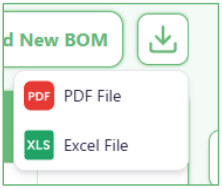
- Download the table when you need a copy of the item list.
Click the Download button above the table to export the table.
You can download the information as a PDF or Excel file.
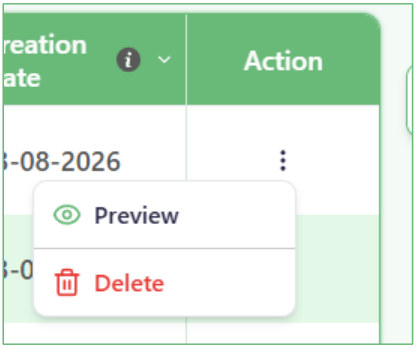
- Use the Action menu to work with a specific item.
At the end of each row, click the three-dot Action menu .
You can choose:
o Preview to open and review the item information.
o Delete to remove the item.
Make sure you select the correct row before using Delete.
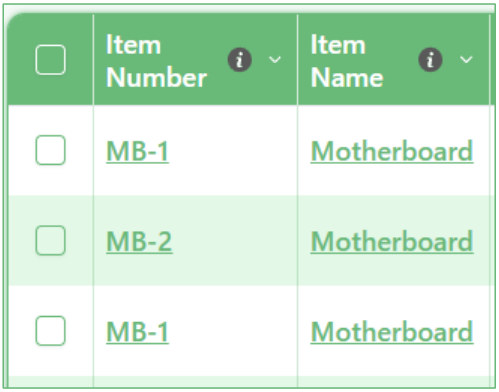
- Open a Material to review its details.
Click the Item Number or Item Name link in a row to open the selected Component and review its full information.
01.3.3 Item Preview
- The Item Preview page shows the information that was entered when the item was created. It also shows the files, BOM structure, connected items and substances
- Review or edit the item information.
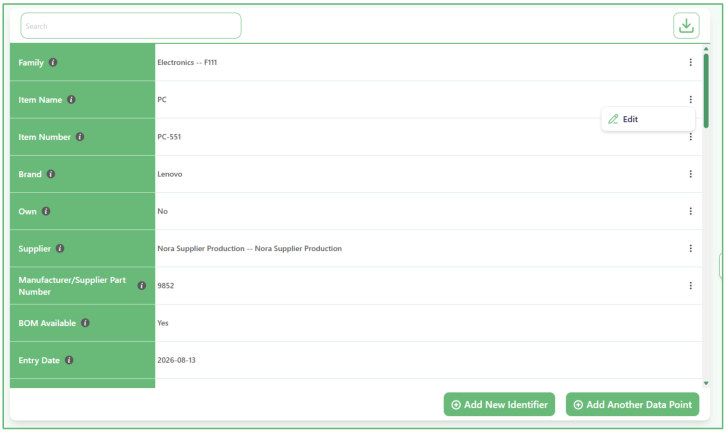
The first section shows the saved information for the item, such as:
o Family o Item Name o Item Number o Brand o Own Product status o Supplier o Manufacturer/Supplier Part Number o BOM Available o Entry Date o Other saved fields
Each row shows the field name and its current value.
To change a value, click the three-dot menu at the end of its row and use the available Edit action.
You can also use the Search field at the top to quickly find a specific field.
- Add more identifiers or additional information when needed.
Use Add New Identifier if you want to add another identifier to the item.
Use Add Another Data Point if you want to add a new piece of information that does not already have a field on the item.
These work in the same way as when the item was first created.
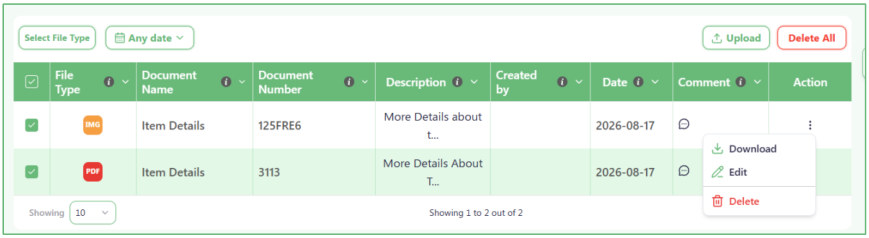
- Review and manage the files attached to the item.
The Files section shows the documents that have already been uploaded for this item.
You can:
o Filter the files by File Type .
o Filter them by Date .
o Click Upload to add another file.
o Use the Action menu of a row to manage a specific file.
You can also select one or more files using the checkboxes in the first column. After selecting them, use Delete All to delete the selected files together.
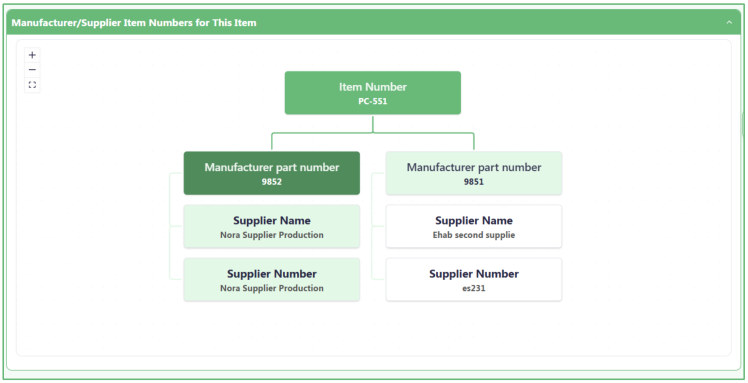
- See the suppliers and manufacturer part numbers connected to this item.
The Manufacturer/Supplier Item Numbers for This Item section shows all suppliers connected to the item.
It starts with the main Item Number , then shows each supplier together with:
o Manufacturer Part Number o Supplier Name o Supplier Number This is useful when the same item is supplied by more than one supplier and each supplier uses a different manufacturer or supplier part number.
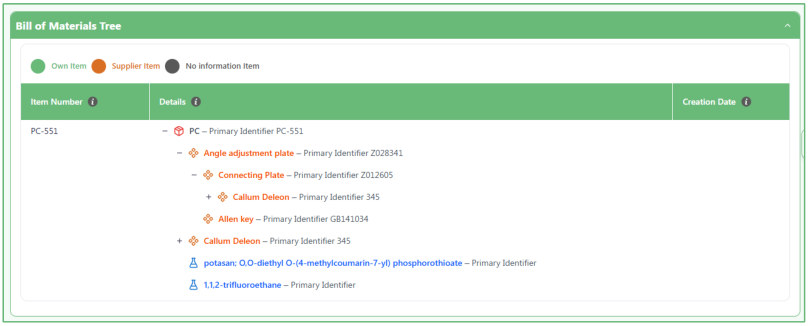
- Use the Bill of Materials Tree to understand how the item is built.
The Bill of Materials Tree shows the complete BOM structure as a hierarchy.
The selected item appears at the top. Under it, you can see its Materials, Substances, and any additional levels connected below them.
The tree helps you understand which item is the Parent, and which items are connected underneath it.
The colors in the legend also help you identify:
o Own Item o Supplier Item o No information Item
- Review all substances contained within the item.
The Substance Composition section collects all substances contained anywhere under this item in the BOM.
A substance does not need to be connected directly to the item to appear here.
For example, the substance may be inside a Material, and that Material may be inside a Component. It will still appear in this table because it is part of the complete item structure.
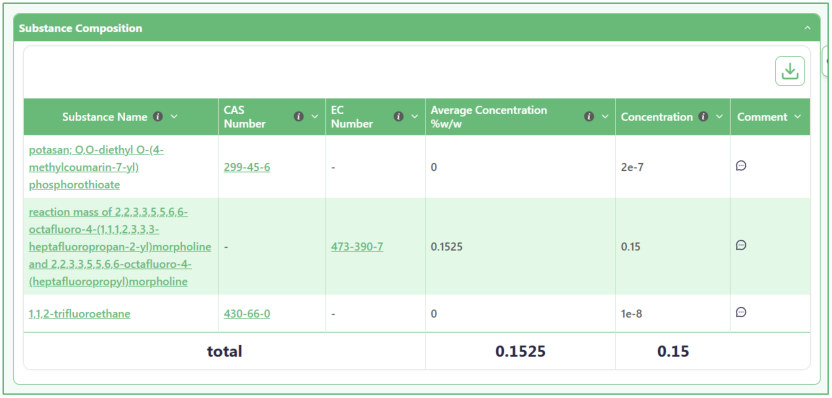
The table shows information such as:
o Substance Name o CAS Number o EC Number o Average Concentration %w/w o Concentration o Comment At the bottom, the Total row shows the total Average Concentration %w/w and Concentration for the substances listed.
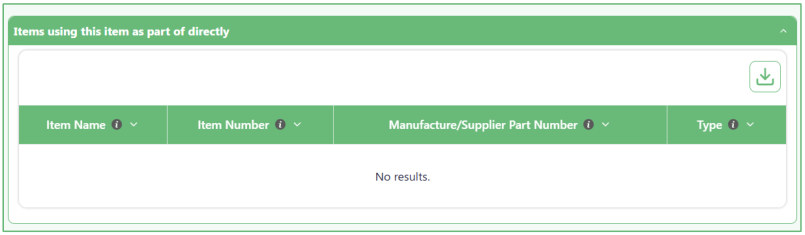
- Items using this item as part of directly.
The Items using this item as part of directly section shows the items where the current Material is connected directly under them.
For example:
Component A → Material X If you are viewing Material X , Component A will appear in this section because the Material is directly connected to it.
The table shows information such as:
- Item Name
- Item Number
- Manufacture/Supplier Part Number
- Type
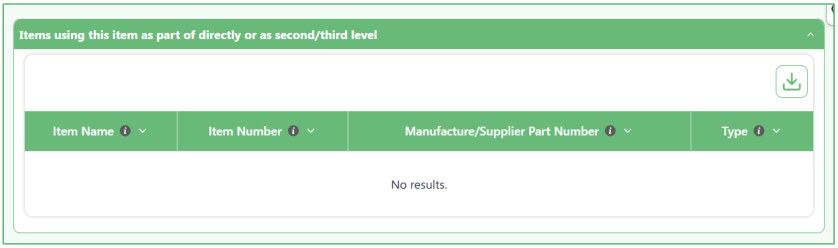
- Items using this item as part of directly or as second/third level.
The Items using this item as part of directly or as second/third level section shows items that contain the current Material anywhere in their BOM structure.
The Material may be connected:
- Directly under the item.
- Under a Component.
- Or several levels below the item.
For example:
Product A → Component B → → Material X Material X is not directly under Product A, but it is still part of Product A's BOM. Because of this, Product A will appear in this section.
The table shows:
- Item Name
- Item Number
- Manufacture/Supplier Part Number
- Type
- Add new items directly under the current item.
Use the buttons below the BOM information when you want to add something directly under this item.
You can choose:
o Add Material under this Item o Add Substance under this Item
o Add RoHS Exemptions The Material, or Substance you add from these buttons will be connected directly to the current item.
01.4 Substances Inventory
01.4.1 Substances Inventory Table
- Use this page to view all Substances used in BOMs.
This page does not create new Substances.
Instead, it shows every Substance that has already been used inside a BOM in the system.
A Substance can appear here if it was added under:
o A Product o A Component o A Material
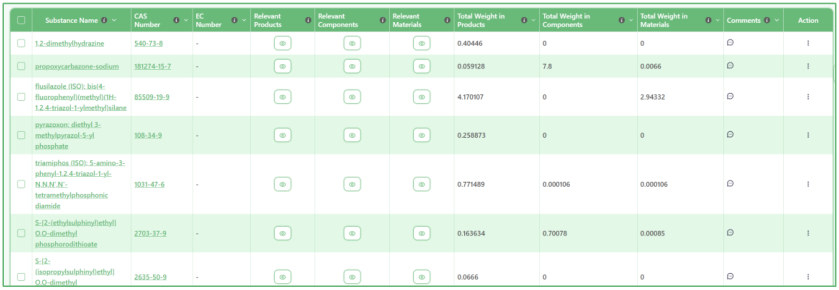
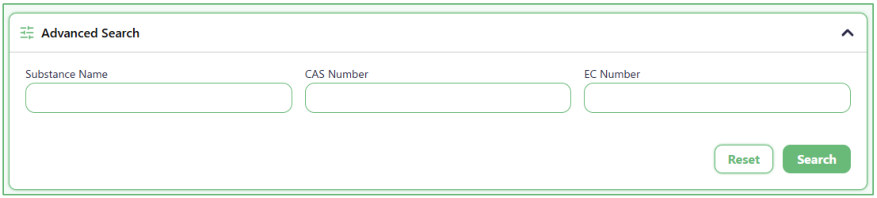
- Use Advanced Search to find a specific Substance.
Open Advanced Search when you know specific information about the Substance.
You can search using:
o Substance Name
o CAS Number o EC Number You do not need to fill in every field. Enter only the information you know, then click Search .
Click Reset if you want to clear the search fields and start again.
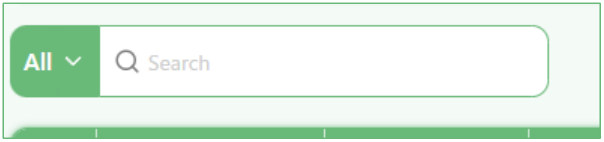
- Use the small Search box to quickly search the table.
Type a word or value in the Search box above the table.
The system searches across the information shown in the table, so you do not need to choose a specific field first.
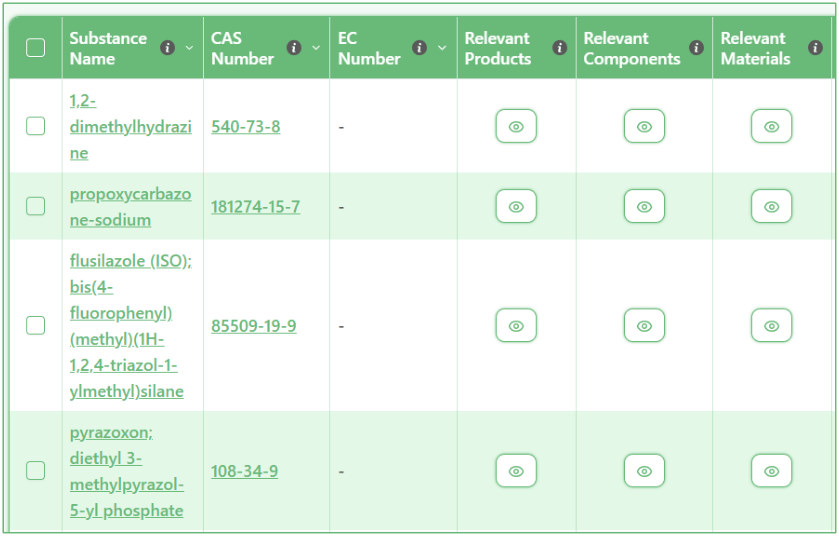
- Review where each Substance is used.
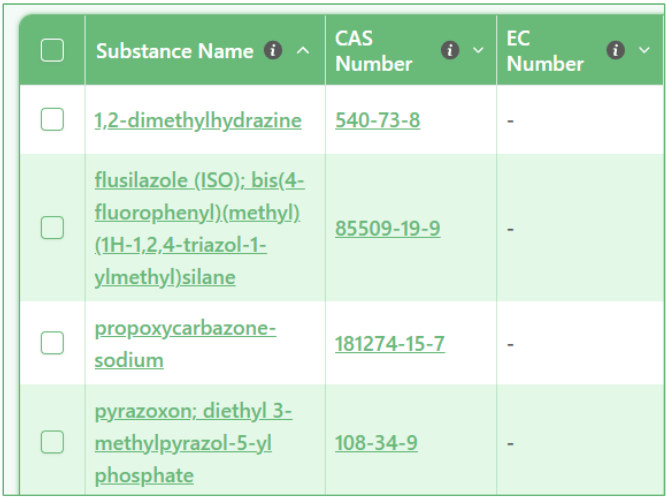
Each row represents one Substance and shows information such as:
o Substance Name o CAS Number o EC Number o Relevant Products o Relevant Components o Relevant Materials Use the eye button in the Relevant Products, Components, or Materials columns to see the items where that Substance is being used.
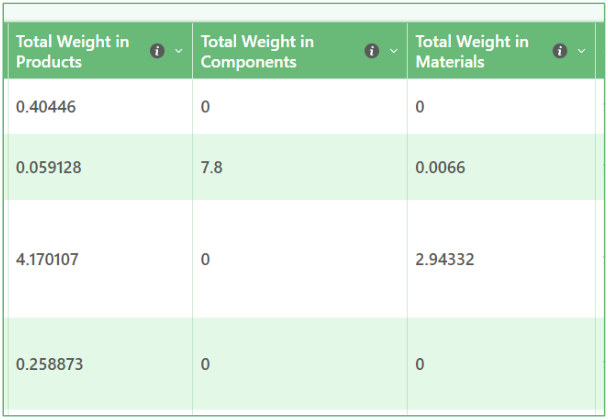
- Check the total Substance weight across different item types.
The table also shows how much of the Substance is used across:
o Total Weight in Products o Total Weight in Components o Total Weight in Materials This helps you quickly understand where the Substance is being used and its total weight in each item type.
- Open a Substance to review more details.
Click the Substance Name or CAS Number link in a row to open the selected Substance and review its full information.
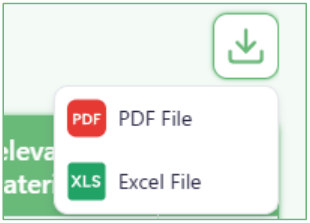
- Download the table when you need a copy of the Substance list.
Click the Download button above the table to export the available Substance information.
01.4.2 Substance Preview
- Review the Substance details.
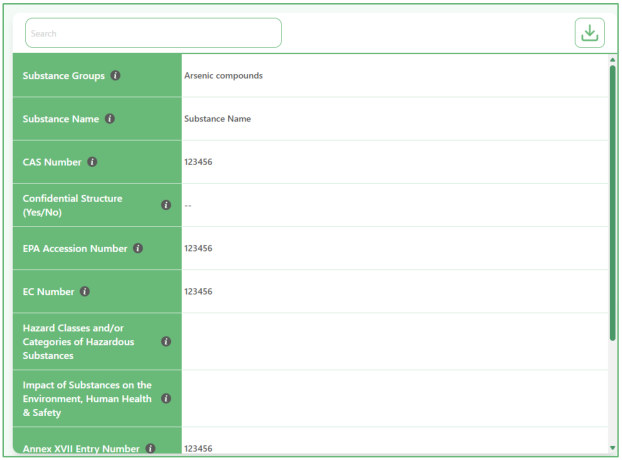
The first section shows the available information for the Substance, such as:
o Substance Groups o Substance Name o CAS Number o EC Number
o EPA Accession Number o Confidential Structure o Hazard Classes and Categories o Environmental, Human Health, and Safety information o Other available Substance details This section is for reviewing the saved information.
Use the Search field at the top if you want to quickly find a specific field.
- The Substance Relevant section shows the items where this Substance appears in the system.
The information is divided into:
o Relevant Products o Relevant Components o Relevant Materials This helps you understand which items contain the selected Substance.
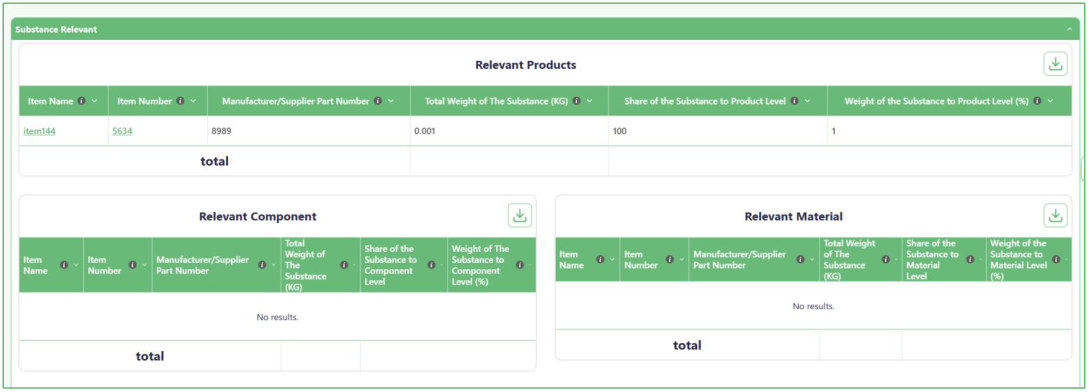
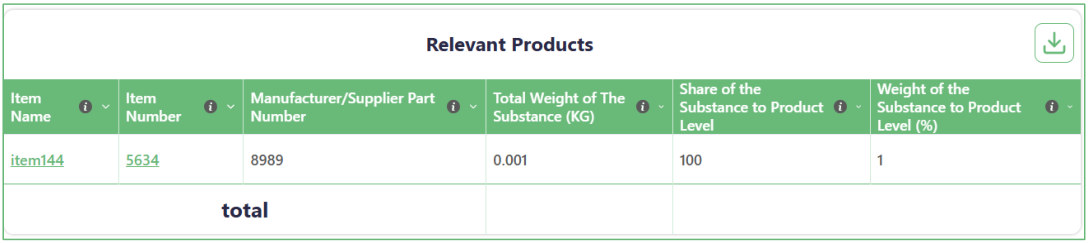
- Review Products that contain the Substance.
The Relevant Products table shows Products where the selected Substance is used.
The table can show information such as:
o Item Name o Item Number o Manufacturer/Supplier Part Number o Total Weight of the Substance (KG) o Share of the Substance to Product Level o Weight of the Substance to Product Level (%) The Total row at the bottom summarizes the available values.
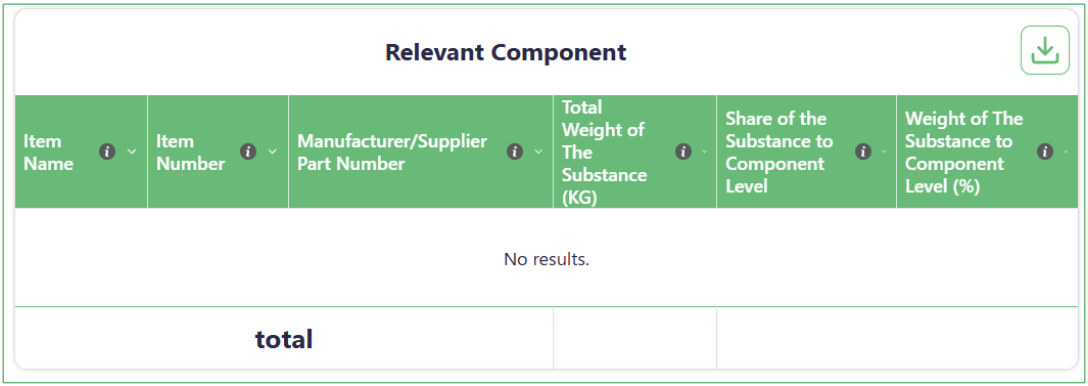
- Review Components that contain the Substance.
The Relevant Component table shows Components where the selected Substance is used.
It includes information about the Component and the amount of the Substance at the Component level.
If the Substance is not used in any Component, the table shows No results .
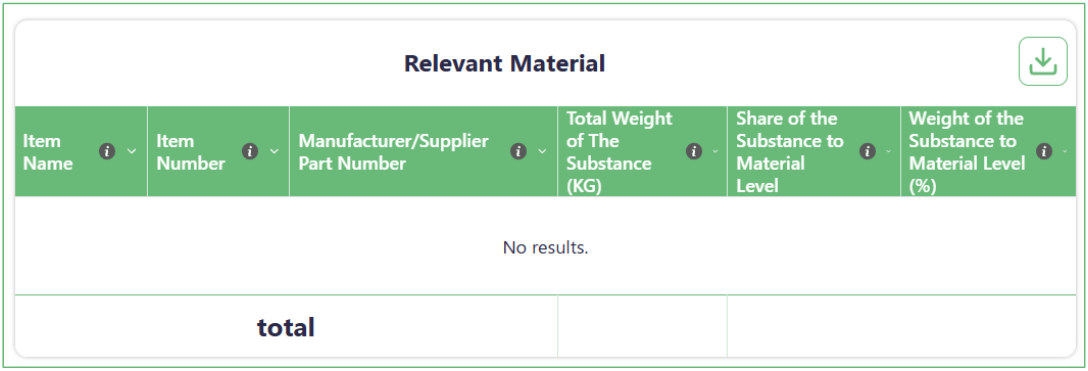
- Review Materials that contain the Substance.
The Relevant Material table shows Materials where the selected Substance is used.
It includes information about the Material and the amount of the Substance at the Material level.
If the Substance is not used in any Material, the table shows No results .
01.5 Bulk Upload
01.5.1 Master BOM Uploads
- The Master BOM Uploads feature allows you to upload all your items— including products, components, materials, and substances—in bulk using Excel sheets.
- You simply fill in the required information in the provided templates and upload them all at once, instead of adding each item individually into the system one by one.
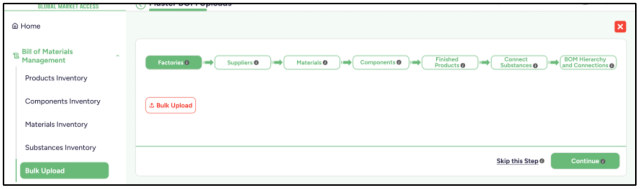
- This feature is organized into multiple tabs that must be completed step by step. You cannot move to the next step until the previous one is completed, as each step is directly dependent on the data from the previous step.
- For each step, you need to:
- 1. Download the corresponding template 2. Fill in the required data 3. Upload the completed template 4. Proceed to the next step
- Please note that each step may take some time to upload, depending on the volume of data being submitted.
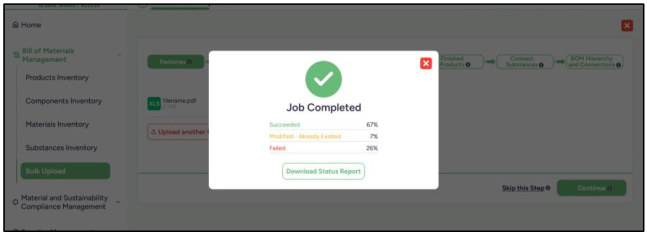
- After each upload, the system displays the upload status, showing whether the process succeeded or if there were any failed records.
You can download a status report that details all failed entries, review the errors, correct the data, and re-upload the fixed records again.
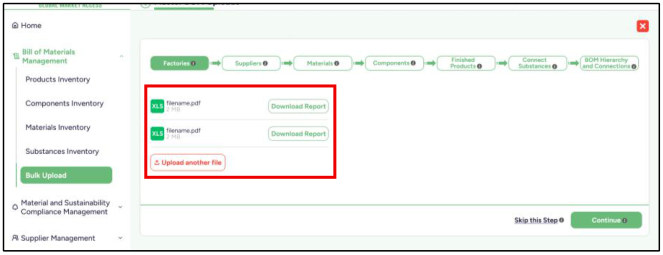
- In each step, you can upload multiple files within the same step. This allows you to split large datasets into smaller parts and upload them separately when the data volume is high.
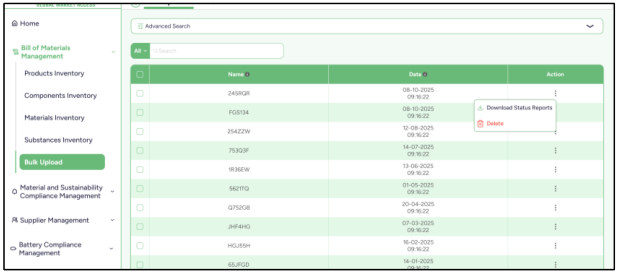
01.5.2 Bulk Upload Status
This section shows the status of all Master BOM uploads, including the date each upload was performed.
You can also download a file containing the detailed status for each upload.
01.5.3 Bulk Delete
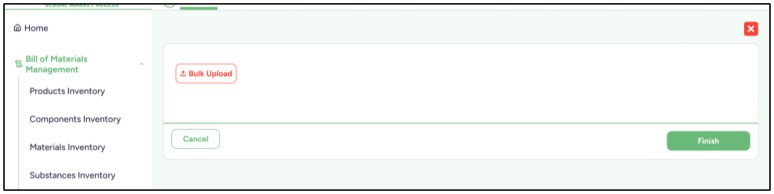
- This feature works similarly to Master BOM Uploads, but it consists of a single step only.
- You download the template file, add the items you want to delete from the system, then upload the file. The listed items will be deleted automatically.
01.5.4 Bulk Delete Status
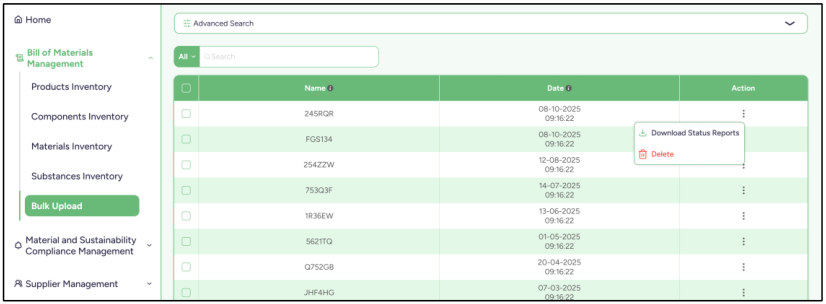
This section shows the status of all Bulk Delete, including the date each upload was performed.
You can also download a file containing the detailed status for each upload.
03. Material Compliance Management
03.1 Legislation and Regulatory Management
03.1.1 Legislation and Regulatory Management
Add new legislation
- Use this page to create a new Legislation.
- The process has two steps:
- Main Legislation → Add Sub-Legislation Start by entering the main Legislation information. After that, you can add one or more Sub- Legislations under it.
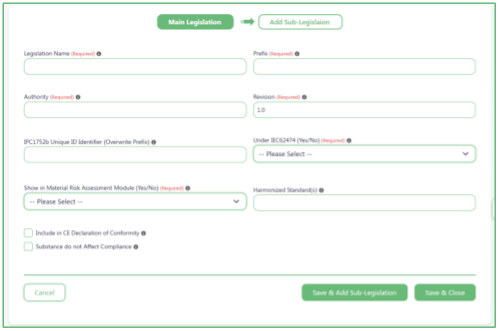
- Enter the Main Legislation information.
Fill in the available information for the Legislation, such as:
o Legislation Name o Prefix o Authority o Revision o IPC1752b Unique ID Identifier o Under IEC62474 o Show in Material Risk Assessment Module o Harmonized Standard(s) Fields marked Required must be completed before you continue.
Choose the additional Legislation options when needed.
Use the available checkboxes to control how the Legislation is used in the system.
These include:
o Include in CE Declaration of Conformity o Substance do not Affect Compliance Select only the options that apply to the Legislation you are creating.
- Choose how you want to save the Main Legislation.
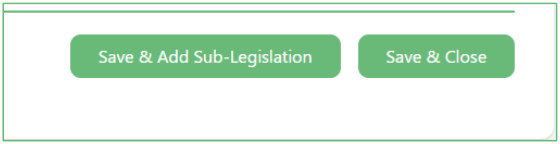
After entering the required information, you can choose:
o Save & Add Sub-Legislation — saves the Main Legislation and moves you to the next step so you can add Sub-Legislations.
o Save & Close — saves the Main Legislation and closes the form without adding Sub- Legislations now.
- Add a Sub-Legislation under the Main Legislation.
In the second step, enter the information for the Sub-Legislation.
Each Sub-Legislation can have its own information, such as:
o Sub-Legislation Name o Prefix o Authority o Revision o IPC1752b Unique ID Identifier o Under IEC62474 o Show in Material Risk Assessment Module o Harmonized Standard(s) Each Sub-Legislation also has additional options that you can select when needed:
o Substance do not Affect Compliance o Inherit Compliance to Parent Legislation o Include in CE Declaration of Conformity Inherit Compliance to Parent Legislation connects the Sub-Legislation's compliance behavior to its Main Legislation.
A Main Legislation can contain more than one Sub-Legislation.
Click Add Sub-Legislation to add another one.
Each added Sub-Legislation can be expanded to enter its details or collapsed when you do not need to view the fields.
Use the Delete button on the Sub-Legislation you want to remove.
Make sure you are deleting the correct Sub-Legislation before continuing.
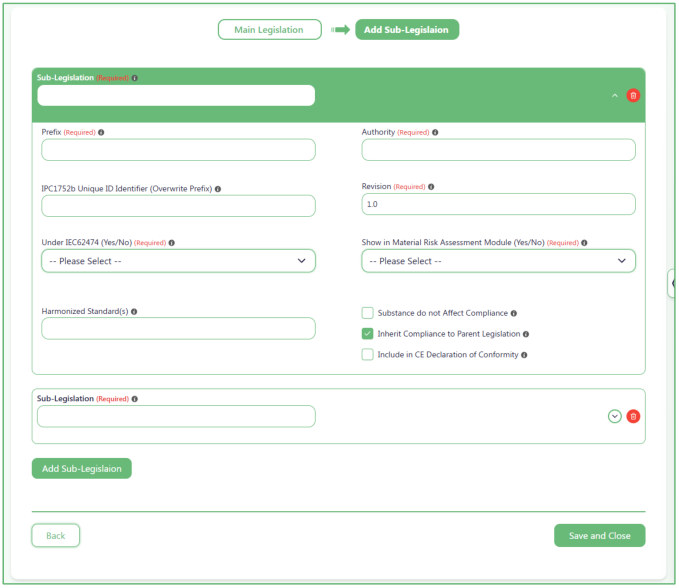
- Save the Legislation and its Sub-Legislations.
When you finish adding the required Sub-Legislations, click Save and Close .
The system will save the Main Legislation together with all Sub-Legislations you added under it.
Use Back if you need to return to the Main Legislation step before saving.
Add new legislation
- Use this page to add Sub-Legislations to an existing Main Legislation.
- This page is used when the Main Legislation already exists and you only want to add one or more Sub-Legislations under it.
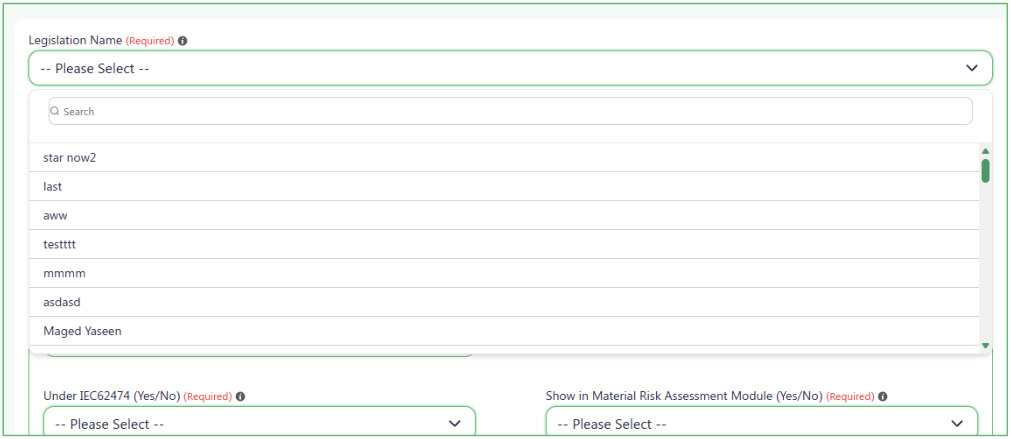
- Select the Main Legislation first.
Open the Legislation Name list and choose the Main Legislation that the new Sub-Legislation should belong to.
The Sub-Legislations you add on this page will be saved under the selected Main Legislation.
- Enter the Sub-Legislation information.
Fill in the available information for the Sub-Legislation, such as:
o Sub-Legislation Name o Prefix o Authority o Revision o IPC1752b Unique ID Identifier o Under IEC62474 o Show in Material Risk Assessment Module
- o Harmonized Standard(s) Fields marked Required must be completed before you save.
- You can also select:
- Substance do not Affect Compliance
- Inherit Compliance to Parent Legislation
- Include in CE Declaration of Conformity Select only the options that apply to the Sub-Legislation you are adding.
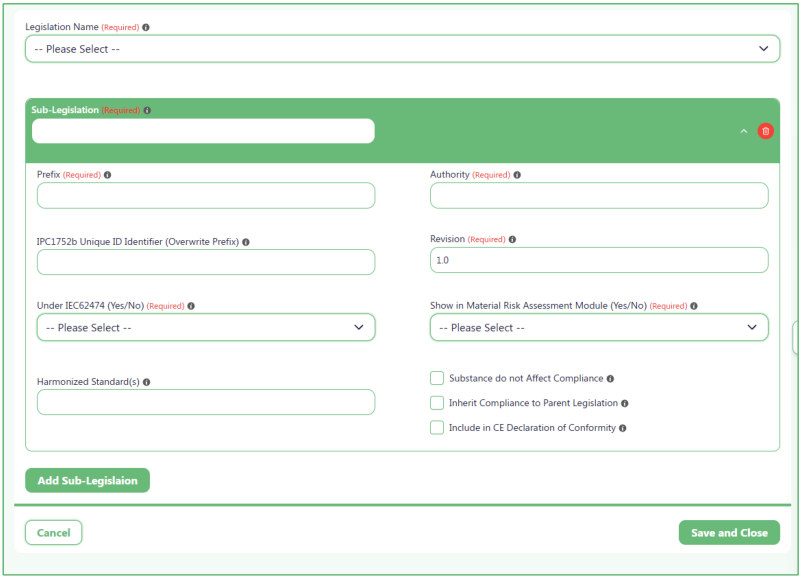
- Click Add Sub-Legislation to add another Sub-Legislation under the same selected Main Legislation.
- You can add more than one Sub-Legislation before saving.
- Remove a Sub-Legislation if needed.
- Use the Delete icon on a Sub-Legislation section to remove it before saving.
- Save the new Sub-Legislations.
When you finish entering the Sub-Legislation information, click Save and Close .
The new Sub-Legislations will be saved under the Main Legislation you selected at the top of the page.
Use Cancel if you want to leave without saving the new entries.
Created legislation preview
- Use this page to view and manage all Legislations in “ module name ”.
The table shows the Main Legislations that have already been added.
Each row shows information such as:
o Main Legislation Name o Sub-Legislation o Prefix o IPC1752b Unique ID Identifier o Authority o Revision o Under IEC62474 o Assigned List of Substances o Enable/Disable status
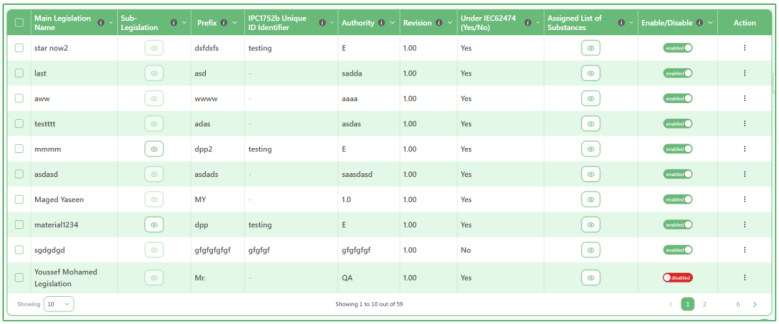
- Use Advanced Search to find a specific Legislation.
Open Advanced Search when you know specific information about the Legislation.
You can search using:
o Main Legislation Name o Prefix
o IPC1752b Unique ID Identifier o Authority o Revision o Under IEC62474 You do not need to fill in every field. Enter only the information you know, then click Search .
Click Reset if you want to clear the fields and start again.
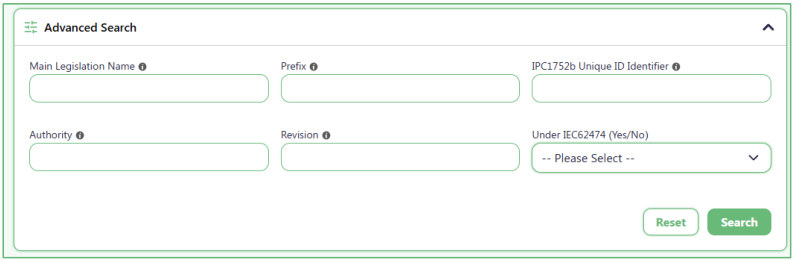
- Use the small Search box for a quick table search.
- Type a word or value in the Search box above the table.
- The system searches across the information shown in the table, so you do not need to choose a specific field first.
- Add a new Main Legislation when needed.
Click Add New Legislation to create a new Main Legislation.
Add a Sub-Legislation to an existing Main Legislation.
Click Add New Sub-Legislation when the Main Legislation already exists and you only need to add one or more Sub-Legislations under it.

- View the Sub-Legislations connected to a Main Legislation.
In the Sub-Legislation column, click the eye button to see the Sub-Legislations connected to that Main Legislation.
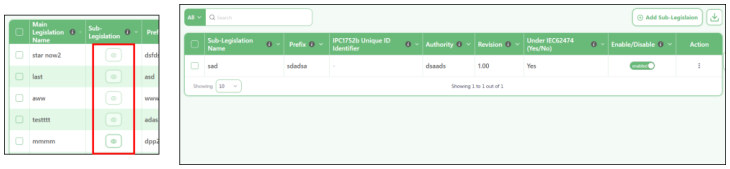
- View the substances assigned to a Legislation.
Use the eye button in the Assigned List of Substances column to see the substances assigned to that Legislation.
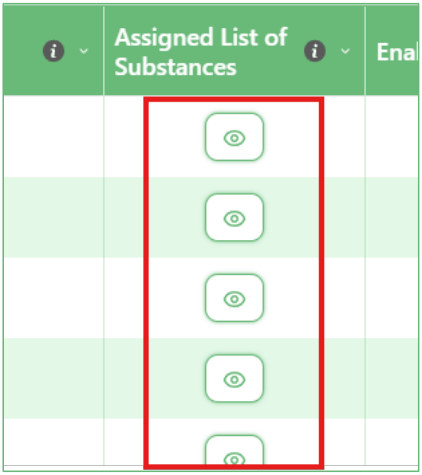
- Enable or disable a Legislation.
Use the switch in the Enable/Disable column to control whether the Legislation is active in the system.
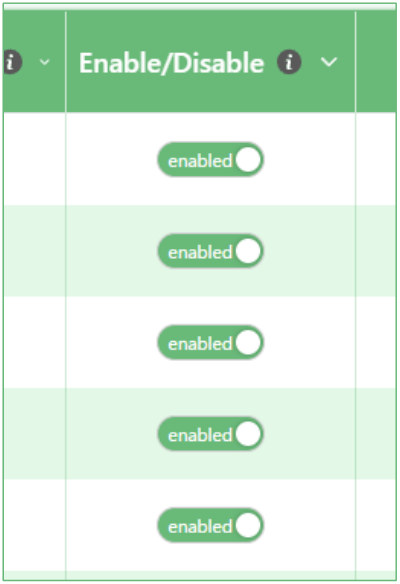
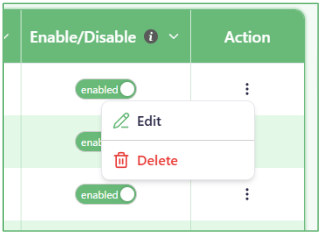
- Edit or delete a Legislation.
Click the three-dot Action menu at the end of a row.
You can choose:
o Edit to change the Legislation information.
o Delete to remove the Legislation.
Make sure you select the correct row before deleting.
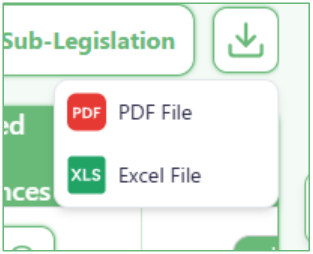
- Download the Legislation table when you need a copy.
Click the Download button above the table to export the displayed Legislation information.
03.1.2 Applicable Legislation and Regulatory Management
Add New Requirement
- Use this page to create a new compliance requirement.
This page connects a Legislation to one or more items and defines the evidence that must be provided.
You can choose:
o Main Legislation o Sub-Legislation o Area of Jurisdiction where it applies o The required evidence o The due date o Products, Components, Materials, or Substances that the requirement applies to
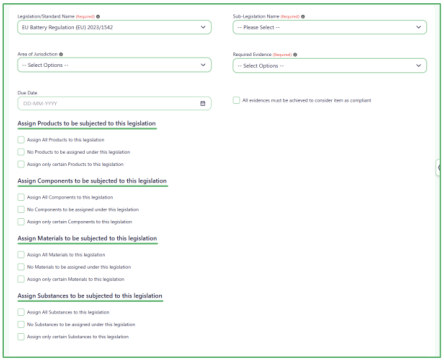
- Select the Main Legislation and Sub-Legislation.
- Start by selecting a Legislation/Standard Name from the Legislations already available in the system.
- After you select the Main Legislation, choose the related Sub-Legislation Name .
- Choose where the requirement applies.
- Use Area of Jurisdiction to select the country or countries where this requirement should apply.
- You can select one country or multiple countries.
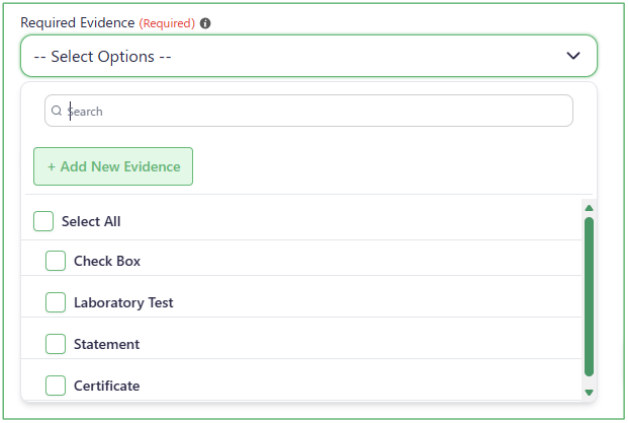
- Choose the evidence that must be provided.
Open Required Evidence and select the evidence needed for this requirement.
You can select more than one evidence type.
The system already includes common evidence types such as:
o Check Box o Laboratory Test o Statement o Certificate If the evidence you need is not available, click Add New Evidence to create another evidence type.
- Set the Due Date for the required evidence.
- Use Due Date to choose the date by which the required evidence should be uploaded.
- This tells users when the requested evidence must be provided.
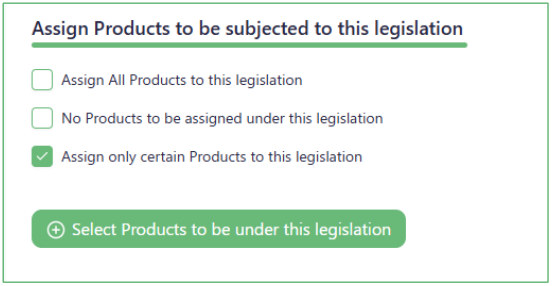
- Choose which Products the Legislation applies to.
In the Products section, choose one of the following options:
o Assign All Products to this legislation — applies the requirement to every Product.
o No Products to be assigned under this legislation — does not apply the requirement to any Product.
o Assign only certain Products to this legislation — lets you choose specific Products.
You can select only one of these options at a time. If you select another option, the previous selection is removed automatically.
If you choose Assign only certain Products to this legislation , a button appears that lets you select the Products that should be included.
Use this option when the Legislation applies only to specific Products and not to all of them.
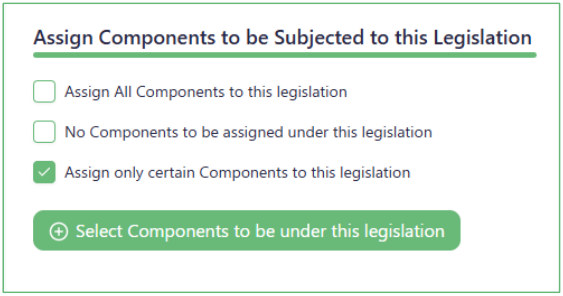
- Choose which Components the Legislation applies to.
The Components section works in the same way.
Choose one option:
o Assign all Components o Assign no Components o Assign only certain Components If you choose certain Components, select the specific Components that should be included.
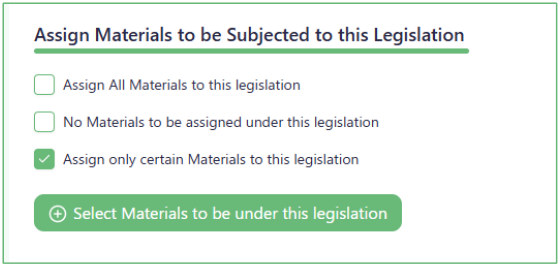
- Choose which Materials the Legislation applies to.
In the Materials section, select one of the three available options:
o Assign all Materials o Assign no Materials o Assign only certain Materials If you choose certain Materials, select only the Materials that should be included.
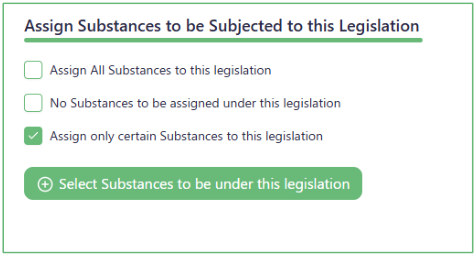
- Choose which Substances the Legislation applies to.
The Substances section uses the same selection method.
Choose:
o Assign all Substances o Assign no Substances o Assign only certain Substances If you choose certain Substances, select the specific Substances that should be included.
- Save the requirement.
After selecting the Legislation, evidence, countries, due date, and applicable items, click Save .
The requirement will then be available in the system so the required evidence can be provided for the selected items.
Use Cancel if you want to leave without saving the requirement.
Created Requirement Preview
- Use this page to view all created compliance requirements.
The table shows the Requirements that have already been created.
Each row represents one Requirement and shows information such as:
o Legislation/Standard Name o Sub-Legislation o Areas of Jurisdiction o Due Date o Required Evidence o Assigned Products o Assigned Components o Assigned Materials o Assigned Substances
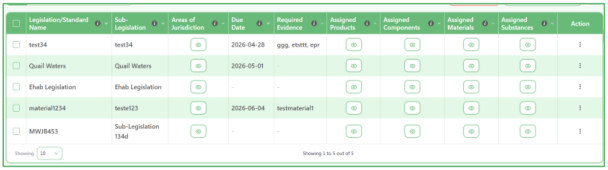
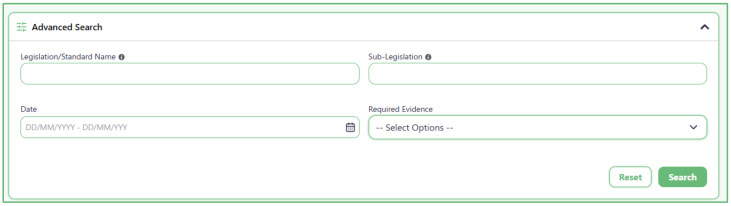
- Use Advanced Search to find a specific Requirement.
Open Advanced Search when you know specific information about the Requirement.
You can search using:
o Legislation/Standard Name o Sub-Legislation o Date o Required Evidence You do not need to fill in every field. Enter only the information you know, then click Search .
Click Reset if you want to clear the search fields and start again.
- Use the small Search box for a quick table search.
- Type a word or value in the Search box above the table.
- The system searches across the information shown in the table, so you do not need to choose a specific field first.
- Create another Requirement when needed.
- Click Add New Requirement to create a new compliance Requirement.
- From there, you can choose the Legislation, required evidence, countries, due date, and the items the Requirement should apply to.
- View the Areas of Jurisdiction.
Click the eye button in the Areas of Jurisdiction column to see the countries where the Requirement applies.
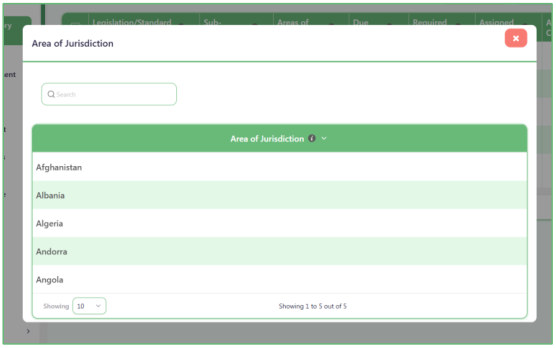
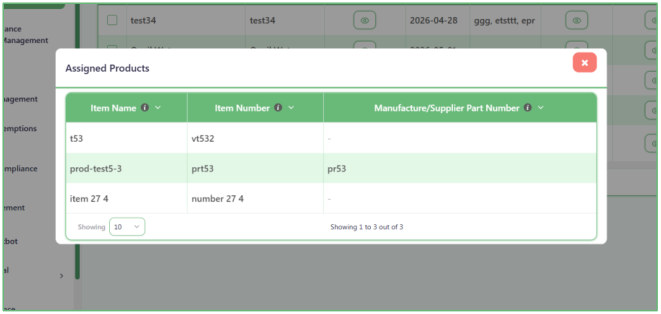
- View the Products, Components, Materials or Substances assigned to the Requirement.
Click the eye button in the Assigned Item column.
An overlay opens and shows the Items that were selected for this Requirement.
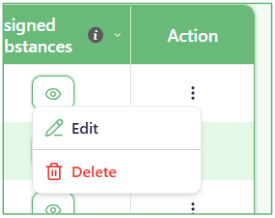
- Edit or delete a Requirement.
Click the three-dot Action menu at the end of a row.
You can choose:
o Edit to change the Requirement information.
o Delete to remove the Requirement.
Make sure you are working with the correct row before deleting it.
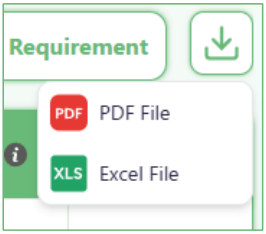
- Download the Requirements table when you need a copy.
Click the Download button above the table to export the displayed Requirement information.
03.2 Material Compliance Questionnaire Management
03.2.1 Questions Groups
03.2.1.1 Create New Questions Group
- Use Questions Groups to prepare questions for Suppliers.
- A Questions Group contains the questions that can later be sent to Suppliers.
- The answers help you understand whether the supplied items meet the required compliance conditions for specific Legislations and countries.
- A Questions Group can contain:
- o One or more Pages o One or more Questions inside each Page o A Legislation connection o Different answer, document, list, map, and compliance settings for each Question
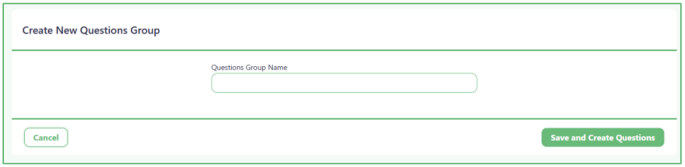
- Create the Questions Group first.
Enter a name in Questions Group Name .
Then click Save and Create Questions .
The system saves the Group and opens the next step, where you can create Pages and Questions.
Use Cancel if you do not want to create the Group.
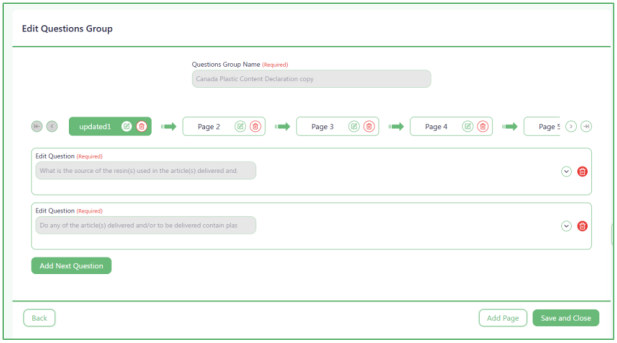
- Organize the Questions into Pages.
Each Questions Group can contain one or more Pages.
The current Page is shown at the top. You can:
o Edit the Page name.
o Delete the Page.
o Move between Pages using the navigation arrows.
- o Click Add Page to create another Page.
- Important:
- Deleting a Page also deletes all Questions inside that Page .
- Add Questions inside each Page.
Questions are shown as expandable sections.
Click Add Next Question to add another Question to the current Page.
You can add as many Questions as needed to each Page.
Use Save and Close when you finish creating the Group.
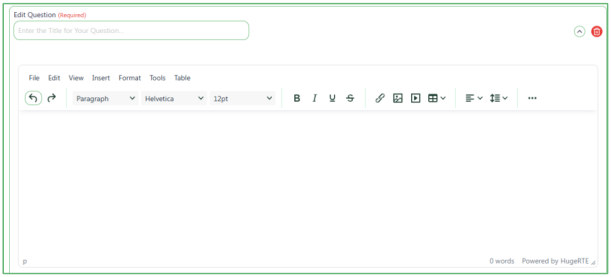
- Enter the Question title and text.
Start by entering a short Question Title .
Then use the editor below it to write the full Question that the Supplier will see.
You can use the editor tools to format the text when needed.
- Connect the Questions Group to a Main Legislation.
- Select the Main Legislation that the Questions Group is related to.
- The same Main Legislation is used for all Questions on all Pages in this Questions Group.
- This means you cannot use a different Main Legislation for another Question inside the same Group.
- Choose a Sub-Legislation for each Question.
- Unlike the Main Legislation, each Question can use a different Sub-Legislation .
- For example:
- o Question 1 can use Sub-Legislation A.
- o Question 2 can use Sub-Legislation B.
- This allows different Questions to cover different parts of the same Main Legislation.
- Be careful when changing the Main Legislation.
- If you change the Main Legislation from any Question, the change affects all Questions in the Group .
- All previously selected Sub-Legislations are also reset because they may no longer belong to the new Main Legislation.
- After changing the Main Legislation, select the correct Sub-Legislation again for each Question.
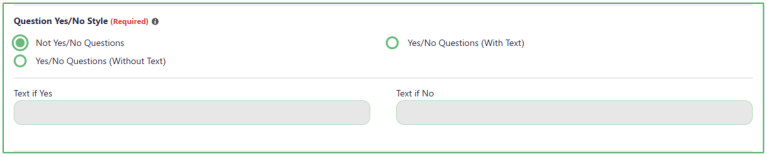
- Choose whether the Question uses a Yes/No answer.
Under Question Yes/No Style , choose how the Supplier should answer.
Available options include:
o Not Yes/No Questions — the Question does not use Yes and No answers.
o Yes/No Questions (Without Text) — the Supplier chooses only Yes or No.
o Yes/No Questions (With Text) — additional text can be shown beside Yes and No.
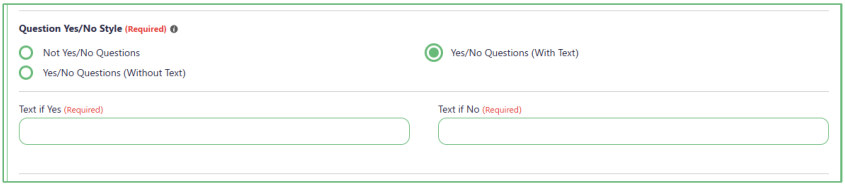
- Add extra text beside Yes and No when needed.
If you select Yes/No Questions (With Text) , the following fields become available:
o Text if Yes o Text if No The entered text appears beside each answer.
For example:
o Text if Yes = Always o Text if No = Never The Supplier will see:
o Yes, Always o No, Never
- Allow "Not Applicable" when needed.
Enable Allow Selecting "Not Applicable" if the Supplier should have a third answer option.
The available answers will then be:
o Yes o No o Not Applicable
- Choose whether the Supplier can attach a Document.
Use Allow Attaching Documents to control document uploads for the Question.
You can choose:
o No — no document upload is available.
o Optional — the Supplier may upload a document.
o Only if answer is No — document upload is required based on a No answer.
o Only if answer is Yes — document upload is required based on a Yes answer.
o Document Must be attached — the Supplier must attach a document.

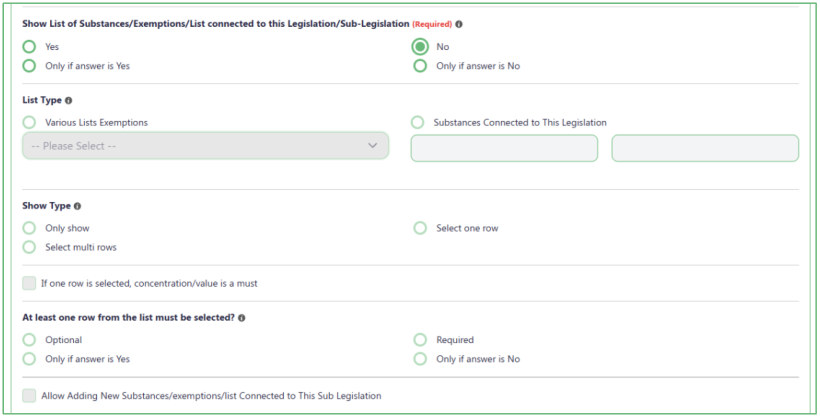
- Choose whether to show a related Substance or Exemption list.
Use Show List of Substances/Exemptions/List connected to this Legislation/Sub- Legislation to decide whether a list should appear with the Question.
If you select No , the related list settings below are disabled.
If you select:
o Yes o Only if answer is Yes o Only if answer is No the related list settings become available.
- Choose which List should be shown.
Under List Type , choose the source of the list.
You can use:
o Various Lists Exemptions — choose one of the available exemption lists.
o Substances Connected to This Legislation — the system automatically uses the substances connected to the selected Main Legislation and Sub-Legislation.

- Choose how the Supplier can use the List.
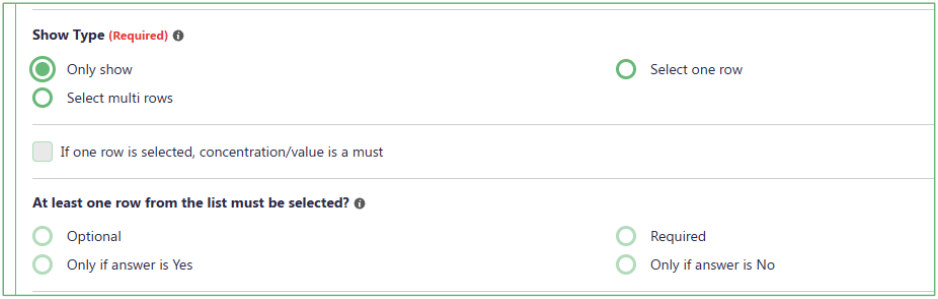
Under Show Type , choose how the list should behave:
o Only show — the Supplier can view the list for information only.
o Select one row — the Supplier can select one row.
o Select multi rows — the Supplier can select one or more rows.
If Only show is selected, the settings related to row selection are disabled.
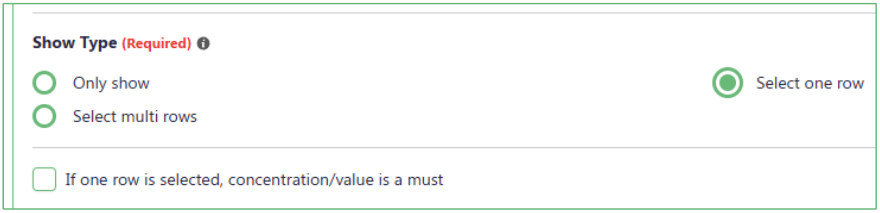
- Require a Concentration or Value for selected rows when needed.
Enable If one row is selected, concentration/value is a must if the Supplier must enter a Concentration or Value for every selected row.
- Choose whether selecting a row is required.
Use At least one row from the list must be selected? to define when the Supplier must select something from the list.
Available options include:
o Optional o Required o Only if answer is Yes o Only if answer is No

- Allow the Supplier to add a missing list item.
Enable Allow Adding New Substances/exemptions/list Connected to This Sub Legislation
- if the Supplier should be able to add a new row when the required option is not available in the displayed list.
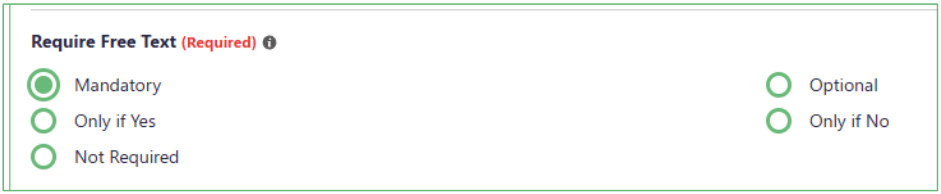
- Choose whether the Supplier should enter additional Free Text.
Require Free Text controls whether an additional text field is shown for the Supplier to explain or add more information.
Choose:
o Mandatory — text must be entered.
o Optional — text can be entered if needed.
o Only if Yes — required based on a Yes answer.
o Only if No — required based on a No answer.
o Not Required — no additional Free Text is required.
- Require a factory location on a Map when needed.
Use Require Map when you need the Supplier to identify the location of their factory.
o Select Yes to show a Map where the Supplier can choose the factory location.
o Select No if a Map is not needed.

- Set the Automatic Compliance Judgment.
Use Automatic Compliance Judgment to tell the system when the Supplier's answer should automatically be treated as Compliant .
The rule can be based on conditions such as:
o The answer is Yes.
o The answer is No.
o Free Text is provided.
o A document is attached.
o A list option is selected.
o No list option is selected.
o Selected Substance values are above or below a defined threshold.
If automatic judgment is not suitable for the Question, use This feature is not possible here .
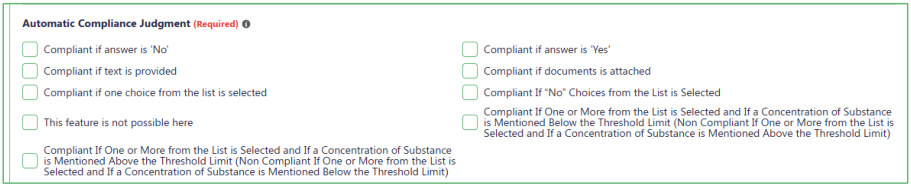
- Save the completed Questions Group.
After you finish adding the required Pages, Questions, and Question settings, click Save and Close .
The Questions Group is then saved and can later be used when preparing questionnaires or requests for Suppliers.

03.2.1.2 Created Questions Groups page
- Use this page to view all Questions Groups in the system.
The table shows the Questions Groups that have already been created.
Each row shows:
o Questions Group Name o Number of Pages o Number of Questions Titles This gives you a quick overview of how many Pages and Questions are inside each Group.
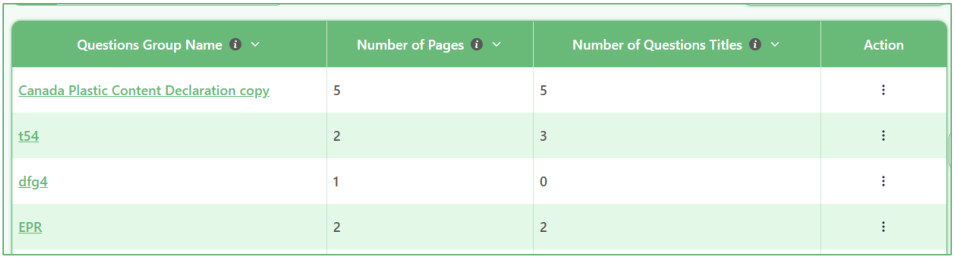
- Use Advanced Search to find a specific Questions Group.
Open Advanced Search when you know specific information about the Group.
You can search using:
o Questions Group Name o Number of Pages o Number of Questions Titles You do not need to fill in every field. Enter only the information you know, then click Search .
Click Reset to clear the search fields.

- Use the small Search box for a quick search.
Type a word or value in the Search field above the table.
- The system searches across the information shown in the table.
- Create a new Questions Group when needed.
Click Create New Questions Group to start a new Group.
You will first enter the Group name, then create its Pages and Questions.
- Open a Questions Group to review its Questions.
Click the Questions Group Name link in the table.
This opens the selected Group and shows its Pages, Questions, and Question settings.
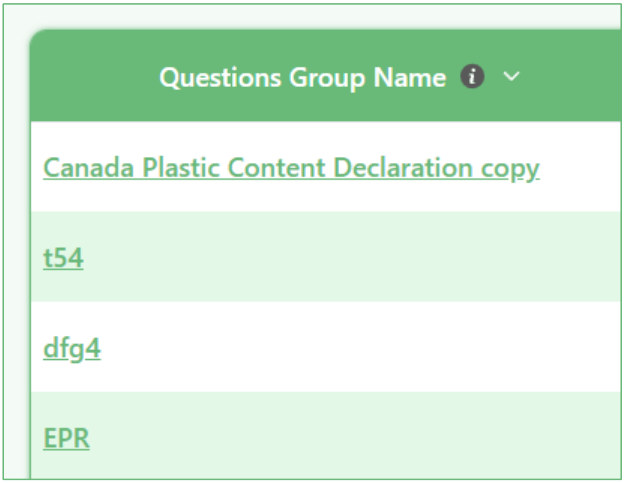
03.2.1.3 Questions Group Details
- Use this page to review the Questions inside a Questions Group.
This page shows the Pages and Questions that belong to the selected Questions Group.
You can move between Pages and review the Questions saved inside each one.
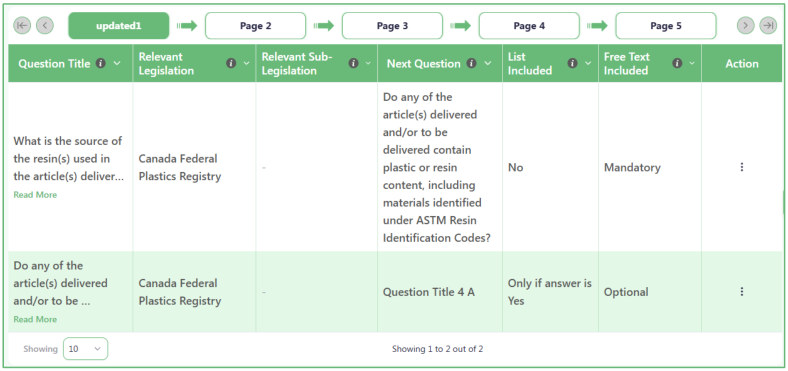
- Use Advanced Search to find a specific Question.
Open Advanced Search and enter the information you know about the Question.
You can search using:
o Question Title o Relevant Legislation o Relevant Sub-Legislation o List Included o Free Text Included You do not need to use every option. Select only the information you want to search by, then click Search .
Click Reset to clear the search.
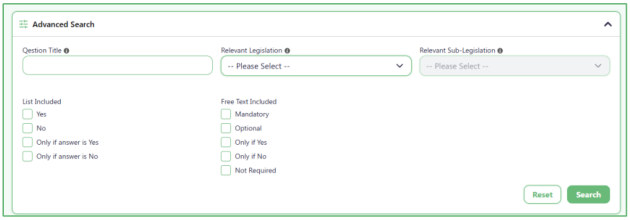
- Use the small Search box for a quick table search.
- Type a word or value in the Search field above the Questions table.
- This helps you quickly find information shown in the current table.
- Move between the Pages in the Questions Group.
The Pages are shown above the table.
Click a Page to see the Questions inside it.
You can also use the navigation arrows to move through the available Pages.

- Review the Questions on the selected Page.
The table shows the Questions saved on the current Page and information such as:
o Question Title o Relevant Legislation o Relevant Sub-Legislation o Next Question o List Included o Free Text Included If the Question text is too long to display completely, use Read More to view the rest.
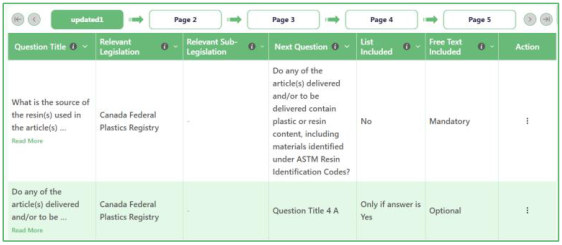
- Add a new Question to the current Page.
Click Create New Question Title to add another Question to the Page you are currently viewing.
The new Question is added at the end of that Page's Question list .
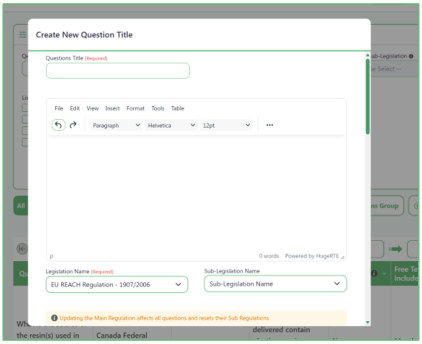
- Edit one Question when you only need to change that Question.
Use the Action menu at the end of the Question row to edit that Question individually.
This is useful when you only need to change one Question without opening the full Questions Group editor.
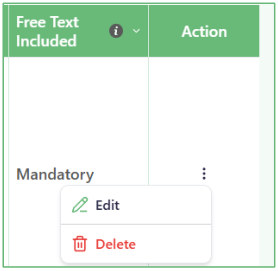
- Edit the full Questions Group when you need to change multiple things.
Click Edit Questions Group to open the full Questions Group editor.
This opens the same type of view used when the Group was created, so you can change Pages, Questions, and their settings in one place.
Use this option when you need to make several changes instead of editing one Question at a time.
02.2.2 Questionnaire Packages
02.2.2.1 Create Supplier Questionnaire Package
- Use this page to create a Questionnaire Package.
A Questionnaire Package groups together several Questions Groups so they can later be sent to a Supplier as one package.
For example, one Package can contain:
o Questions Group 1 o Questions Group 2 o Questions Group 7
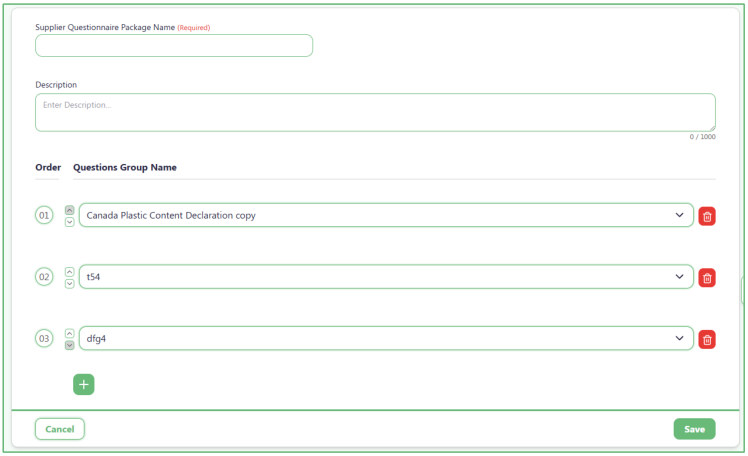
- Enter the Package name.
Enter a name in Supplier Questionnaire Package Name.
Use a clear name that helps you identify the Package later.

- Add a Description when needed.
Use the Description field to add more information about the purpose of the Package.
This can help explain what the Package is used for or what type of questionnaire it contains.

- Choose the Questions Groups that should be included.
Under Questions Group Name, select the Questions Groups you want to include in this Package.
The list contains Questions Groups that were already created in the system.
Use the + button to add another Questions Group to the Package.

- Arrange the Questions Groups in the correct order.
The number beside each row shows the order in which the Questions Groups will appear.
Use the up and down arrows beside a row to move that Questions Group higher or lower in the Package.
For example, if you move Group 3 above Group 2, its order will change accordingly.
- Remove a Questions Group if you do not need it.
Click the Delete button at the end of the row to remove that Questions Group from the Package.
This removes it only from the current Package.
- Save the Questionnaire Package.
When you finish selecting and arranging the Questions Groups, click Save.
The Questionnaire Package will be saved with the selected Questions Groups in the order you chose.
Use Cancel if you want to leave without saving the Package.
02.2.2.2 Created Questions Groups page
- Use this page to view all created Questionnaire Packages.
- This page shows the Questionnaire Packages that were already created in the system.
- Each row represents one Package.
- Use Advanced Search to find a specific Package.
Open Advanced Search if you want to search using specific Package details.
You can search by:
o Supplier Questionnaire Package Name o Supplier Questionnaire Package Number o Description After entering the information:
o Click Search to show the matching results.
o Click Reset to clear the filters and show all Packages again.

- Use the quick search box to search faster.
The small search field above the table is used for a quick search.
Type a word or number to find matching Packages in the table.
- Create a new Questionnaire Package.
- Click Create New Supplier Questionnaire Package if you want to add a new Package.
- This will open the Package creation page.
- Review the created Packages in the table.
The table shows the saved Packages and their basic details.
The table includes:
o Supplier Questionnaire Package Name o Supplier Questionnaire Package Number o Description o Action This helps you quickly review the Packages that already exist.
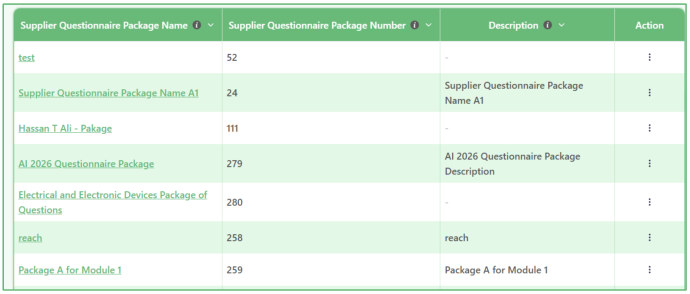
- Open the Action menu for more options.
Each row has an Action menu.
Use it to open the available actions for that Package.
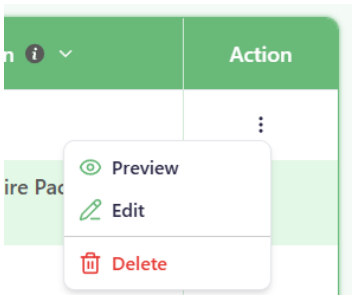
- Use this page to manage existing Packages.
This page is mainly used to:
o Search for Packages o Review created Packages o Open a Package from its row o Create a new Package when needed This makes it easy to organize and find Supplier Questionnaire Packages later.
02.2.2.3 Questionnaire Package Details
- Use this page to view the details of a Questionnaire Package.
- This page opens when you click a created Questionnaire Package.
- It shows the Package information and the Questions Groups included inside it.
- Review the main Package information.
At the top of the page, you can see the main details of the selected Package, including:
o Supplier Questionnaire Package Name o Supplier Questionnaire Package Number o Description This helps you confirm which Package you are currently viewing.

- See the Questions Groups Included in the Package.
Below the Package details, the page shows the Questions Groups that were added to this Package.
Each Questions Group appears in the order it was arranged during Package creation.
The Order column shows the sequence of the Questions Groups inside the Package.
This order is important because it controls how the Questions Groups are arranged in the Package.

- Use this page as a read-only overview of the Package contents.
This page is used to check what is inside the selected Questionnaire Package.
It gives you a quick overview of:
o The Package identity o Its description o The Questions Groups included in it o The order of those Questions Groups
02.3 Reporting
In the reporting section, we provide several types of reports that show whether your product is suitable for use worldwide and compliant with global regulations.
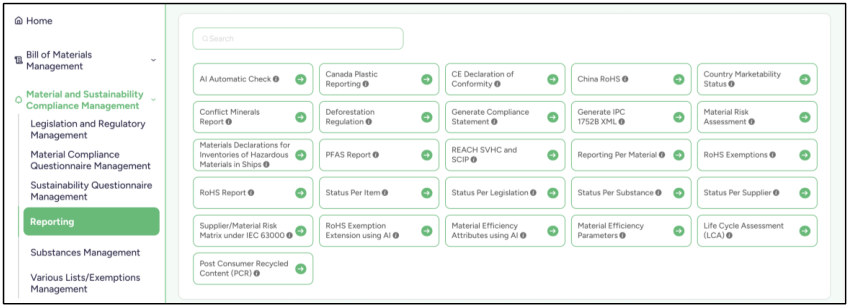
02.3.1 AI Automatic Check
- In the AI Automatic Check, we have two types of reports.
- Substance Presence Analyzer o The Substance Presence Analyzer provides a smart, AI-driven assessment of whether a product may contain regulated or restricted substances.
It analyzes the product name, description, and supplier information against major global chemical and product regulations.
The report covers a wide range of legislations including REACH, RoHS, POP, PFAS, TSCA, Proposition 65, Battery Regulation, and more.
Results are delivered in clear, regulation-specific tables showing potential substances, CAS numbers, and estimated concentrations.
If no regulated substances are expected, this is explicitly confirmed to ensure full transparency.
Where required, the analyzer highlights additional obligations such as labeling, reporting, or material disclosures.
The solution supports early compliance screening without the need for laboratory testing.
It enables companies to quickly identify potential compliance risks before market entry.
The analyzer helps reduce regulatory uncertainty and costly late-stage corrections.
Overall, it empowers faster, safer, and more confident product compliance decisions.
o Just press the Analyze Substance Presence (Using AI) button, then select the item number from your items and choose the legislation to be assessed for analysis.
You can analyze multiple items in the same step by clicking Add
Another Item . Each item will be analyzed separately, and a dedicated
report will be generated for each one.
o You can also download the report in PDF , Word , or HTML format.
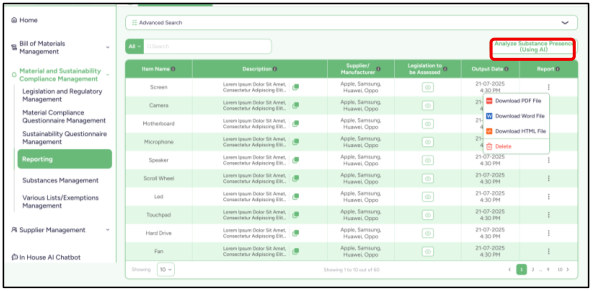
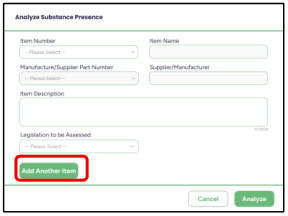
- Supplier Declaration Analyzer o The Supplier Declaration Analyzer transforms supplier declarations into actionable compliance intelligence.
It evaluates the reliability, completeness, and credibility of declarations of conformity using AI-based document analysis.
The report verifies alignment with applicable regulations and checks whether compliance claims are clearly and correctly stated.
It assesses key formal elements such as signatures, dates, legislative references, exemptions, and product scope.
The analyzer identifies vague language, conditional statements, and potential legal loopholes.
Findings are structured in clear tables to support fast and consistent decision-making.
This solution helps companies distinguish between robust and high-risk supplier declarations.
It strengthens supplier due diligence and audit readiness.
The analyzer reduces legal exposure during market surveillance and
enforcement actions.
Overall, it builds trust, transparency, and confidence across the supply chain.
o Just press the Analyze Declaration (Using AI) button, then select the Name of supplier and choose the Language for analysis.
o You can also download the report in PDF , Word , or HTML format
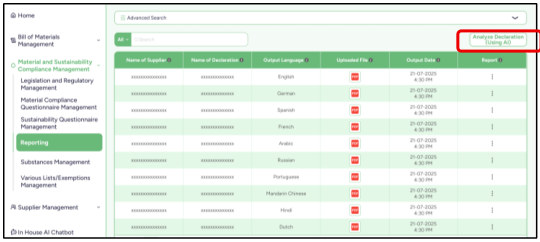
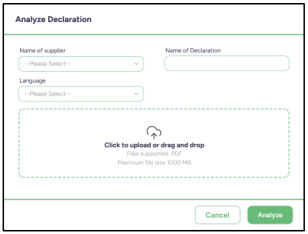
02.3.2 Canada Plastic Reporting
- The Canada Plastic Reporting module enables organizations to collect, analyze, and report plastic-related information in accordance with Canadian regulatory requirements. The module provides visibility into the composition of products and supports companies in meeting their environmental reporting obligations.
- The reporting section is divided into three levels, allowing users to review plastic data throughout the product structure:
- Product Status – Displays the reporting status and plastic-related information for finished products.
- Component Status – Provides reporting details for individual components associated with products.
- Material Status – Presents the status and composition of the materials used within products and components.
- The module provides the following capabilities:
- Monitor plastic-related data at the product, component, and material levels.
- Review the reporting status of items included in the system.
- Identify missing or incomplete information required for reporting.
- Support compliance with Canadian environmental and plastic reporting requirements.
- Export reporting data for further analysis and regulatory submissions.
By centralizing plastic reporting information in a single location, the Canada Plastic Reporting module helps organizations improve data transparency, streamline reporting activities, and maintain compliance with applicable Canadian regulations.
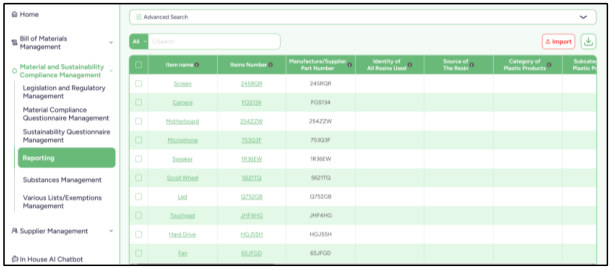
02.3.3 CE Declaration of Conformity
- The CE Declaration of Conformity confirms that the target product and its components comply with all applicable European Union requirements related to safety, health, and environmental protection. The declaration demonstrates that the product has been assessed according to the relevant EU directives, regulations, and harmonized standards before being placed on the market.
- Within the CE Declaration of Conformity section, users can generate declarations for both Products and Components , ensuring that compliance information is maintained at different levels of the product structure.
- The module provides the following capabilities:
o Generate CE Declarations of Conformity for products and components.
o Verify compliance with applicable EU directives and harmonized standards.
o Review manufacturer and item information before generating declarations.
o Maintain centralized records of generated declarations for future reference and audits.
- o Export and download declarations in a standardized format.
- By consolidating compliance information in a single location, the CE Declaration of Conformity module helps organizations simplify regulatory documentation, improve traceability, and ensure that products meet European market requirements.
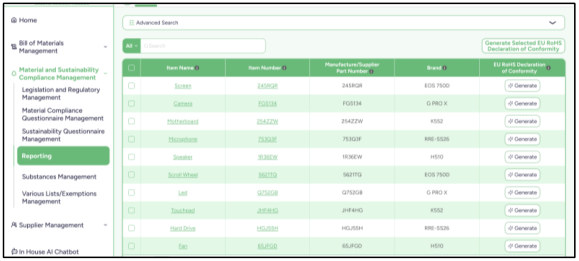
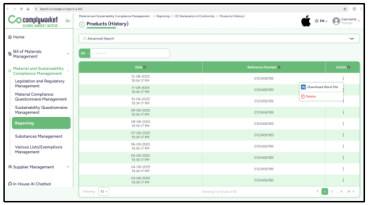
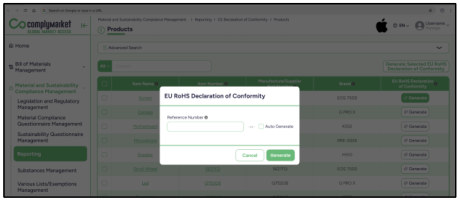
02.3.4 China RoHS
- In China RoHS, you can generate two types of reports: China RoHS Table and China RoHS Declaration of Conformity.
- You can calculate “Environmental Protection Use Period (EPUP)” Using AI.
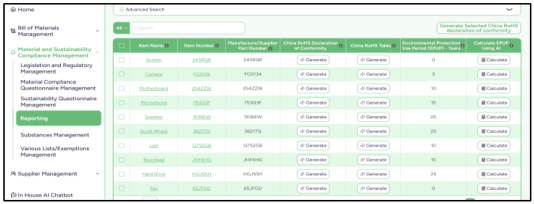
02.3.5 Area of Jurisdiction Marketability Status
In Country Marketability Status, we have 4 sections:
1. Applicable Legislations Managements.
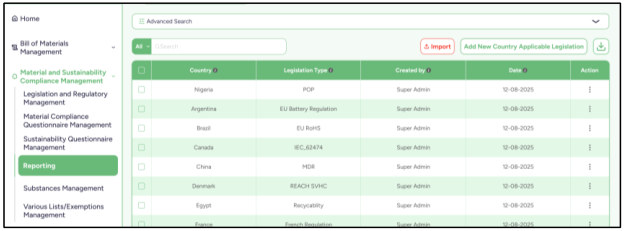
2. Products Status.
3. Components Status.
4. Materials Status.
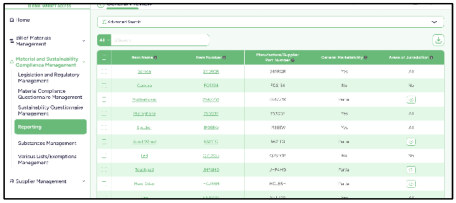
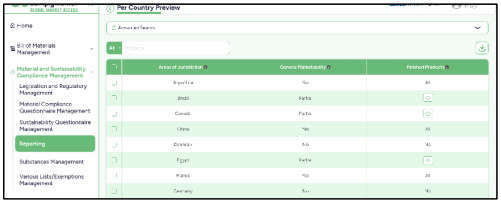
02.3.6 Conflict Minerals Report
- You have 3 sections:
- 1. Conflict Minerals for Securities & Exchange Report
- This Conflict Minerals Statement confirms that the target products have been assessed for the presence of conflict minerals (tin, tantalum, tungsten, and gold) and that the company has conducted due diligence to ensure compliance with applicable U.S. Securities and Exchange Commission (SEC) regulations, promoting responsible sourcing practices throughout the supply chain.
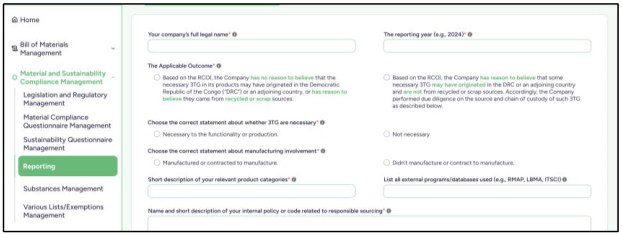
2. Smelter and Refiner List
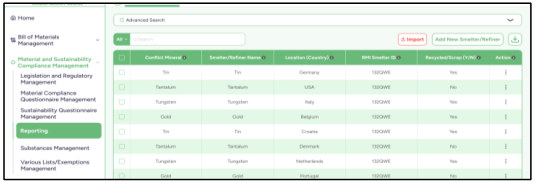
3. Countries of Origin of 3TG
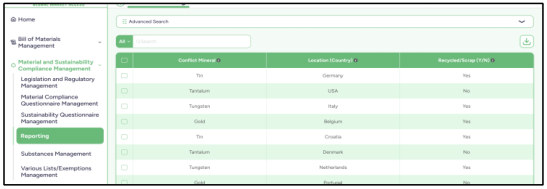
02.3.7 Generate Compliance Statement
In Generate Compliance Statement, you have 4 sections:
1. Compliance Statement Template You have two types of templates (General Template and Status-Focused Template). You create them to use later in products, components, and materials sections.
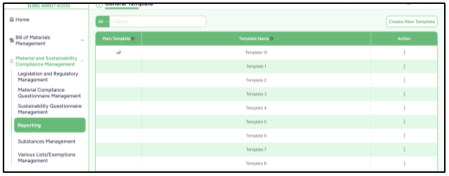
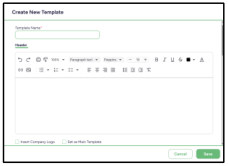
2. Products A list of your items from the BOM, where you can submit the templates you created in Compliance Statement Template sections to generate a declaration report.
You can also generate this report as a public link to share it with anyone.
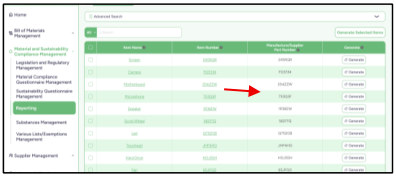
3. Components A list of your items from the BOM, where you can submit the templates you created in Compliance Statement Template sections to generate a declaration report.
You can also generate this report as a public link to share it with anyone.
4. Materials A list of your items from the BOM, where you can submit the templates you created in Compliance Statement Template sections to generate a declaration report.
You can also generate this report as a public link to share it with anyone.
02.3.8 Generate IPC 1752B XML
In Generate IPC 1752B XML, you have 3 sections:
1. Product Level (Including Components and Materials) A list of your items from the BOM, where you can generate an IPC1752B report for them and receive an XML file.
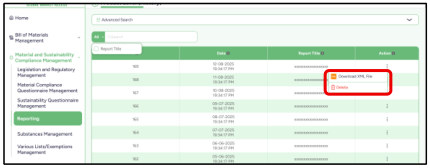
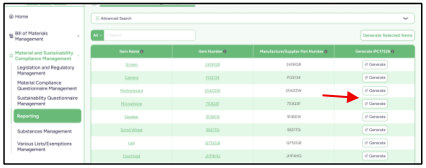
2. Component Level (Including Materials) A list of your items from the BOM, where you can generate an IPC1752B report for them and receive an XML file.
3. Material Level (Including Materials) A list of your items from the BOM, where you can generate an IPC1752B report for them and receive an XML file.
02.3.9 Material Risk Assessment
In this Report you have 2 sections:
1. Material Risk Assessment Management Update the Material Risk Assessment parameters and select a legislation to use later in the Material Risk Assessment Generator section.
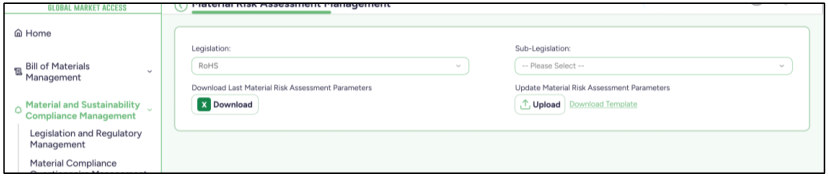
2. Material Risk Assessment Generator Select a main legislation and a sub-legislation if available, and search for the material using the Material Category, Mixture Category, Additional Category, or the Item Number to check the material risk.
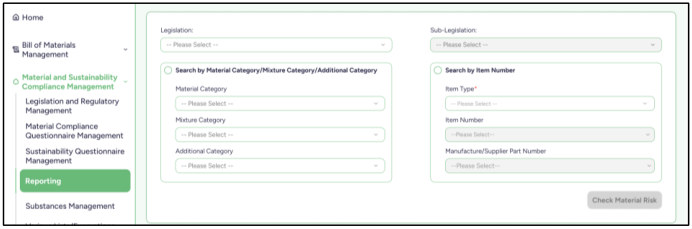
02.3.10 Materials Declarations for Inventories of Hazardous Materials in Ships
In this Report you have 2 sections:
1. Products A list of your items from the BOM, where you can generate a report for them.
Just enter the SDoC ID No. and the MD ID No. to generate the report.
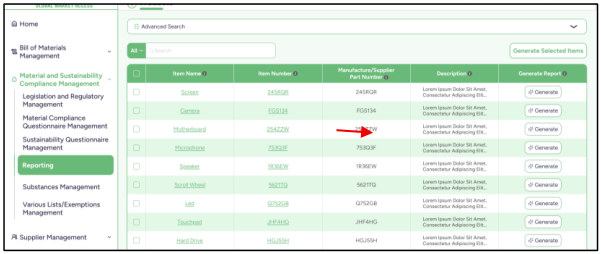
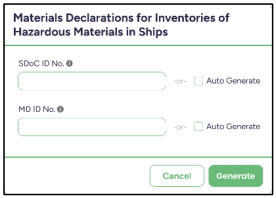
2. Components A list of your items from the BOM, where you can generate a report for them.
Just enter the SDoC ID No. and the MD ID No. to generate the report.
02.3.11 PFAS Report
A list of substances under the PFAS category that you use in your BOM items, where you can view all their details, including the relevant items and total weight.
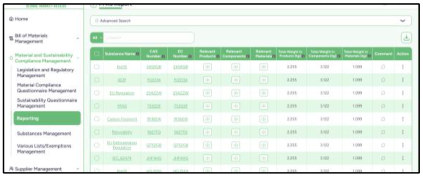
02.3.12 REACH SVHC and SCIP
In this Report you have 3 sections:
1. SCIP API Keys In the SCIP API Keys section, there are three fields you need to fill in: ECHA User Name, Legal Entity UUID, and S2S API Key.
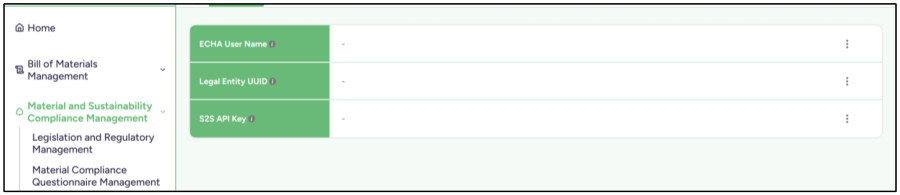
2. Products Level (Components Included) A list of your items from the BOM, where you can submit SCIP for them to receive a SCIP Number.
You can also generate this report as a public link to share it with anyone.
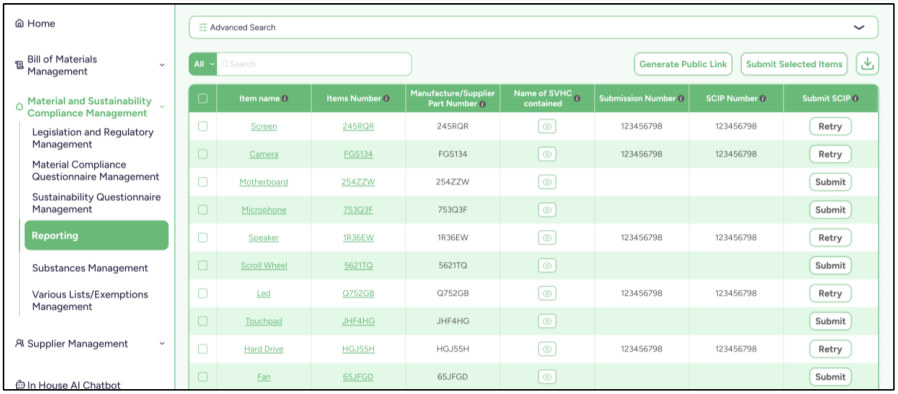
3. Components only A list of your items from the BOM, where you can submit SCIP for them to receive a SCIP Number.
You can also generate this report as a public link to share it with anyone.
02.3.13 Reporting Per Material
In this Report you have 3 sections:
1. Product Level A list of your items from the BOM, where you can view the total weight of materials in each item.
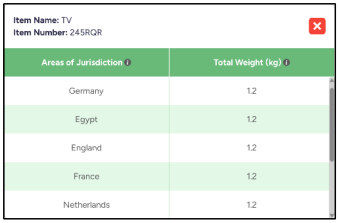
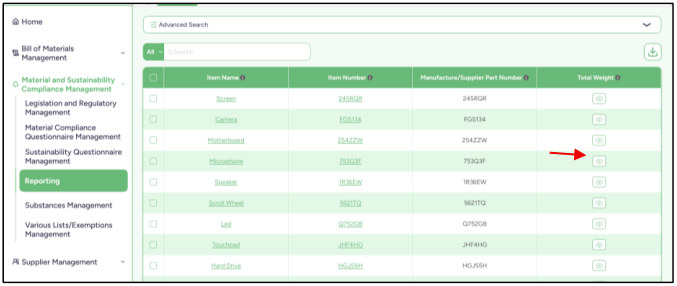
2. Component Level A list of your items from the BOM, where you can view the total weight of materials in each item.
3. Material Level A list of your items from the BOM, where you can view the total weight of materials in each item.
02.3.14 RoHS Exemptions
This report categorizes items (Bill of Materials – BOMs) based on their compliance with RoHS (Restriction of Hazardous Substances) regulations, focusing on whether substances are present and whether valid exemptions exist.
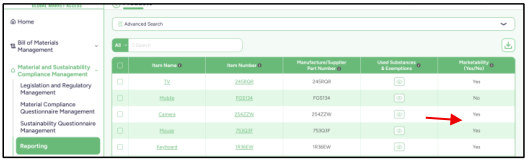
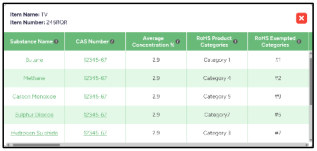
Key Concepts
- Substances : Materials within a product that may be restricted under RoHS.
- Exemptions : Official allowances that permit the use of restricted substances under certain conditions.
- Validity : Exemptions can be valid, expired, or missing.
Report Modes
The report can be viewed in three modes:
1. Valid Items (Default)
- These are items that are considered compliant .
- An item is included if:
- It contains regulated substances and
- It has a valid exemption covering those substances
OR
- It belongs to a category that is fully exempt under RoHS (category-level exemption) In simple terms:
Items are safe either because they follow the rules, or they are officially allowed to break them.
2. Warning Items
- These are items that need attention .
- An item is included if:
- It contains regulated substances but
- It does not have a valid exemption covering those substances In simple terms:
Something is present that might be restricted, and there’s no clear permission for it.
3. Expired Items
- These are items that are non-compliant due to outdated exemptions.
- An item is included if:
- It has an exemption, but that exemption is no longer valid (expired) In simple terms:
It used to be allowed, but the permission has expired.
How Items Are Selected
- Depending on the selected mode, the system evaluates items using the following logic:
- Identify substances The system checks whether an item contains regulated substances, either directly within the item itself or within any of its child components .
- Check for exemptions The system looks for applicable exemptions.
An exemption is considered valid if it exists at the same level or higher
in the structure .
- This means:
- o If a substance exists in a child component o And a corresponding exemption exists in a parent item → The substance is treated as covered by that exemption
- Validate exemption status Any found exemption is evaluated to determine whether it is:
- o Valid (currently active) o Expired (no longer valid) o Missing (no exemption exists)
- Filter results Based on the selected report mode (Valid, Warning, or Expired), only items matching the relevant criteria are included in the final results.
Summary Table
Mode
Condition
Meaning
Valid Has substances + valid exemption OR category exemption Compliant Warning Has substances but no valid exemption Needs review Expired Has exemption but it is expired Non-compliant
Why This Matters
- This report helps ensure that:
- Products comply with RoHS regulations
- Risks are identified early
- Expired exemptions are not overlooked
- Compliance audits are easier and more reliable
02.3.15 RoHS Report
In this Report you have 1 section:
1. Products A list of your items from the BOM, where you can generate a RoHS report for each item.
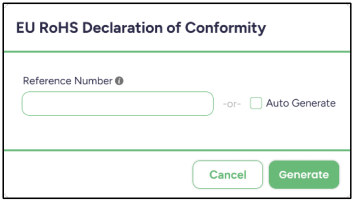
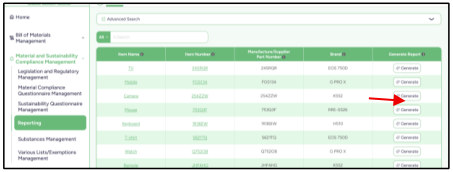
02.3.16 Status Per Item
In this Report you have 3 sections:
1. Products Status A list of your items from the BOM, where you can preview the legislation status for each item.
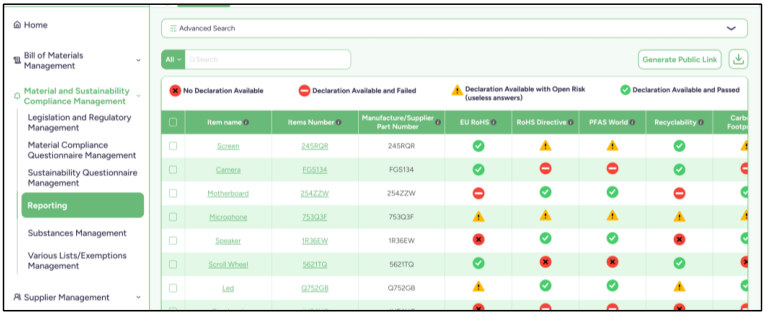
2. Components Status A list of your items from the BOM, where you can preview the legislation status for each item.
3. Materials Status A list of your items from the BOM, where you can preview the legislation status for each item.
02.3.17 Status Per Legislation
In this Report you have 3 sections:
1. Products Status A list of your legislations, where you can preview the status of each one, including the total number of suppliers and items. You can also see whether it is marked as No Declaration Available, Declaration Available and Failed, Declaration Available with Open Risk (useless answers), or Declaration Available and Passed.
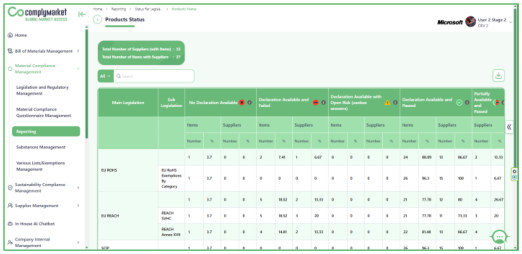
2. Components Status A list of your legislations, where you can preview the status of each one, including the total number of suppliers and items. You can also see whether it is marked as No Declaration Available, Declaration Available and Failed, Declaration Available with Open Risk (useless answers), or Declaration Available and Passed.
3. Materials Status A list of your legislations, where you can preview the status of each one, including the total number of suppliers and items. You can also see whether it is marked as No Declaration Available, Declaration Available and Failed, Declaration Available with Open Risk (useless answers), or Declaration Available and Passed.
02.3.18 Status Per Substance
A list of substances that you use in your BOM items, where you can view all their details, including the relevant items and total weight in each item.
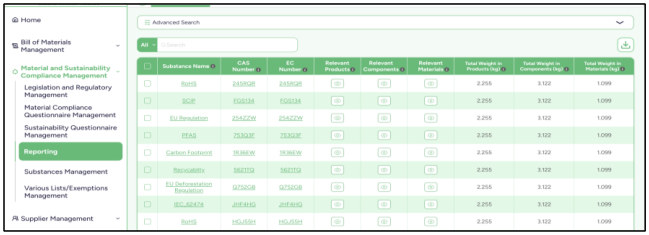
02.3.19 Status Per Supplier
- The Status per Supplier report provides a summarized overview of compliance declaration results for each supplier across all associated items. This report helps users evaluate supplier compliance performance by presenting aggregated statistics and percentages for different declaration outcomes.
- At the top of the page, the system displays key summary indicators, including the Total Number of Suppliers (with Items) and the Total Number of Items with Suppliers. These indicators provide a quick snapshot of the supplier base and the number of items currently associated with suppliers in the system.
- The report table lists each Supplier Name and Supplier Number, followed by a detailed breakdown of declaration results. For each declaration status category, the system presents both Per Supplier Percentage and Overall Percentage, along with the corresponding number of declarations. This allows users to easily compare individual supplier performance with the overall compliance situation across the system.
- The declaration categories shown in the report include:
- No Declaration Available – Indicates that required declarations have not been submitted by the supplier.
- Declaration Available and Failed – Indicates that a declaration has been submitted but does not comply with regulatory requirements.
- Declaration Available with Open Risk – Indicates that the declaration contains incomplete or potentially unreliable responses that require further review.
- Declaration Available and Passed – Indicates that the submitted declaration meets all applicable compliance requirements.
- Partially Available and Passed – Indicates that some declarations are compliant while others may still be missing or under evaluation.
The report also includes search and filtering functionality, enabling users to quickly locate specific suppliers or review compliance results. Additionally, the data can be exported using the download option, allowing users to perform further analysis or share compliance performance reports with internal teams.
By providing both detailed and aggregated insights, the Status per Supplier report enables organizations to monitor supplier compliance performance, identify suppliers requiring follow-up, and maintain transparency across compliance management processes.
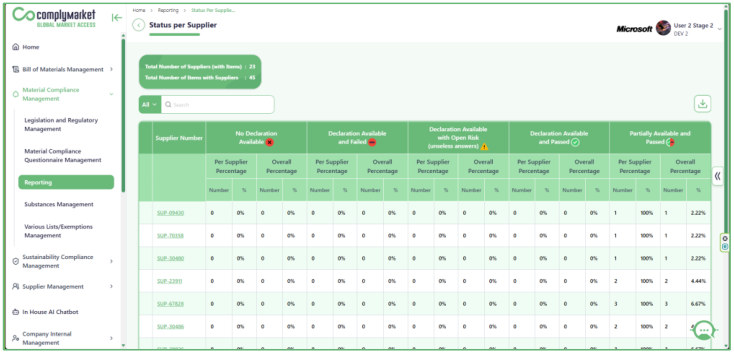
02.3.20 Supplier/Material Risk Matrix under IEC 63000
In this Report you have 4 sections:
1. Supplier/Material Risk Matrix under IEC 63000 Logic configure the logic between Supplier Risk and Product Substance Risk— whether low, medium, or high—so it can be used later in the other sections.
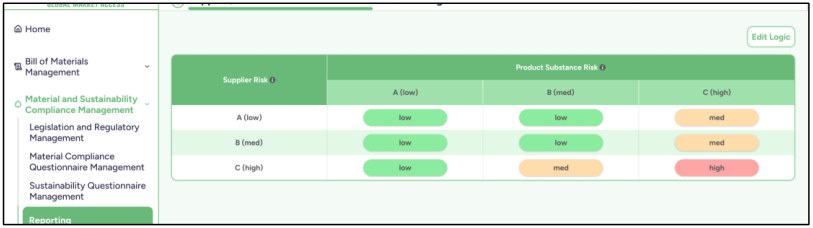
2. Product Level A list of your items from the BOM, where you can preview the Supplier Risk and Material Risk status based on the logic we configured in the Logic section.
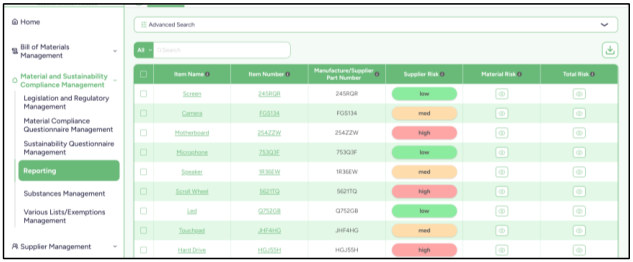
3. Component Level A list of your items from the BOM, where you can preview the Supplier Risk and Material Risk status based on the logic we configured in the Logic section.
4. Material Level A list of your items from the BOM, where you can preview the Supplier Risk and Material Risk status based on the logic we configured in the Logic section.
02.3.21 RoHS Exemption Extension using AI
This table contains all the applications that were previously created, along with their full details and the status of each one, whether it is Completed, Rejected, or In Progress.
Use the Create New Application button to create a new application. It opens an overlay where you can enter the application details, and then the application will be created.
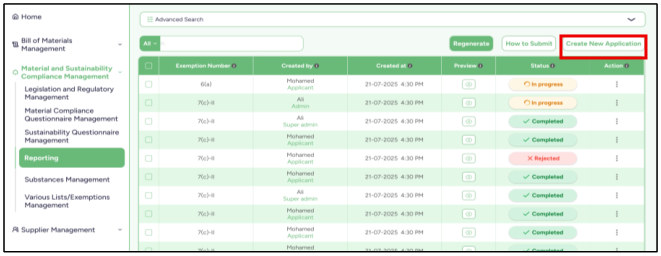
02.3.22 Material Efficiency Attributes using AI
- In this section, we have four types of attributes:
- Assess Durability & Reliability using AI
- Assess Repairability, Reusability & Upgradability using AI
- Assess Recyclability & Recoverability using AI
- Assess Remanufacturability using AI Each of the four types has a table that contains all the applications that were previously created, along with their full details and the status of each one, whether it is Completed, Rejected, or In Progress.
There is also a Start New Assessment button to create a new assessment. Clicking it opens the creation page, where you can enter the required information to complete the creation.
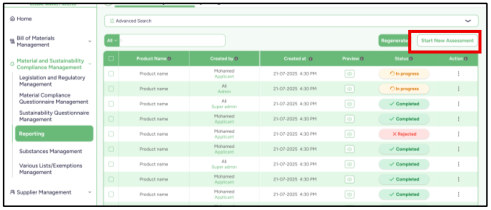
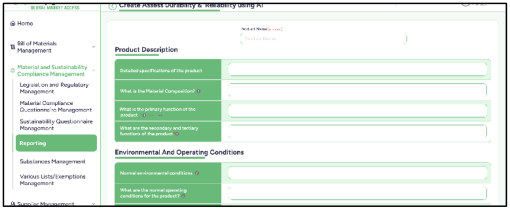
02.3.23 Material Efficiency Parameters
- A list of your items from the BOM, where you can preview the Material Efficiency Parameters for each one, including Durability, Reliability, Repairability, Reusability, Upgradability, Recyclability, Recoverability and Remanufacturability.
- You can also edit the values for each item.
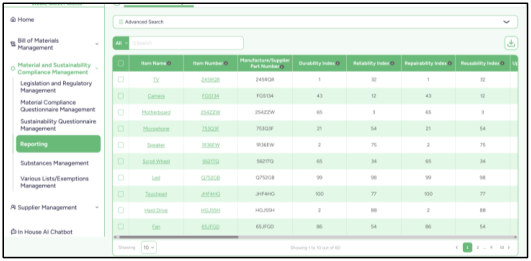
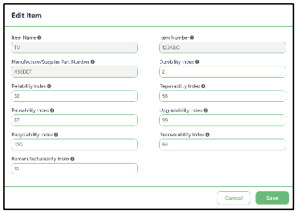
02.3.24 Post Consumer Recycled Content (PCR)
- A list of your items from the BOM, where you can preview PCR Content for each one.
- The PCR content value is between 0-100.
- You can also edit values for each item.
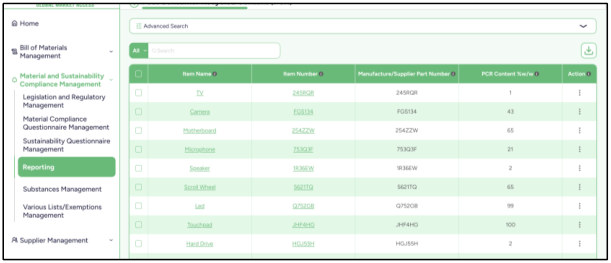
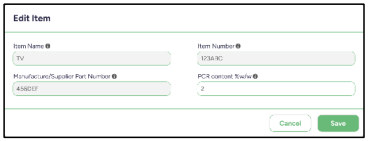
02.3.25 Status Per Supplier and Item
- The Status Per Supplier and Item report provides a consolidated overview of compliance declaration statuses submitted by suppliers for specific items and regulatory requirements. This report helps users quickly identify whether suppliers have provided the required compliance information and whether the submitted declarations meet the applicable regulatory standards.
- The page displays supplier-related information such as Supplier Name and Supplier Number, along with a set of compliance indicators for different regulations and requirements. Each column represents a specific compliance domain, such as EU RoHS, EU REACH and other regulatory frameworks. The status icons in the table visually indicate the current declaration result for each supplier and item combination.
- Users can easily recognize different declaration outcomes through status indicators, including:
- No Declaration Available – The supplier has not submitted the required declaration.
- Declaration Available and Failed – A declaration has been submitted but does not meet the compliance requirements.
- Declaration Available with Open Risk – The declaration contains incomplete or insufficient information that requires further review.
- Declaration Available and Passed – The submitted declaration meets the compliance criteria.
- Partially Available and Passed – Some declarations are available and compliant, while others may still be pending.
The report also includes search and filtering capabilities, allowing users to quickly locate specific suppliers, items, or compliance results. In addition, the Advanced Search option enables more refined filtering to support detailed analysis and reporting.
By providing a clear and structured view of supplier compliance statuses, this report helps organizations monitor supplier performance, detect missing or failed declarations, and ensure that products meet regulatory requirements before entering the market.
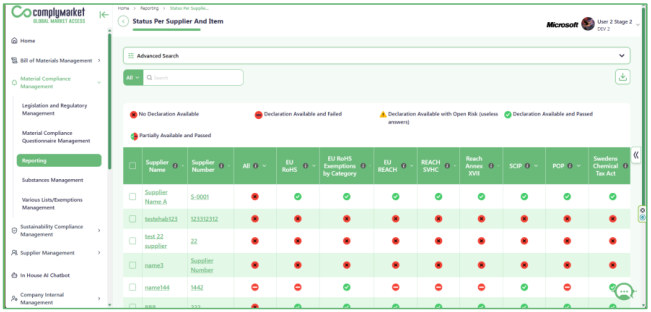
02.4 Substances Management
02.4.1 Created Substances table
- Use this page to view and manage Substances.
The system already contains a large Substance library with around 103,260 Substances , so you normally do not need to create them manually.
Each Substance can be connected to one or more Legislations and Substance Groups.
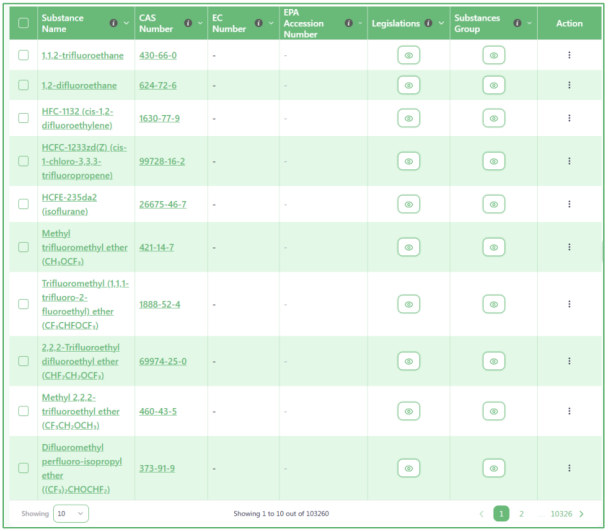
- Use Advanced Search to find a specific Substance.
Open Advanced Search when you know specific information about the Substance.
You can search using:
o Substance Group o Substance Name o CAS Number o EC Number o EPA Accession Number Enter only the information you know, then click Search .
Click Reset to clear the search fields.
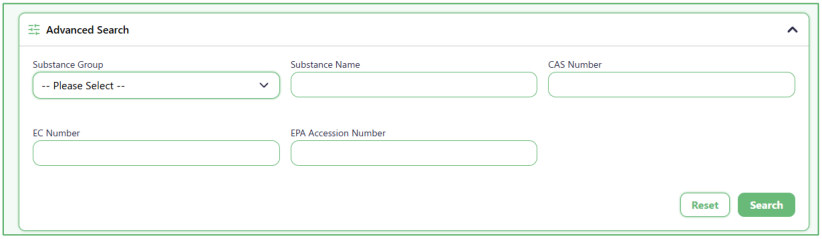
- Use the small Search box for a quick table search.
- Type a word or value in the Search field above the table.
- The system searches across the information shown in the table.
- Filter Substances by Legislation.
Use Legislation Name and Sub-Legislation above the table to show only Substances connected to a specific Legislation.
Select the Main Legislation first, then choose the related Sub-Legislation when needed.
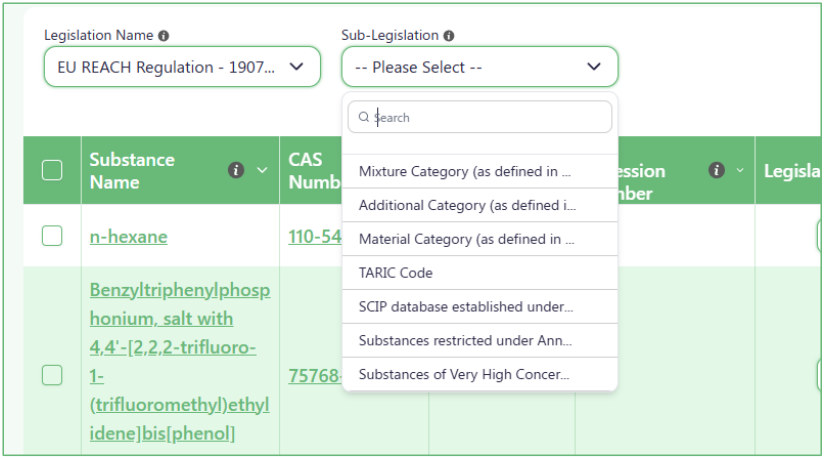
- Review the Substance information in the table.
- Each row represents one Substance and shows information such as:
- o Substance Name o CAS Number o EC Number o EPA Accession Number o Legislations o Substances Group o Actions
- View the Legislations connected to a Substance.
A Substance can be connected to more than one Legislation.
Click the eye button in the Legislations column to open an overlay and see the Legislations connected to that Substance.
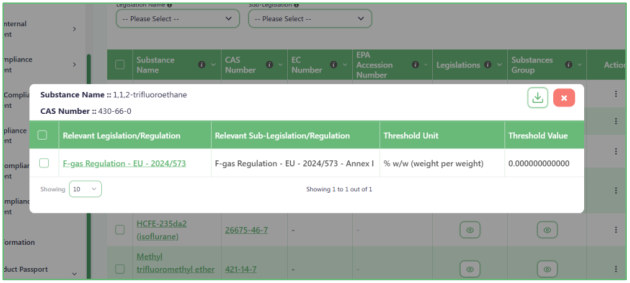
- View the Substance Groups connected to a Substance.
- Click the eye button in the Substances Group column.
- An overlay opens and shows the Substance Group or Groups connected to the selected Substance.
- Open a Substance to review its details.
Click the Substance Name link in the table to open the selected Substance and review its detailed information.
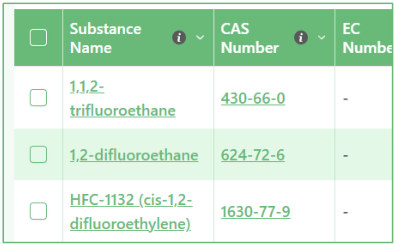
- Create a new Substance only when it is not already available.
Because the system already includes a large Substance library, first search for the Substance you need.
If you cannot find it, click Create New Substance and enter the new Substance information manually.
- Understand the available actions for each Substance.
The available actions depend on how the Substance was added.
For a Substance that is already provided by the system, you can use Preview to review its information.
For a Substance that you created yourself, additional actions are available so you can:
o Preview it o Edit it o Delete it
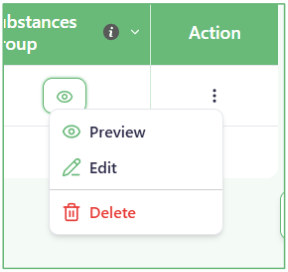
- Open the Substance Groups management page.
Click All Substances Groups to view the Substance Groups available in the system.
From that page, you can manage the Groups and add or edit them when needed.
- Download the Substance table to Excel.
Click the Download button to export the Substance table to an Excel file.
This can be useful when you need to review or update a large number of Substance records outside the page.
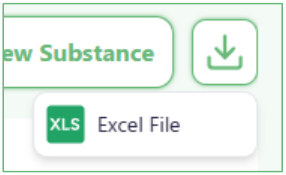
- Use Import to update many Substances at once.
If you need to make changes to many Substances, you can first download the table to Excel, update the information, and then use Import to upload the updated file.
This is faster than editing each Substance one by one.
02.4.2 All Substances Groups Page
- Use this page to view and manage all Substance Groups.
This page shows all Substance Groups available in the system.
Each row shows:
o Substances Group Name o Substances o Relevant Legislations o Action
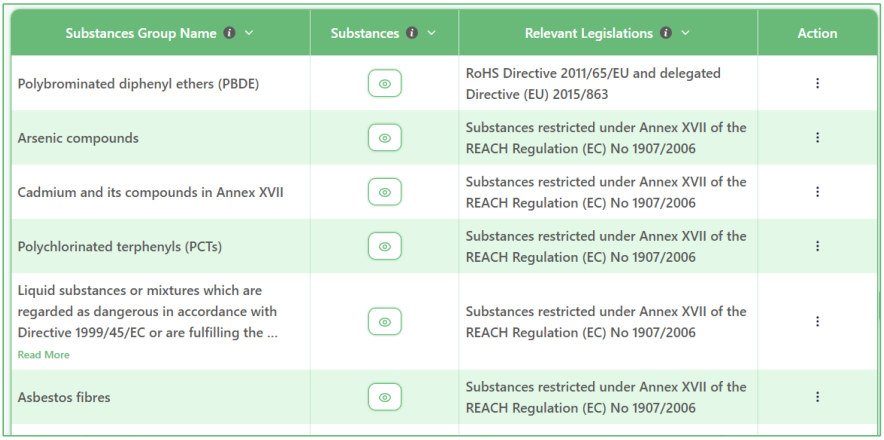
- Use the Search box to find a specific Substance Group.
Type a word in the Search field above the table to quickly find a matching Group.
- View the Substances inside a Group.
Click the eye button in the Substances column.
An overlay opens and shows the Substances included in that Group.
The overlay displays information such as:
o Substance Name o CAS Number o EC Number
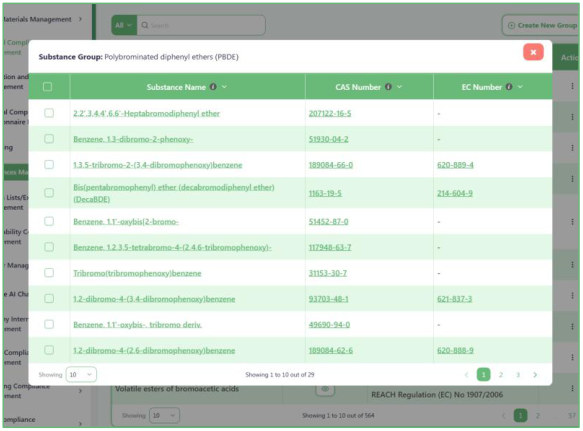
- Review the Legislation connected to each Group.
The Relevant Legislations column shows the Legislation associated with the Substance Group.
This helps you understand which compliance rule the Group belongs to.

- Create a new Substance Group when needed.
Click Create New Group .
In the window that opens:
o Enter the Substance Group Name .
o Select the Main Legislation .
o Select a Sub-Legislation if needed.
The Sub-Legislation is optional, so you can save the Group with only a Main Legislation when appropriate.
Click Save to create the Group.
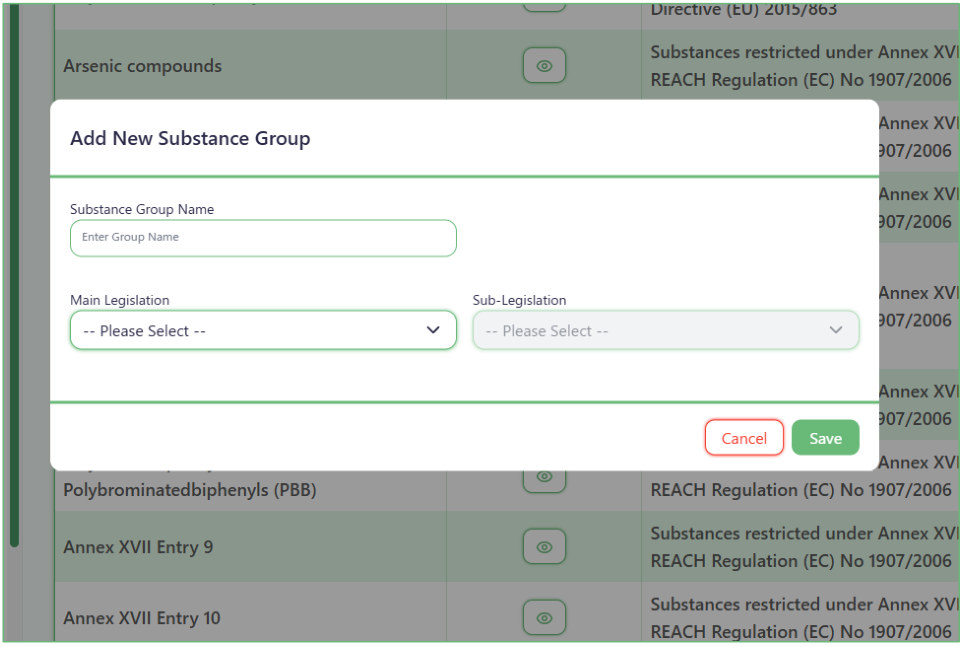
- Edit or delete an existing Substance Group.
Open the three-dot Action menu at the end of a row.
You can choose:
o Edit to change the Substance Group information.
o Delete to remove the Group.
Make sure you are working with the correct Group before deleting it.
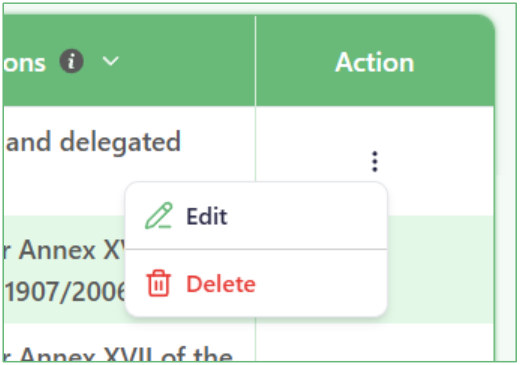
- Download the Substance Groups table.
Click the Download button above the table to export the Substance Groups information to Excel.
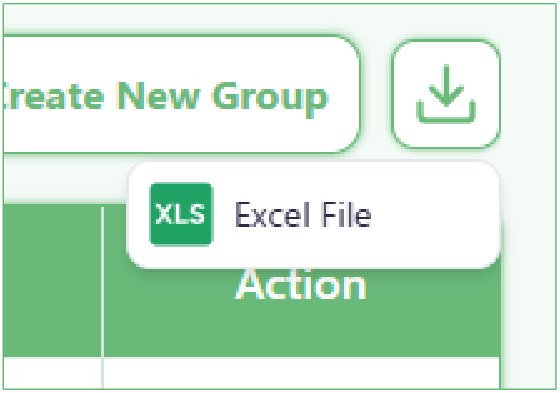
02.4.3 Substance Details
- Use this page to review a Substance and its related Legislation.
This page shows two main parts:
o Substance details o Legislations linked to this Substance It helps you understand the Substance information and where it is used in compliance requirements.
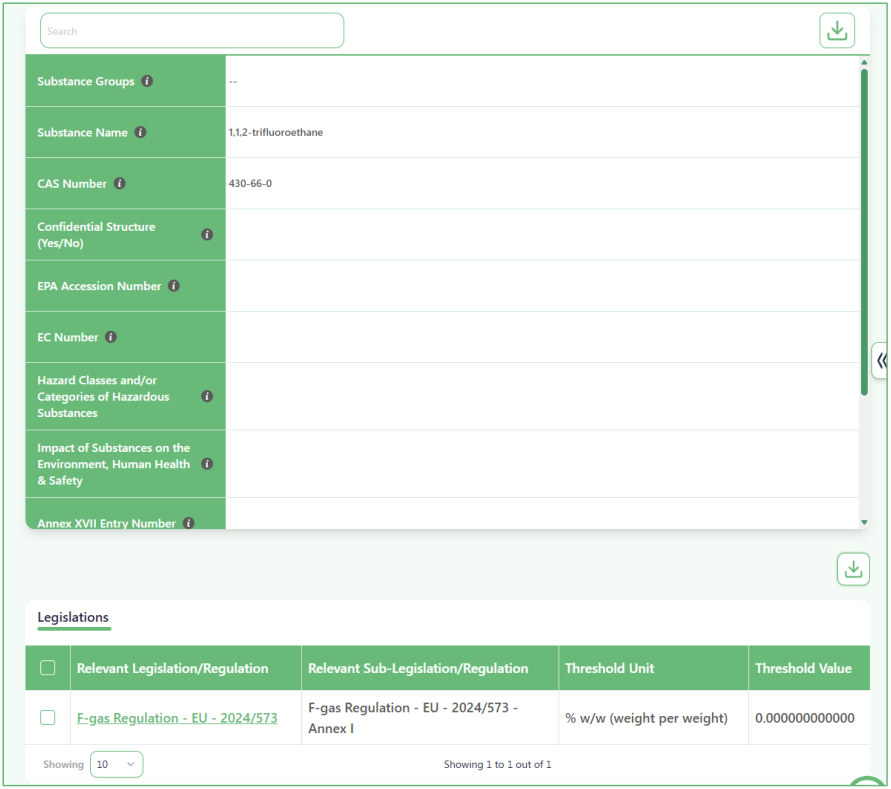
- Review the Substance details at the top of the page.
The first section displays the main information saved for the Substance.
This may include details such as:
o Substance Groups o Substance Name o CAS Number o Confidential Structure o EPA Accession Number o EC Number o Hazard Classes and/or Categories of Hazardous Substances o Impact of Substances on the Environment, Human Health & Safety
o Annex XVII Entry Number o Condition o Comment o Alternative Names Use this section to check the full profile of the selected Substance.
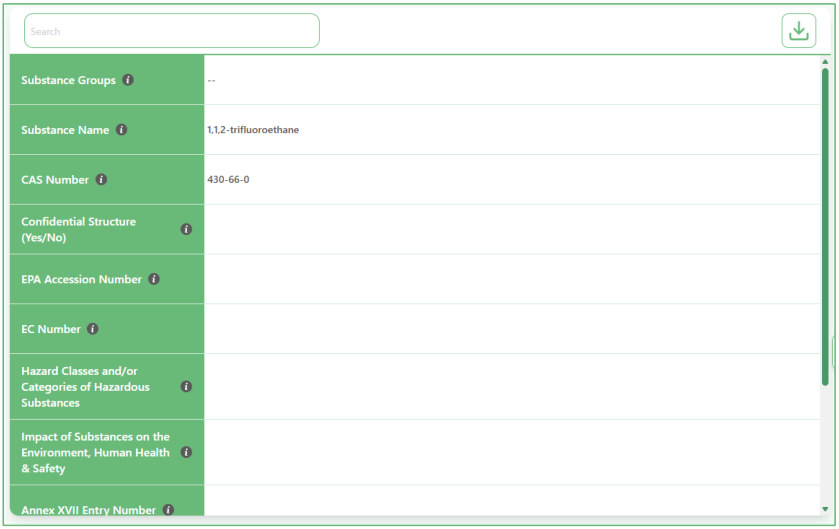
- Use the Search field to quickly find a specific detail.
At the top of the details section, you can use the Search field to quickly locate information in the displayed Substance details.

- Download the Substance details if needed.
Use the Download button in the details section to export the displayed Substance information.
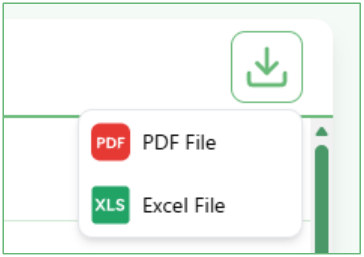
- Review the Legislations linked to this Substance.
The Legislations section at the bottom shows all Legislation and Sub-Legislation records connected to this Substance.
The table shows:
o Relevant Legislation/Regulation o Relevant Sub-Legislation/Regulation o Threshold Unit o Threshold Value Use this section to understand under which rules the Substance is regulated and what threshold applies.
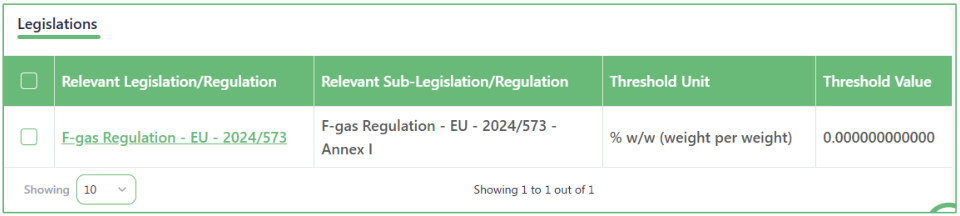
- Use the Legislations table to understand compliance limits.
- The Threshold Unit and Threshold Value columns show the measurement unit and limit connected to that Legislation.
- This helps you know the level at which the Substance becomes relevant for compliance review.
- Download the Legislations list if needed.
Use the Download button in the Legislations section to export the linked Legislation information for this Substance.
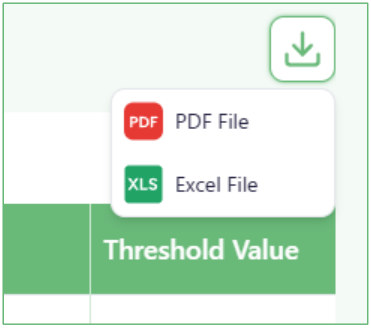
02.4.4 Create New Substance
- Use this page to create a new Substance.
This page is used when the Substance you need is not already available in the system.
First, enter the Substance details.
Then, assign one or more Legislation records to that Substance.
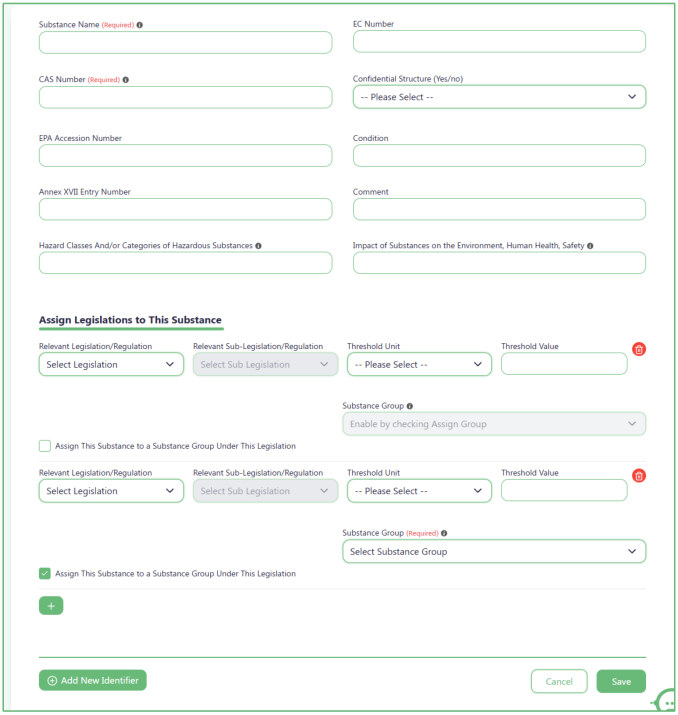
- Enter the main Substance details.
Fill in the available information about the Substance.
This section may include fields such as:
o Substance Name o CAS Number o EC Number o Confidential Structure (Yes/No) o EPA Accession Number o Condition o Annex XVII Entry Number o Comment o Hazard Classes and/or Categories of Hazardous Substances o Impact of Substances on the Environment, Human Health, Safety Fields marked Required must be completed before saving.
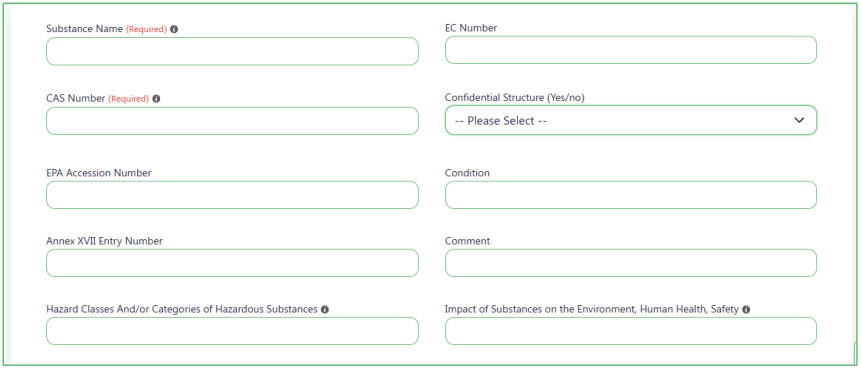
- Enter the required basic identification fields first.
At minimum, complete the fields marked Required , such as:
o Substance Name o CAS Number Then complete any other available information for the Substance.
- Assign Legislation to the Substance.
In the Assign Legislations to This Substance section, choose the Legislation that applies to this Substance.
For each row:
o Select Relevant Legislation/Regulation o Select Relevant Sub-Legislation/Regulation if needed o Select the Threshold Unit o Enter the Threshold Value This connects the Substance to the selected compliance rule.
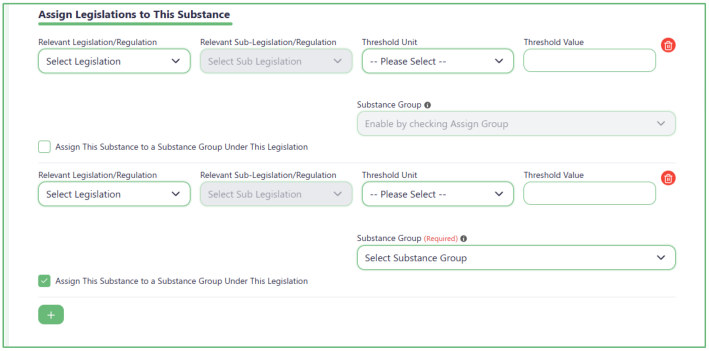
- Assign more than one Legislation when needed.
- A Substance can be linked to multiple Legislations.
- Click the + button to add another Legislation row, then select the information for the additional Legislation.
- Assign the Substance to a Substance Group under a Legislation.
Each selected Legislation can also have a Substance Group connection.
To add one:
o Select the Legislation.
o Check Assign This Substance to a Substance Group Under This Legislation .
o The Substance Group field becomes available.
o Select the required Substance Group.
- The selected Substance Group is connected to the Substance under that specific Legislation.
- Add another identifier when the Substance has an additional identifier.
Click Add New Identifier to add another identifier for the Substance.
In the window that opens:
o Enter the Identifier Type .
o Enter the Identifier Value .
o Click Save .
You can use this when the Substance has another identifier in addition to its main identification information.
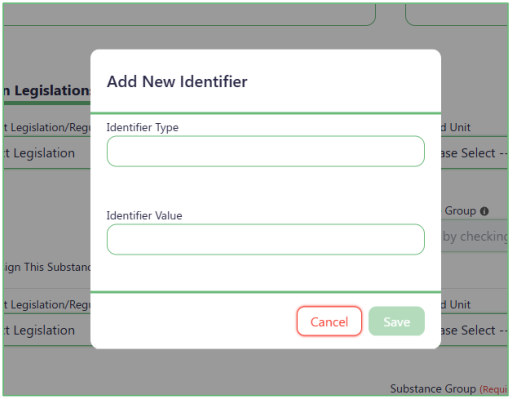
- Save the new Substance.
After entering the Substance details, Legislation connections, Substance Groups, and any additional identifiers, click Save .
Click Cancel if you want to leave without creating the Substance.
02.5 Various Lists/Exemptions Management
- In this section, there are 13 lists of various Lists and Exemptions that you can use in each question when creating the questionnaire.
- These lists include RoHS Exempted Categories, RoHS Exemptions Annex III, RoHS Exemptions Annex IV, RoHS Product Categories, Canada Resin Types by Code, Resin Sources, Other Plastic Products, Plastic Packaging Category, HS Code, Material Category, Additional Category and Mixture Category.
- Each of the 13 lists is linked to a single legislation, and each legislation cannot be linked to more than one list.
03. Sustainability Compliance Management
03.1 Legislation and Regulatory Management
- In Legislation and Regulatory Management, each module has its own independent Legislations.
- Legislations configured in one module do not affect other modules.
- When you start using the system, you may find that some Legislations are already available. These legislations are created by the Super Admin, and once they are created, they become visible to all client systems using the platform.
- However, you can disable any legislation — whether it was pre-created by the Super Admin or created internally for your company — through the Legislation table. The table contains an “Enable/Disable” column that allows you to activate or deactivate any legislation as needed.
- When a legislation is disabled, it does not affect any statuses or reports generated in the system, as if it does not exist.
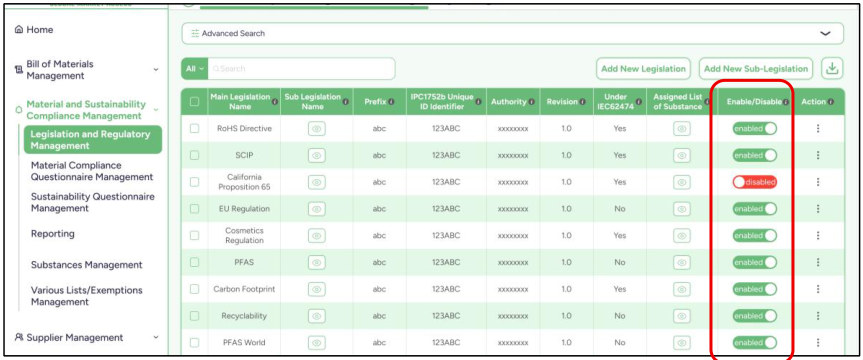
At the top of the table, you will find two main action buttons:
1. Add New Legislation :
Add all details about the new legislation and insert any sub-legislation under it.

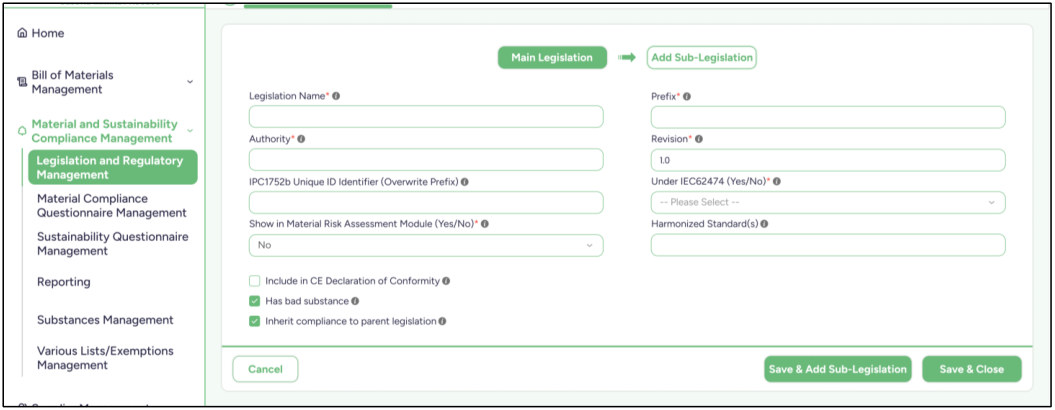
2. Add New Sub-Legislation :
Add the details of the new sub-legislation and assign it to created main legislation.

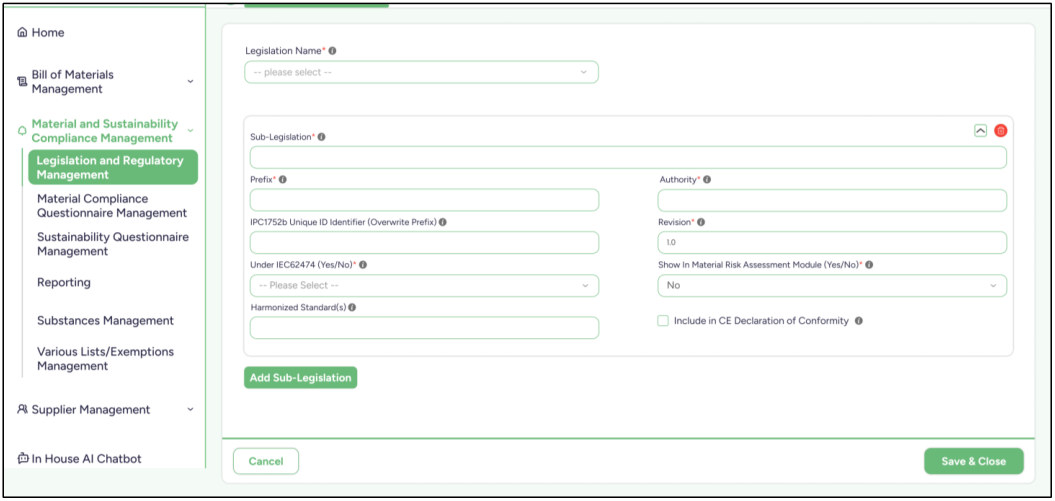
03.2 Sustainability Questionnaire Management
- In Sustainability Questionnaire Management , we have two sections:
Questions Groups and Questionnaire Packages .
- Questions Groups: Creating a Question Group with multiple pages, where each page contains several questions about items and materials.
- Questionnaire Packages: Create a package that contains multiple question groups we have created, and we will use these packages later to send it to the supplier.
03.2.1 Sustainability Questions Groups
- Create a question group with many questions, where each question has multiple options to define the question format for the supplier.
- For each question, you must select a Legislation. However, when you choose the main legislation in the first question, it will automatically be applied to all remaining questions.
- For every question, you can select a Sub-legislation (if available) that belongs to the main legislation you selected.
- You can also change the main legislation at any question. However, if you do so, all previously selected sub-Legislations will be reset — because the main legislation has changed — and you will need to re-select the appropriate sub- legislation for each question again.
- You can create a new page and drag pages to reorder them.
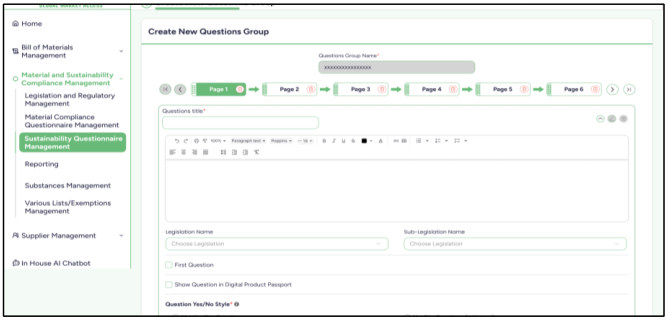
- When creating or editing a question in the Sustainability Compliance Management module:
- You will find a checkbox labeled:
- “Insert Deforestation Package” What happens when this is enabled?
- Suppliers answering this question will:
o See the factories assigned to them o Be able to:
➕ Add new factories (with factory identifier, name and address ) Remove existing factories
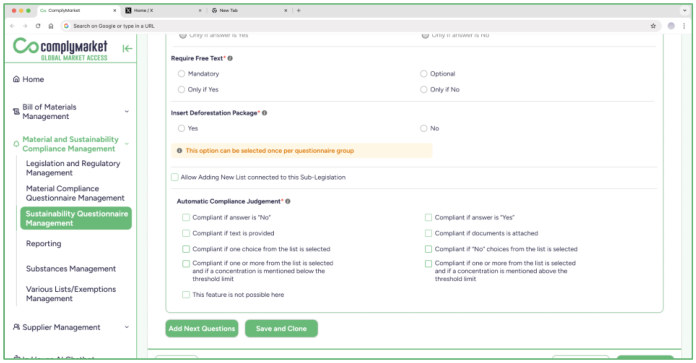
For Suppliers
- When responding to a question with the Deforestation Package enabled:
- 1. Manage Factories
- You can view all factories assigned to you by the company.
- You have the ability to:
o Add new factories if needed o Remove factories that are no longer relevant
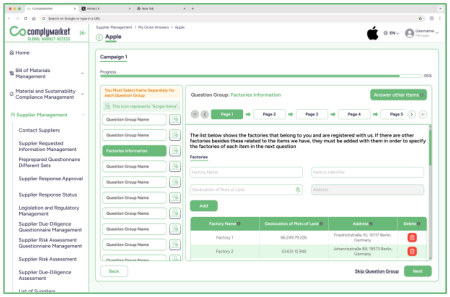
- 2. Assigning Items to Factories
- After managing factories, you can:
o Assign relevant items (e.g., materials or products) to each factory
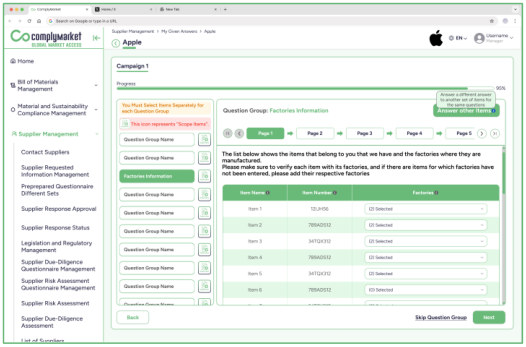
This helps ensure accurate tracking of sustainability and compliance data
03.2.2 Sustainability Questionnaire Packages
- Create a package with multiple question groups we have created.
- You can reorder the questions using the arrow buttons next to each question.
- You can remove question group from the list.
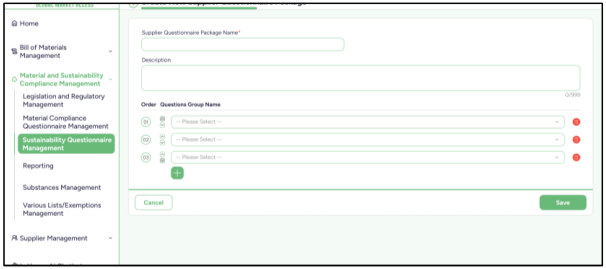
03.3 Reporting
In the reporting section, we provide several types of reports that show whether your product is suitable for use worldwide and compliant with global regulations.
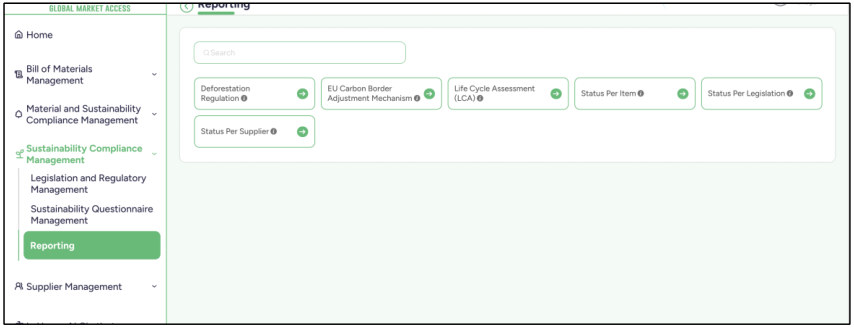
03.3.1 Deforestation Regulation
In Deforestation Regulation, you have 7 sections:
1. API Keys:
In the API Key section, you need to enter two types of API keys: OPERATOR and TRADER. Each one consists of (Economic operators registration and identification (EORI) number - API Endpoint - API Secret Key).
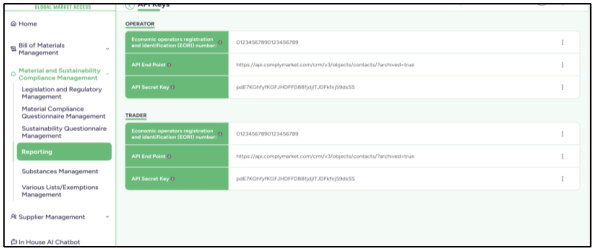
2. Applicable HS/CN Codes:
A list of applicable HS/CN Codes, and you can either add a new HS/CN Code or import them.
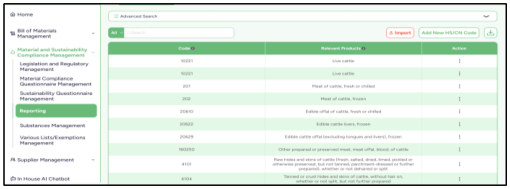
3. OPERATOR Conformity Statement Template:
A template that you fill with certain information so it can be applied to the reports of the items.
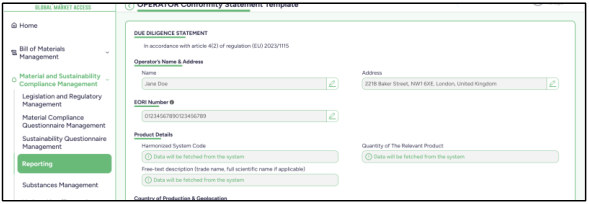
4. TRADER Conformity Statement Template A template that you fill with certain information so it can be applied to the reports of the items.
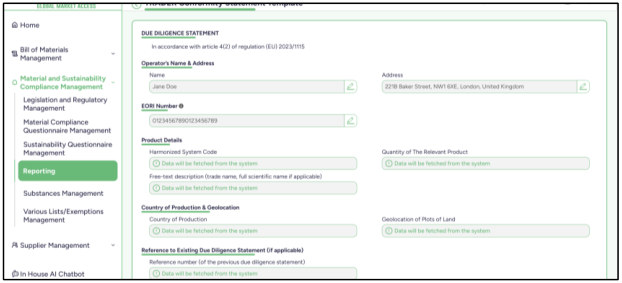
5. Scope Products A list of your items from the BOM, where you can submit the template you created in OPERATOR and TRADER to receive the status for each country.
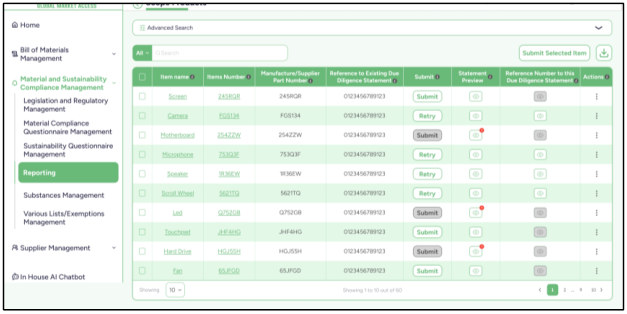
6. Scope Components A list of your items from the BOM, where you can submit the template you created in OPERATOR and TRADER to receive the status for each country.
7. Scope Materials A list of your items from the BOM, where you can submit the template you created in OPERATOR and TRADER to receive the status for each country.
03.3.2 EU Carbon Border Adjustment Mechanism
03.3.3 Life Cycle Assessment (LCA)
- A list of your items from the BOM, where you can preview the Life Cycle Assessment for each one, including GHG (kg CO₂e), Energy (MJ), Water (m³) and Study Document (PDF).
- You can also edit values for each item.
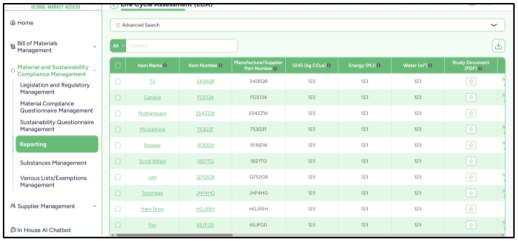
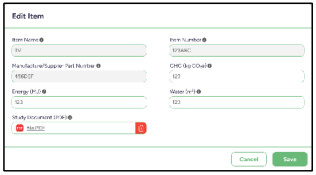
03.3.4 Status Per Item
In this Report you have 3 sections:
1. Products Status A list of your items from the BOM, where you can preview the legislation status for each item.
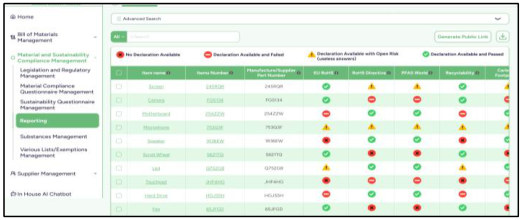
2. Components Status A list of your items from the BOM, where you can preview the legislation status for each item.
3. Materials Status A list of your items from the BOM, where you can preview the legislation status for each item.
03.3.5 Status Per Legislation
In this Report you have 3 sections:
1. Products Status A list of your legislations, where you can preview the status of each one, including the total number of suppliers and items. You can also see whether it is marked as No Declaration Available, Declaration Available and Failed, Declaration Available with Open Risk (useless answers), or Declaration Available and Passed.
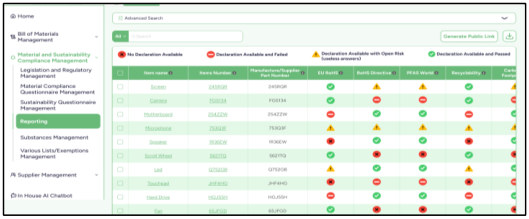
2. Components Status A list of your legislations, where you can preview the status of each one, including the total number of suppliers and items. You can also see whether it is marked as No Declaration Available, Declaration Available and Failed, Declaration Available with Open Risk (useless answers), or Declaration Available and Passed.
3. Materials Status A list of your legislations, where you can preview the status of each one, including the total number of suppliers and items. You can also see whether it is marked as No Declaration Available, Declaration Available and Failed, Declaration Available with Open Risk (useless answers), or Declaration Available and Passed.
03.3.6 Status Per Supplier
The Status per Supplier report provides a summarized overview of compliance declaration results for each supplier across all associated items. This report helps users evaluate supplier compliance performance by presenting aggregated statistics and percentages for different declaration outcomes.
- At the top of the page, the system displays key summary indicators, including the Total Number of Suppliers (with Items) and the Total Number of Items with Suppliers. These indicators provide a quick snapshot of the supplier base and the number of items currently associated with suppliers in the system.
- The report table lists each Supplier Name and Supplier Number, followed by a detailed breakdown of declaration results. For each declaration status category, the system presents both Per Supplier Percentage and Overall Percentage, along with the corresponding number of declarations. This allows users to easily compare individual supplier performance with the overall compliance situation across the system.
- The declaration categories shown in the report include:
- No Declaration Available – Indicates that required declarations have not been submitted by the supplier.
- Declaration Available and Failed – Indicates that a declaration has been submitted but does not comply with regulatory requirements.
- Declaration Available with Open Risk – Indicates that the declaration contains incomplete or potentially unreliable responses that require further review.
- Declaration Available and Passed – Indicates that the submitted declaration meets all applicable compliance requirements.
- Partially Available and Passed – Indicates that some declarations are compliant while others may still be missing or under evaluation.
The report also includes search and filtering functionality, enabling users to quickly locate specific suppliers or review compliance results. Additionally, the data can be exported using the download option, allowing users to perform further analysis or share compliance performance reports with internal teams.
By providing both detailed and aggregated insights, the Status per Supplier report enables organizations to monitor supplier compliance performance, identify suppliers requiring follow-up, and maintain transparency across compliance management processes.
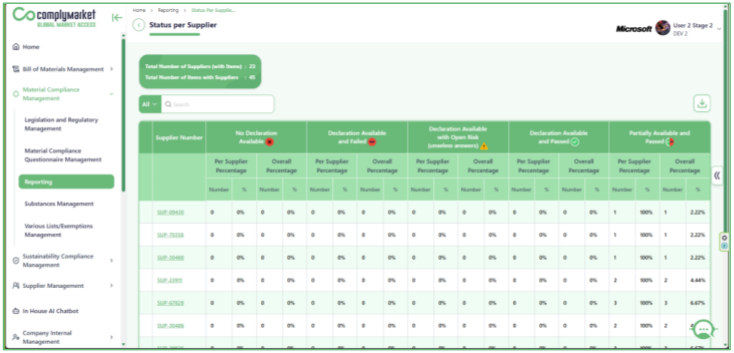
03.3.7 Status Per Supplier and Item
- The Status Per Supplier and Item report provides a consolidated overview of compliance declaration statuses submitted by suppliers for specific items and regulatory requirements. This report helps users quickly identify whether suppliers have provided the required compliance information and whether the submitted declarations meet the applicable regulatory standards.
- The page displays supplier-related information such as Supplier Name and Supplier Number, along with a set of compliance indicators for different regulations and requirements. Each column represents a specific compliance domain, such as EU RoHS, EU REACH and other regulatory frameworks. The status icons in the table visually indicate the current declaration result for each supplier and item combination.
- Users can easily recognize different declaration outcomes through status indicators, including:
- No Declaration Available – The supplier has not submitted the required declaration.
- Declaration Available and Failed – A declaration has been submitted but does not meet the compliance requirements.
- Declaration Available with Open Risk – The declaration contains incomplete or insufficient information that requires further review.
- Declaration Available and Passed – The submitted declaration meets the compliance criteria.
- Partially Available and Passed – Some declarations are available and compliant, while others may still be pending.
The report also includes search and filtering capabilities, allowing users to quickly locate specific suppliers, items, or compliance results. In addition, the Advanced Search option enables more refined filtering to support detailed analysis and reporting.
By providing a clear and structured view of supplier compliance statuses, this report helps organizations monitor supplier performance, detect missing or failed declarations, and ensure that products meet regulatory requirements before entering the market.
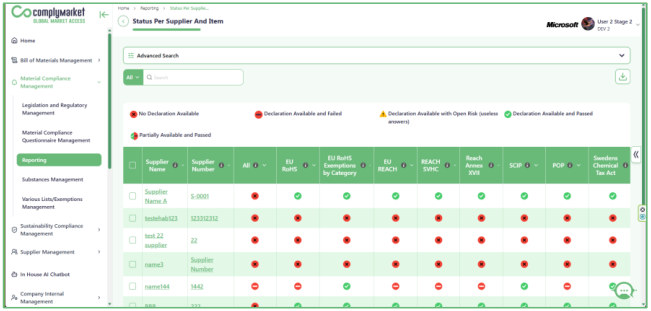
04. Supplier Management
04.1 Contact Suppliers
- This section covers all the tools used to send the questionnaire to suppliers, as well as the status of the emails—whether they were sent or not.
- In Contact Suppliers , we have 5 sections: Email Sending Tool , Escalation Logs , Delivery Status , Email Configuration and Supplier Direct Chat .
04.1.1 Email Sending Tool
In this section, we send the prepared questions to the suppliers and enter some required information, including:
1- Campaign Name : We enter a name for the entire campaign.
2- Choose Template : We select a template from the ones we prepared (in the Supplier Requested Information Management section), and the template data is fetched here. You can also edit it or add additional information.
(You can find a more detailed explanation in its dedicated section.)

3- Choose Suppliers List : We select a customized supplier list from those created in the Supplier Requested Information Management section for the suppliers we want to send this questionnaire to. When you choose a list that contains, for example, 10 suppliers, the items for each supplier will be generated automatically in the email sent to them. If you select something from the “Choose Suppliers List,” you will not be able to select anything from the “Choose Customized Items List,” as it will be disabled.

4- Choose Customized Items List : We select a customized items list from those created in the Supplier Requested Information Management section. When you choose a list that contains, for example, 10 items, the supplier for each item will be generated automatically in the email sent to them. If you select something from the “Choose Customized Items List,” you will not be able to select anything from the “Choose Suppliers List,” as it will be disabled.

5- Choose Questionnaire Set: We select a Questionnaire Set from those created in the "Preprepared Questionnaire Different Sets" section.
(You can find a more detailed explanation in its dedicated section.)
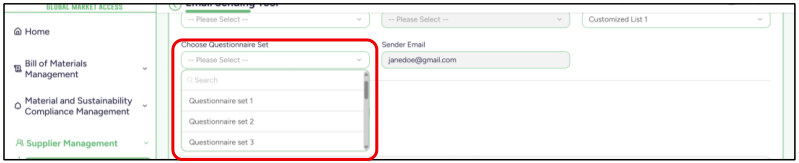
6- Choose Sender Email: It will be a disabled input, and its value is fetched from the “Email Configuration” section under the “Contact Suppliers” tab, where you select the main email that will be used here.
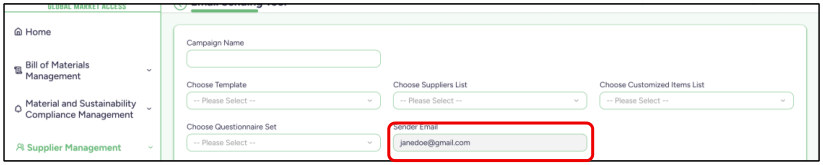
7- Email Title: It is the title of the email that will be sent.

8- Message: You have a text area here to write any explanation you want for the suppliers about this section.
Additionally, you have four options to choose from to define this section:
Mark as Item’s List, Mark as Questionnaire Link, Mark as Questionnaire Excel File, or Mark as Reply Page for files and text. Once you select one of these options, the remaining three will be disabled.
- You can also add multiple sections here.
- And what do these options mean?
- Mark as Item’s List : A Linked Button for the Items List will be placed under this section. And the “Link Button Title” input, you will enter the title that will appear on the button.
- Mark as Questionnaire Link : A Linked Button for The Questionnaire will be placed under this section. And the “Link Button Title” input, you will enter the title that will appear on the button.
- Mark as Questionnaire Excel File : A Linked Button for the Excel file containing the questionnaire will be placed under this section. And the “Link Button Title” input, you will enter the title that will appear on the button.
- Mark as Reply Page for files and text : A Linked Button will be placed under this section, linking to the page where the completed questionnaire Excel files can be uploaded. And the “Link Button Title” input, you will enter the title that will appear on the button.
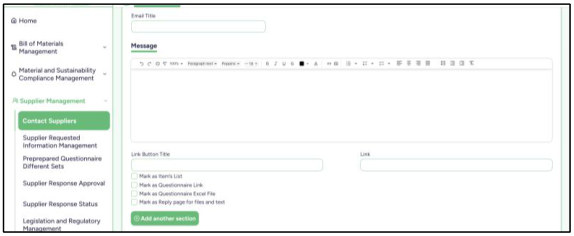
9- Footer: The footer section, used to write the closing part of the email.
10- Attachments: You can upload any files to be sent along with the email.
11- Add Calendar: You can add a calendar event to this email.
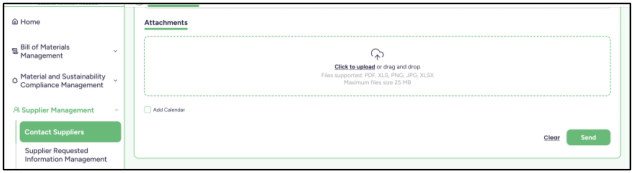
04.1.2 Delivery Status
This page shows the status of the emails that were sent, which can be either Delivered or Failed. You can resend the email if it Failed or resend a Delivered email as a reminder.
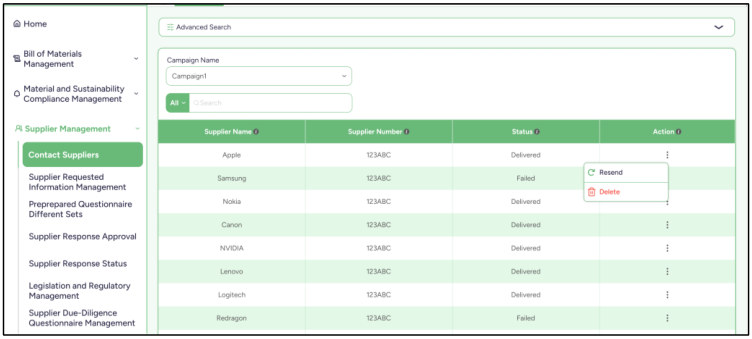
04.1.3 Email Configuration
In this section, we enter the email provider and add the emails under it. Then, we select one as the main email to be used in the email sending tool section.
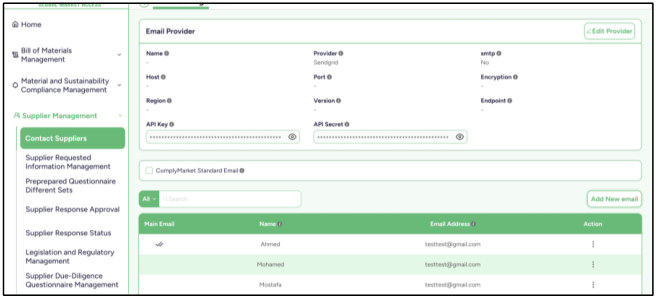
1- Email Provider: Click the “Edit Provider” button to enter the provider’s data.
For the SMTP input, if you select “Yes,” you will enter the Host, Port, and Encryption, while the other inputs will be disabled. If you select “No,” you will enter the API Key, API Secret, Region, Version, and Endpoint, and the remaining inputs will be disabled.
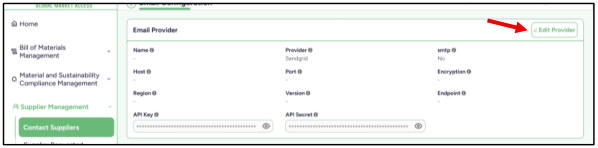
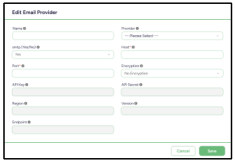
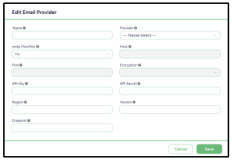
2- Add New Emails: You can add a new email under this provider by entering the Name, Email, and Password. The email must be validated before it can be added. There is also a checkbox, “Make this Sender Email public to other users,” which allows the email to be available to everyone in the company.
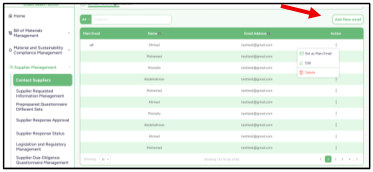
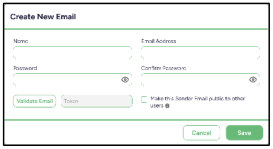
04.2 Supplier Requested Information Management
- In this section, you can create and manage the templates that will be used later in the Email Sending Tool for sending emails.
- In Supplier Requested Information Management , we have 3 sections: Item Customized Lists , Supplier Contact Form Templates and Supplier Customized Lists .
04.2.1 Item Customized Lists
You can create multiple customized item lists and use one of them in the Email Sending Tool for sending emails.
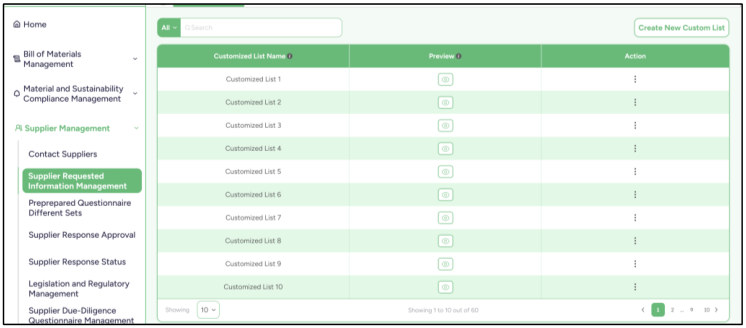
Just click the " Create New Custom List " button and generate a new list.
When selecting the items for the list, you can search for them using many available filtering options:
1. Item Type : You can choose the item type from Products, Components, Materials, or Substances. You can select all of them, some of them, or just one.
2. Supplier : You can search for the items by selecting their suppliers, and you can choose one supplier or multiple suppliers.
3. Application/Use : You can search for the items by selecting their Application/Use, and you can choose one or multiple options.
4. HS Code : You can search for the items by selecting their HS Code, and you can choose one or multiple options.
5. Component Type : You can search for the items by selecting the Component Type, and you can choose one or multiple options.
6. Material Type : You can search for the items by selecting the Material Type, and you can choose one or multiple options.
7. Item Status : In the Item Status, you can search for items by selecting their status according to the legislation. There are 10 options to choose from, including (All legislations passed - All legislations failed - All legislations do not have declaration - All legislations have an open risk - Declaration is available for all legislations - One legislation at least failed - One legislation at least passed - One legislation at least does not have declaration - One legislation at least does have an open risk - One legislation at least does have any declaration).
If you select one of the last five options, two inputs will open, allowing you to specify a particular legislation. And this is optional.
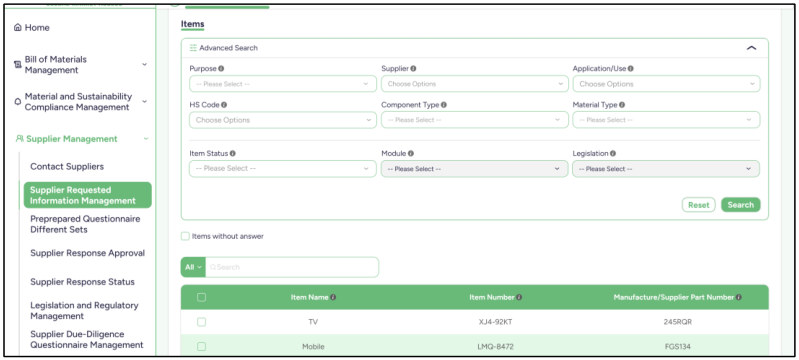
04.2.2 Supplier Contact Form Templates
You can create multiple Form Templates and use one of them in the Email Sending Tool for sending emails.
The Form Templates consist of:
1. Email Title: It is the title of the email that will be sent.

- 2. Message: You have a text area here to write any explanation you want for the suppliers about this section.
- Additionally, you have four options to choose from to define this section:
- Mark as Item’s List, Mark as Questionnaire Link, Mark as Questionnaire Excel File, or Mark as Reply Page for files and text. Once you select one of these options, the remaining three will be disabled.
- You can also add multiple sections here.
- And what do these options mean?
- Mark as Item’s List : A Linked Button for the Items List will be placed under this section. And the “Link Button Title” input, you will enter the title that will appear on the button.
- Mark as Questionnaire Link : A Linked Button for The Questionnaire will be placed under this section. And the “Link Button Title” input, you will enter the title that will appear on the button.
- Mark as Questionnaire Excel File : A Linked Button for the Excel file containing the questionnaire will be placed under this section. And the “Link Button Title” input, you will enter the title that will appear on the button.
- Mark as Reply Page for files and text : A Linked Button will be placed under this section, linking to the page where the completed questionnaire Excel files can be uploaded. And the “Link Button Title” input, you will enter the
title that will appear on the button.
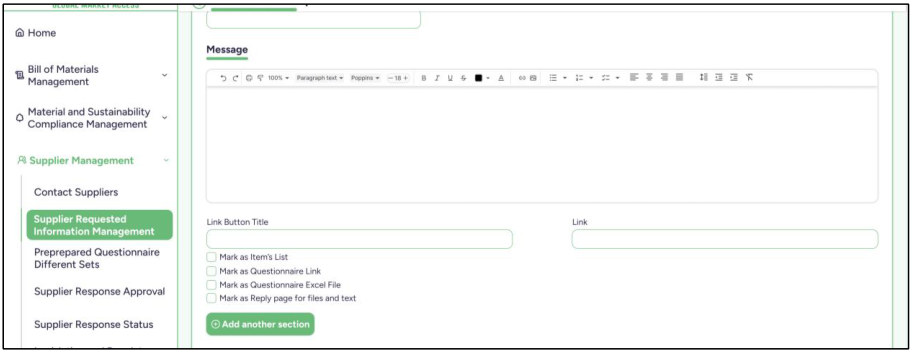
3. Footer: The footer section, used to write the closing part of the email.
4. Add Calendar : You can add a calendar event to this email.
04.2.3 Supplier Customized Lists
You can create multiple Supplier Customized Lists and use one of them in the Email Sending Tool for sending emails.
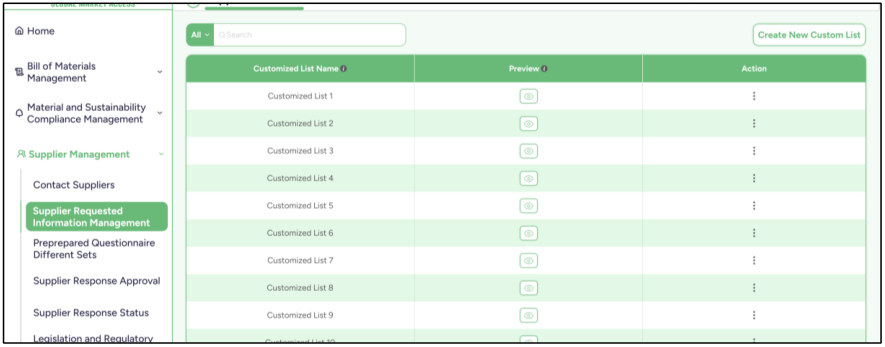
Just click the " Create New Custom List " button and generate a new list.
When selecting the suppliers for the list, you can search for them using many available filtering options:
1. Supplier Risk : You can filter the suppliers by selecting one of the Supplier Risk levels: High, Medium, or Low. You can select all of them, some of them, or just one.
2. Supplier Status : You can filter the suppliers by selecting one of the Supplier Status: Declaration Available and Passed, Partially Available and Passed, Declaration Available and Failed, Declaration Available with Open Risk (useless answers) or No Declaration Available. You can select all of them, some of them, or just one.
3. Item Status : In the Item Status, you can search for Suppliers by selecting their status according to the legislation. There are 10 options to choose from, including (All legislations passed - All legislations failed - All legislations do not have declaration - All legislations have an open risk - Declaration is available for all legislations - One legislation at least failed - One legislation at least passed - One legislation at least does not have declaration - One legislation at least does have an open risk - One legislation at least does have any declaration).
If you select one of the last five options, two inputs will open, allowing you to specify a particular legislation. And this is optional.
04.3 Preprepared Questionnaire Different Sets
- In this section, we prepare the final questions that will be sent to the supplier by selecting from all the questionnaire packages created in the four modules.
- Insert the Supplier Questionnaire Set Name and Description, Then you can select all the packages you want by first choosing the module and then selecting the package.
- After selecting all the packages you want, you can reorder them using the two arrows next to each package to move it up or down.
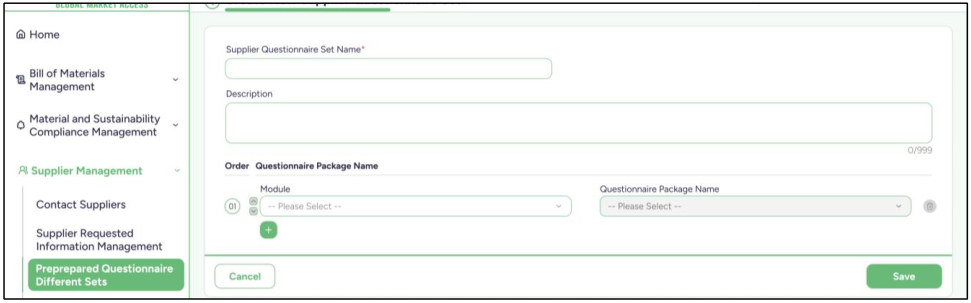
04.4 Supplier Response Approval
- You will find here all the campaigns that have been created and sent to suppliers. For each campaign, you can view the suppliers’ responses by clicking on the campaign name or by clicking the preview icon in the table.
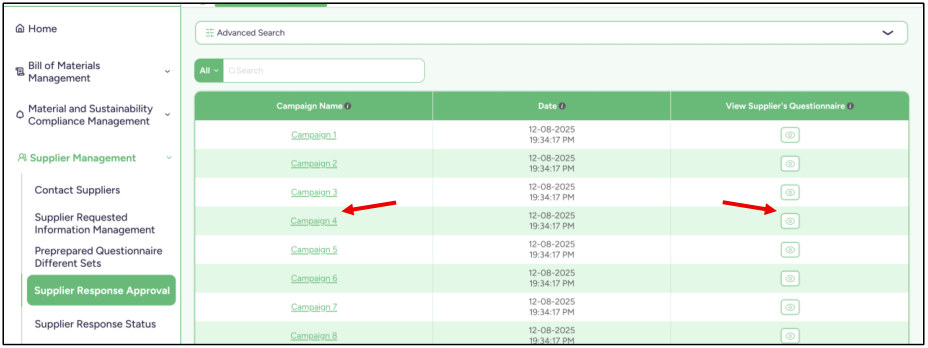
- After you open one of the campaigns, you will find the answers from all suppliers who received questions — but only those whose status is marked as “Completed”.
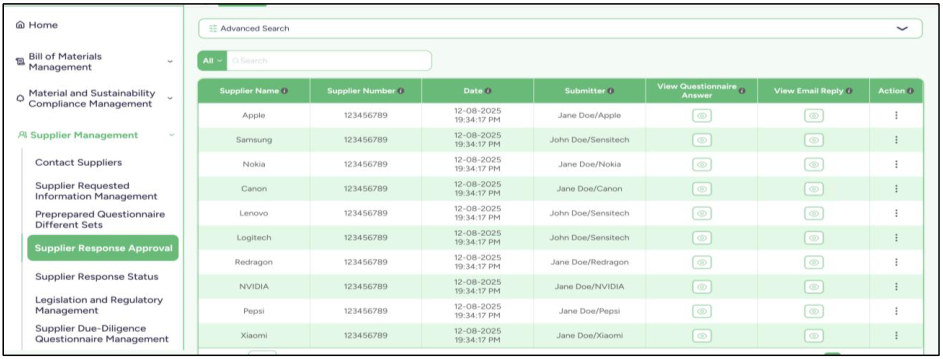
- You will find all the suppliers whose status is marked as “Completed”, along with the date they completed it and the submitter who answered the questionnaire. You can also see whether the submitter is from the supplier’s company or from your own company, since you can manually change the status yourself in the Supplier Response Status section.
- In the Actions column, you have two options:
1. Change Supplier Answer Manually : This allows you to open the supplier’s answers and manually edit them.
2. Approve Supplier Answer : Through this option, you can open the supplier’s answers, where you will find that each answer has an Automatic Judgment based on the selections you defined in the Questionnaire Management section for each question.
You can also change the selected Judgment to another one if needed.
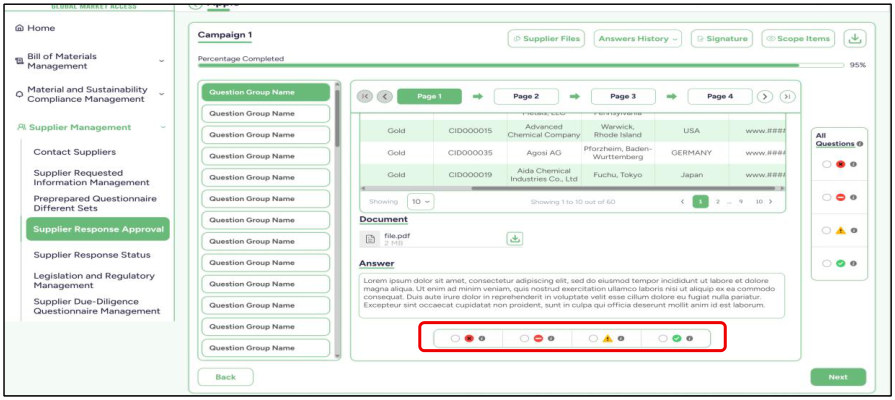
- You will see the progress percentage, which shows whether the supplier has answered all questions or if there are any unanswered ones. If it shows 100%, it means the supplier has answered all questions.
- In the Answer History, you can choose which version of the supplier’s answers you want to view, since the supplier may submit the questionnaire multiple times. By default, the version you will see when viewing the answers is the
latest version they submitted.
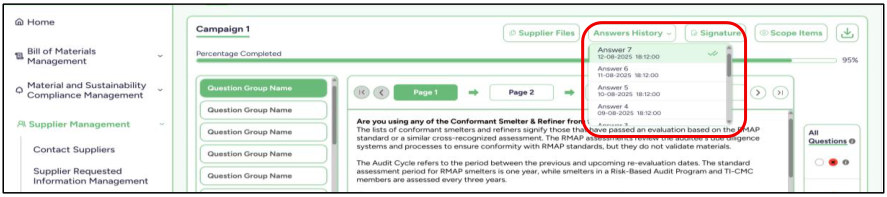
- The Scope Items are the items you selected for the supplier to answer questions about. They appear here so you can review them.

Substance Concentration Calculation Logic
- Goal Determine the final substance concentration (e.g., lead %) for an item based on:
- Company data
- Supplier questionnaire(s) General Rules
1. Supplier Data Overrides Company Data
- If the supplier provides a concentration → use it instead of company data
- Company data is only used when no supplier data exists
2. Multiple Supplier Answers
- When multiple questionnaires answers exist:
o The latest answer overrides previous ones
3. No Substance = 0%
- If supplier states:
o “No substance” or “item has no related substances” → Treat as 0% concentration
4. Conflict Handling
- Case A: Zero vs Value o If one answer = 0 and another provides a value → use the value
- Example:
- o Q1: No substance o Q2: 2% Substance A o Q3: 2% Substance A
- Result: 2%
Case B: Inconsistent Values
- If multiple answers provide different values for the same substance → Show warning
Example:
- Q1: No substance
- Q2: 2% Substance A
- Q3: 3% Substance A
- Q4: 4% Substance A
- Result: Warning (inconsistent values)
5. Threshold Handling
- If a substance exists below the regulation threshold AND no supplier answers override it:
- → Keep the original value
- Do NOT round to zero unless explicitly required
Example:
- Existing value: 0.005% (below threshold)
- Result: 0.005%
6. Aggregation Rule (Important)
- When combining data:
o Do NOT sum duplicate substances o If the same substance appears:
→ Supplier value replaces company value
7. Total Concentration Validation
- If total concentration (company + supplier after override) exceeds 100% :
→ Show warning
8. Missing Data
- If both company and supplier provide no substance data:
- → Store as 0% When to Show Warning Trigger a warning when:
- There are conflicting supplier answers
- Total concentration exceeds 100% Summary 1. Supplier data overrides company data 2. Same substance → replace, not sum 3. “No substance” → 0%
- 4. Below threshold → keep value 5. Conflicts → warning 6. Total > 100% → warning Notes (Engineering Perspective)
- The system behaves as a priority-based merge
- Supplier answers act as override inputs
- Includes validation layer :
o Conflict detection o Threshold handling o Total percentage validation
04.5 Supplier Response Status
- You will find here all the campaigns that have been created and sent to suppliers. For each campaign, you can view the suppliers’ responses by clicking on the campaign name or by clicking the preview icon in the table.
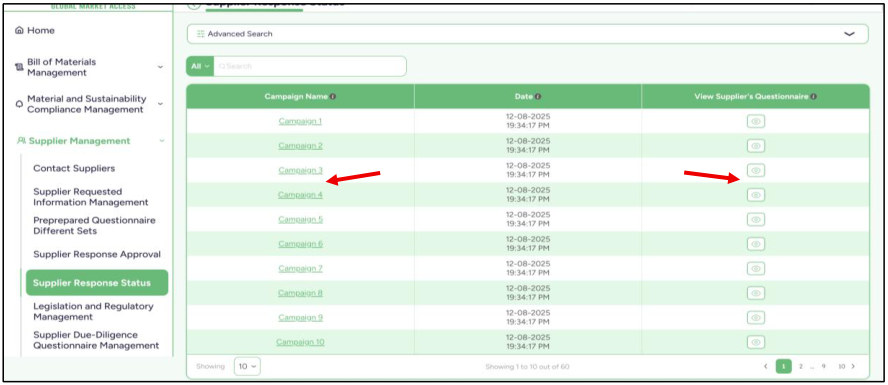
- After you open one of the campaigns, you will find the answers from all suppliers who received the questionnaire along with their Response Status.
- There are four types of response statuses:
1. Pending: It means that the supplier has received the email that contains the questionnaire link.
2. Opened: It means that the supplier clicked on the questionnaire link and opened it.
3. In progress: It means that the supplier opened the questionnaire link and started answering the questions.
4. Completed: It means that the supplier answered all the questions, added their signature, and submitted the questionnaire. At that point, the questionnaire is sent to the “Supplier Response Approval” section for judgment.
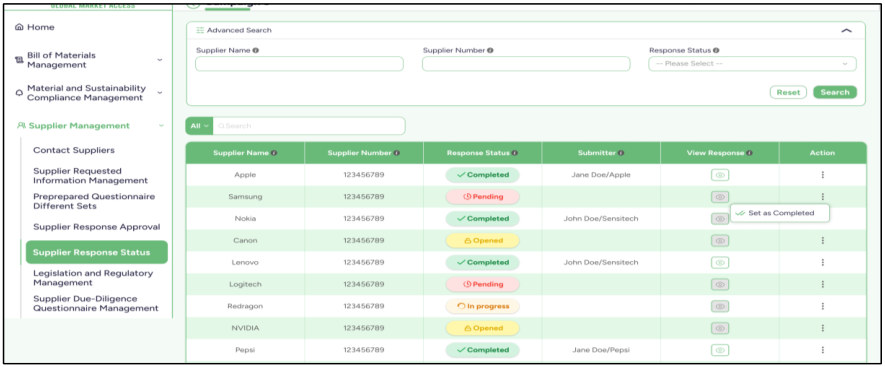
- You will find all the suppliers whose status is marked as “Completed”, along with the submitter who answered the questionnaire. You can also see whether the submitter is from the supplier’s company or from your own company.
- In the Actions section, you will find a button called “Set as Completed.” This allows your company to manually change the supplier’s status to “Completed” so that their questionnaire moves to the Supplier Response Approval section.
- This is useful when the supplier sends their answers in an Excel sheet, and your company needs to enter the answers on their behalf.
- “View Response” is only available when the status is marked as “Completed.” It allows you to view the supplier’s answers without performing any actions on them.
04.6 Legislation and Regulatory Management
- In Legislation and Regulatory Management , we have two sections: Supplier
Due-Diligence and Supplier Risk Assessment .
- In Legislation and Regulatory Management, each module has its own independent Legislations.
- Legislations configured in one module do not affect other modules.
- When you start using the system, you may find that some Legislations are already available. These legislations are created by the Super Admin, and once they are created, they become visible to all client systems using the platform.
- However, you can disable any legislation — whether it was pre-created by the Super Admin or created internally for your company — through the Legislation table. The table contains an “Enable/Disable” column that allows you to activate or deactivate any legislation as needed.
- When a legislation is disabled, it does not affect any statuses or reports generated in the system, as if it does not exist.
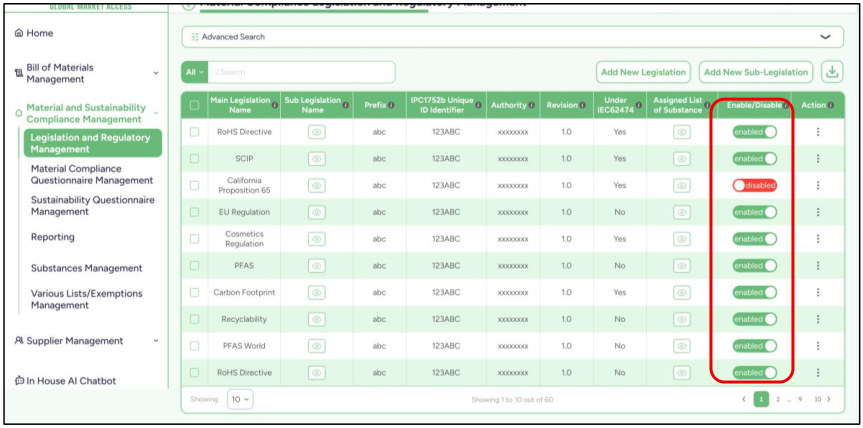
There are two buttons:
1. Add New Legislation :
Add all details about the new legislation and insert any sub-legislation under it.
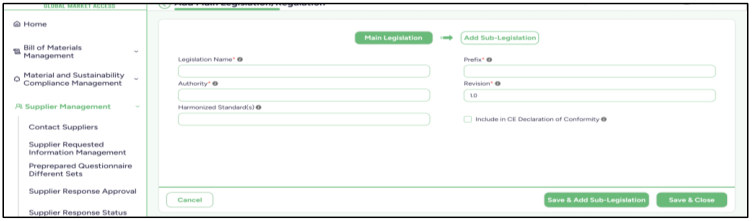
2. Add New Sub-Legislation :
Add the details of the new sub-legislation and assign it to created main legislation.

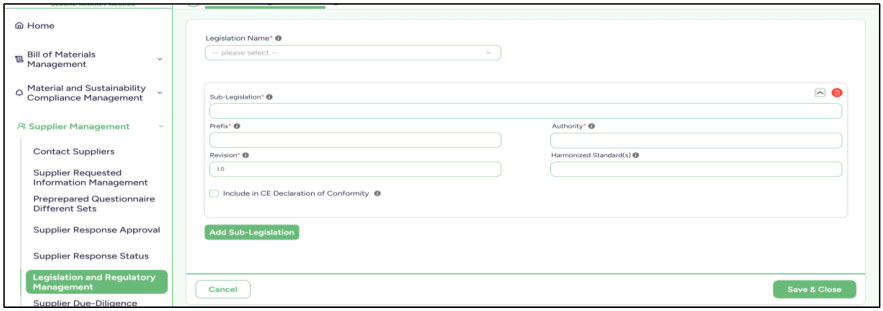
04.7 Supplier Due-Diligence Questionnaire Management
- In Supplier Due-Diligence Questionnaire Management , we have 3 sections:
Questions Groups, Questionnaire Packages and Criteria .
- Questions Groups: Creating a Question Group with multiple pages, where each page contains several questions about items and materials.
- Questionnaire Packages: Create a package that contains multiple question groups we have created, and we will use these packages later to send it to the supplier.
- Criteria: These are points defined by the company itself to evaluate the Supplier Risk (High, Middle or Low).
04.7.1 Supplier Due-Diligence Questions Groups
- Create a question group with many questions, where each question has multiple options to define the question format for the supplier.
- For each question, you must select a Legislation. However, in the first question, when you choose the main legislation, it will be applied to all the remaining questions and cannot be changed. You can only change the sub- legislation for each individual question.
- You can create a new page and drag pages to reorder them.
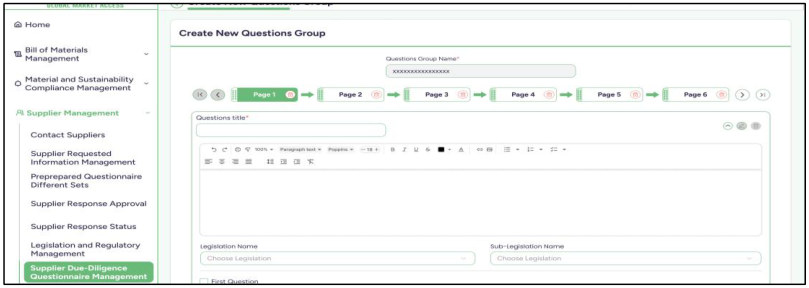
04.7.2 Supplier Due-Diligence Questionnaire Packages
- Create a package with multiple question groups we have created.
- You can reorder the questions using the arrow buttons next to each question.
- You can remove question group from the list.
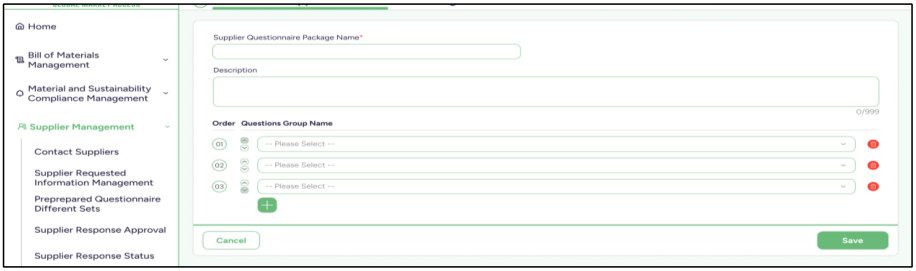
04.7.3 Supplier Due-Diligence Criteria
- These are points defined by the company itself to evaluate the Supplier Risk (High, Middle or Low).
- When you define these points, you also specify the ranges for each risk level—High Risk, Middle Risk, and Low Risk. These ranges are determined by setting the “Number of Points Above or Equal (≥)” and “Number of Points Below or Equal (≤)” for each risk level.
- The logic requires that you define the ranges in ascending order, starting with High Risk, then Middle Risk, then Low Risk.
- Additionally, the “Number of Points Below or Equal (≤)” for each risk level must match the “Number of Points Above or Equal (≥)” of the next risk level plus exactly one point.
- Example : 1- If the Number of Points Below or Equal (≤) for High Risk is 10, then the Number of Points Above or Equal (≥) for Middle Risk must be 11.
2- If the Number of Points Below or Equal (≤) for Middle Risk is 15, then the Number of Points Above or Equal (≥) for Low Risk must be 16, and so on.
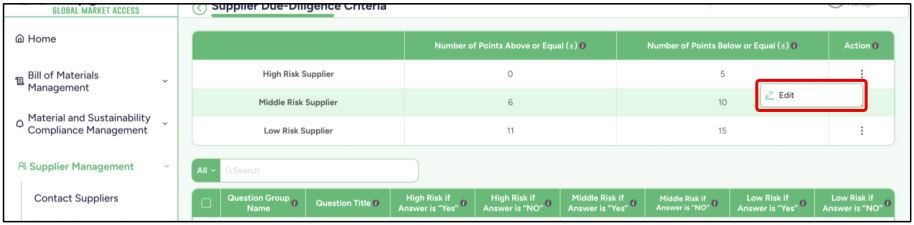
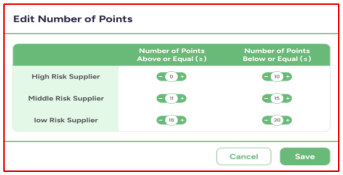
04.8 Supplier Risk Assessment Questionnaire Management
- In Supplier Risk Assessment Questionnaire Management , we have 3 sections: Questions Groups, Questionnaire Packages and Criteria .
- Questions Groups: Creating a Question Group with multiple pages, where each page contains several questions about items and materials.
- Questionnaire Packages: Create a package that contains multiple question groups we have created, and we will use these packages later to send it to the supplier.
- Criteria: These are points defined by the company itself to evaluate the Supplier Risk (High, Middle or Low).
04.8.1 Supplier Risk Assessment Questions Groups
- Create a question group with many questions, where each question has multiple options to define the question format for the supplier.
- For each question, you must select a Legislation. However, in the first question, when you choose the main legislation, it will be applied to all the remaining questions and cannot be changed. You can only change the sub- legislation for each individual question.
- You can create a new page and drag pages to reorder them.
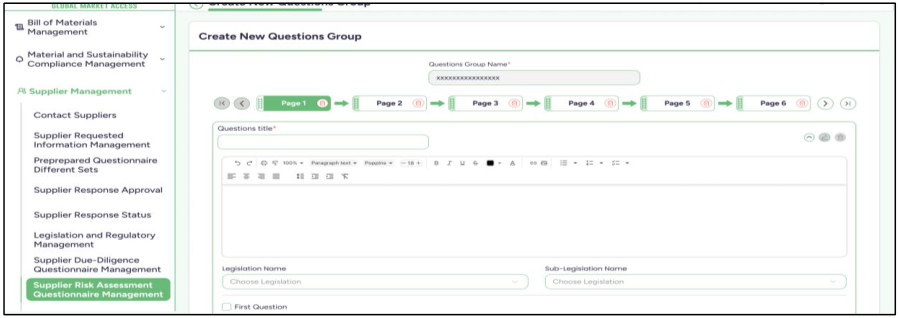
04.8.2 Supplier Risk Assessment Questionnaire Packages
- Create a package with multiple question groups we have created.
- You can reorder the questions using the arrow buttons next to each question.
- You can remove question group from the list.
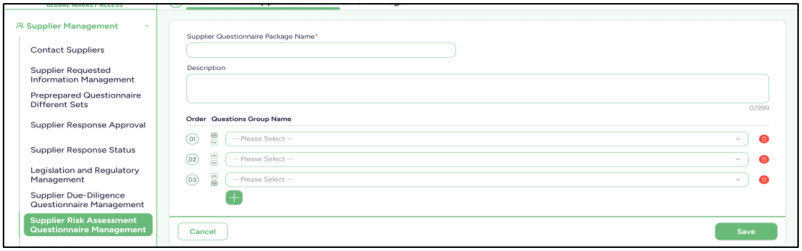
04.8.3 Supplier Risk Assessment Criteria
- These are points defined by the company itself to evaluate the Supplier Risk (High, Middle or Low).
- When you define these points, you also specify the ranges for each risk level—High Risk, Middle Risk, and Low Risk. These ranges are determined by
- setting the “Number of Points Above or Equal (≥)” and “Number of Points Below or Equal (≤)” for each risk level.
- The logic requires that you define the ranges in ascending order, starting with High Risk, then Middle Risk, then Low Risk.
- Additionally, the “Number of Points Below or Equal (≤)” for each risk level must match the “Number of Points Above or Equal (≥)” of the next risk level plus exactly one point.
- Example : 1- If the Number of Points Below or Equal (≤) for High Risk is 10, then the Number of Points Above or Equal (≥) for Middle Risk must be 11.
2- If the Number of Points Below or Equal (≤) for Middle Risk is 15, then the Number of Points Above or Equal (≥) for Low Risk must be 16, and so on.
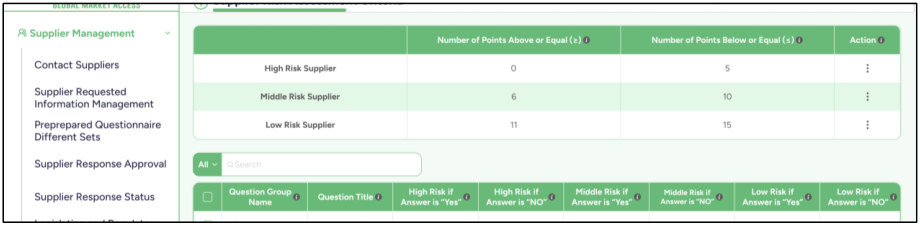
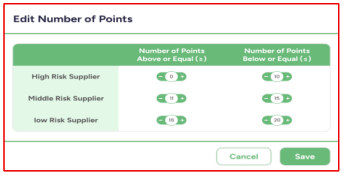
04.9 Supplier Risk Assessment
- In this section, you will find all your supplier lists along with the risk status of each supplier—whether High, Middle, or Low—based on their answers and the judgments made in the Supplier Response Approval section.
- You can also use the Preview option for each supplier to view all the items associated with them.
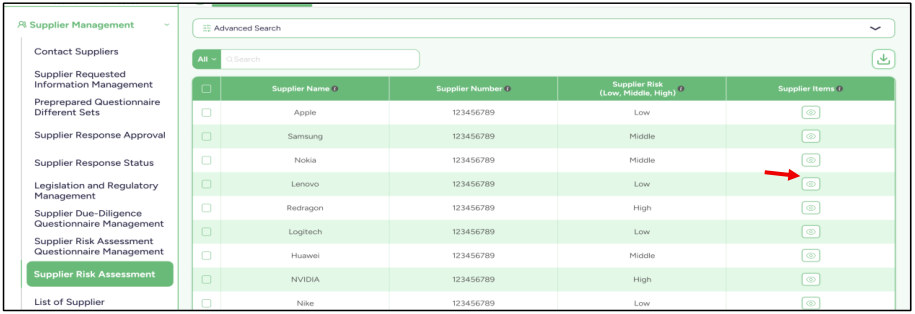
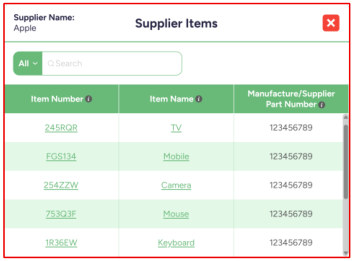
04.9.1 Supplier Risk Assessment Guidelines:
1. Automatic Judgment Check: For every answered question, verify if
it has an automatic judgment condition defined.
2. Evaluate Each Answer: Determine whether the selected response is
classified as: (High – Middle – Low – Has a Score).
3. High-Risk Condition: If at least one answer is judged as High:
- The supplier is immediately classified as High Risk.
4. Middle-Risk Condition: If no answers are High, but at least one
- answer is judged as Middle:
- Calculate the average score across all scored responses.
- Compare the average with the company’s risk criteria:
o If the average is High → classify as High Risk.
o Otherwise → classify as Middle Risk.
5. Low -Risk Condition: If no answers are High or Middle, but at least
- one answer is judged as Low:
- Calculate the average score across all scored responses.
- Compare the average with the company’s risk criteria:
o If the average is High → classify as High Risk.
o Otherwise → classify as Low Risk.
6. Recalculation Rule: Whenever the company updates a question or
- modifies a response option:
- The supplier’s risk level will be recalculated automatically.
04.10 List of Suppliers
- This is the section that contains all the company’s suppliers, along with all their details, employees, factories, and Items.
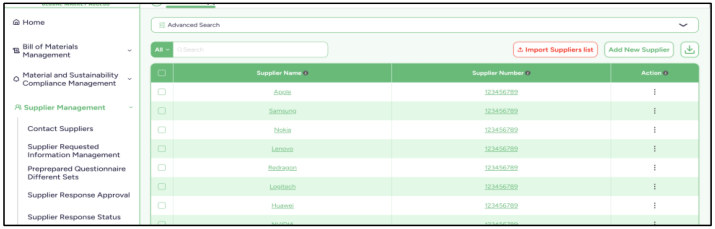
- Add New Supplier: If you want to add a new supplier, you will enter the Supplier Name, Supplier Number, and the Responsible Buyer. You can also add more than one Responsible Buyer.
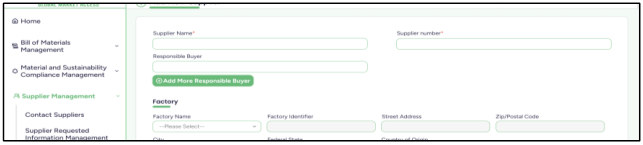
You will also enter the supplier’s factory information, and you can add more than one factory.
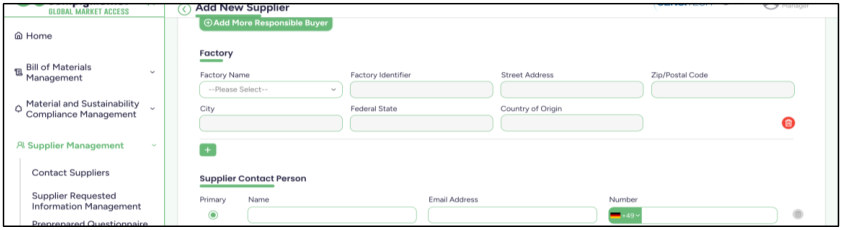
Then enter the Supplier Contact Person, and you can add more than one.
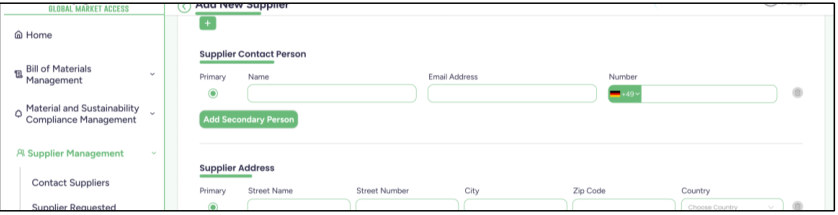
Then enter the Supplier Address, and you can add more than one.
You can also choose which one will be the primary address.
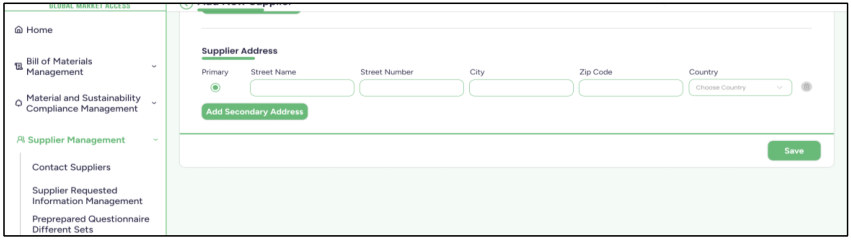
- In the suppliers table, when you click on any supplier, you will be taken to their page where all their details are displayed.
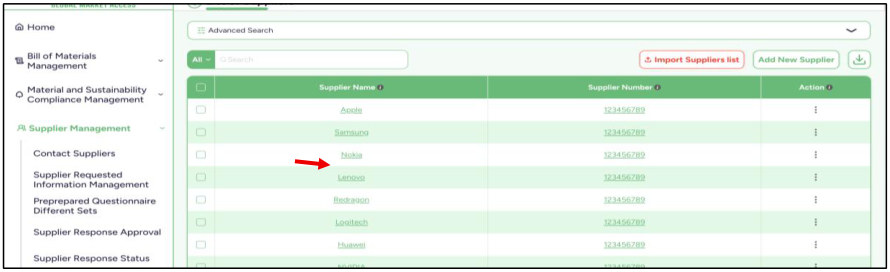
You will find all the supplier details that were entered during the creation process, and you will also find a table containing this supplier’s items.
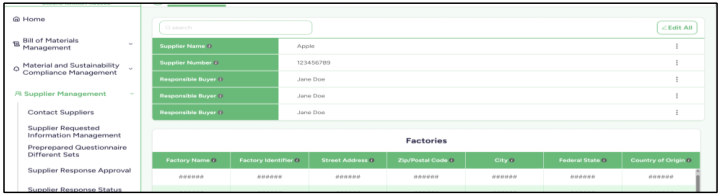
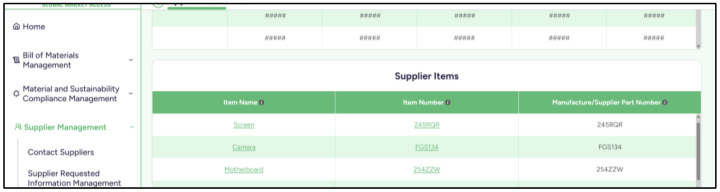
04.11 List of Factories
- This is the section that contains all the factories related to the company, whether they belong to the company itself or to a supplier.
You can also view all the items related to this factory.
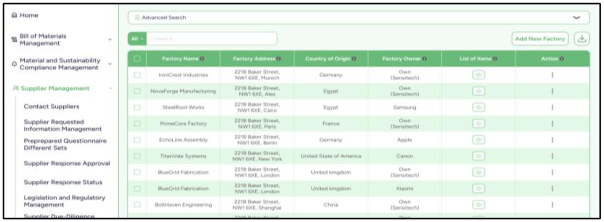
- Add New Factory: If you want to add a new factory to the company, just enter the required information and it will be added.
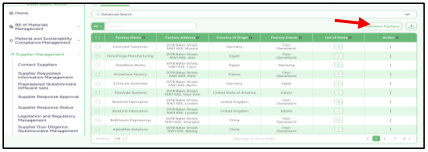
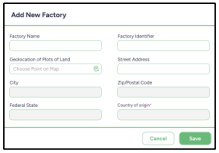
04.12 My Given Answers
- This section is used if you are a supplier to another company. You will find here all the questionnaires you need to answer for those companies regarding your items.
- In each of your responses, you will see the name of the company that sent the questionnaire, the date you submitted your answer, and the submitter —
whether it was someone from your company or the company that sent the questionnaire (if they submitted on your behalf). You will also see the status of each response, whether it is Completed, In Progress, or Re-submitting.
o Completed : It means that you have answered all the questions, added your signature, submitted the questionnaire, and it has been sent to the company.
o In Progress : It means that you have answered some of the questions but you haven’t submitted the questionnaire yet, and you haven’t added your signature. You are still completing the answers and will finish them later.
o Re-submitting : It means that a previously completed response is being answered again, and it will be sent to the company as a new response separate from the old one.
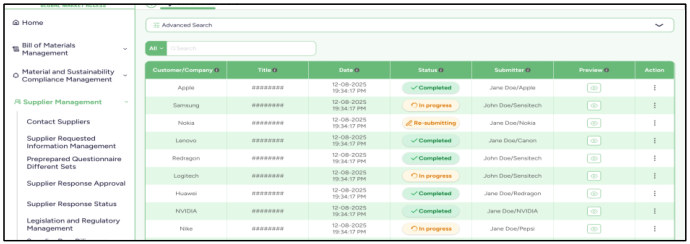
- You can edit any response shown here.
If the status is In Progress, you can simply continue completing the answers.
However, if the status is Completed and you edit it, then it will be considered a new submission.
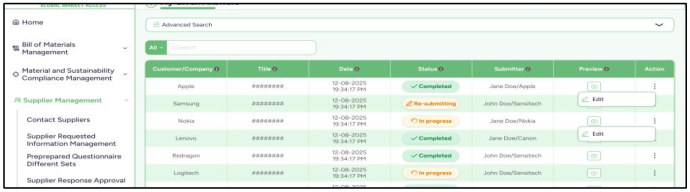
04.12.1 Questionnaire Answer
- This is the format of the questionnaire you will be answering.
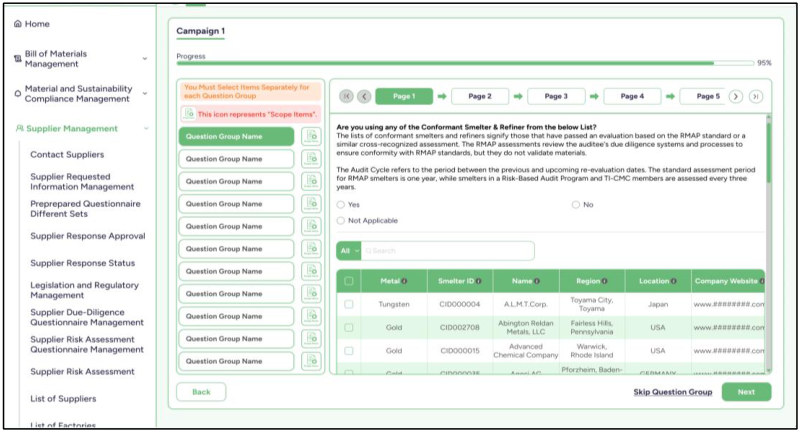
- You will see the progress percentage, which shows how much of the questionnaire you have completed.
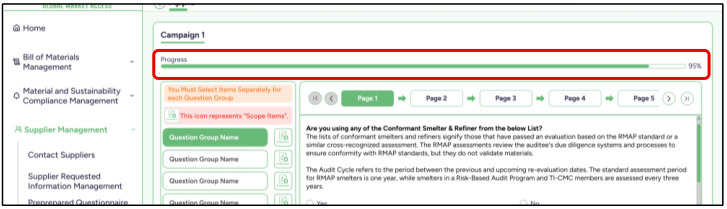
- On the left side, you will find all the question groups. Next to each group, there is an icon you can click to view the Scope items linked to that questionnaire. For each group, you can manage its items separately — you can remove any of the existing items or add new ones.
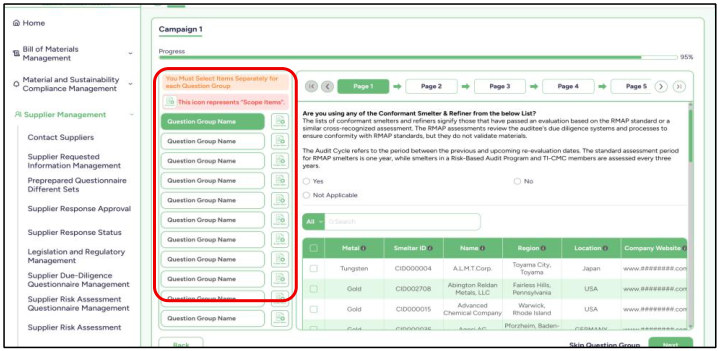
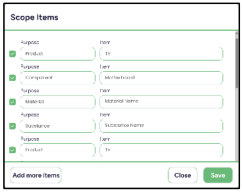
- On the right side, you will find all the questions and pages inside the question group you have selected, and you can start answering the questions.
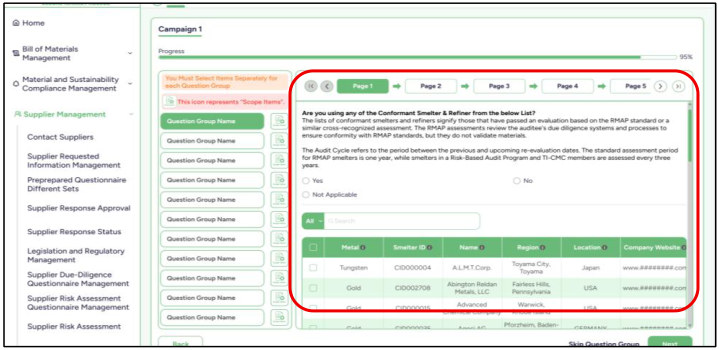
- At the end of the questionnaire, you will find the signature page, where you can add your signature either by typing it or uploading an image of it. Then submit the questionnaire so your response can be sent to the company and they can start the judgment process.
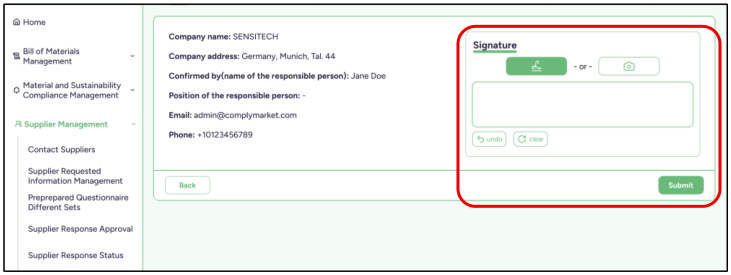
Adding New Items (Supplier Feature)
Within the questionnaire, suppliers have the ability to add new items when needed. These items will be reviewed and officially saved after company approval.
For Suppliers While answering the questionnaire, you can add new items if the required item is not already available.
Adding a New Item
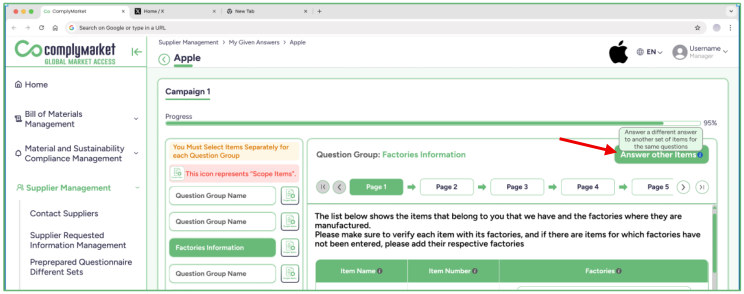
- When adding a new item, you will need to provide:
- Purpose Select the type of item:
- o Product o Component o Material o Name
- Name The name of the item
- Item Number A unique identifier for the item
- Weight The weight of the item
- Product Category The category the item belongs to Approval Process
- Newly added items are not immediately finalized
- They will be:
- o Submitted along with your answers o Reviewed by the company
- Items are officially stored only after company approval Linking Items to Answer Data Once approved, the new items will automatically be linked to relevant data in the questionnaire, such as:
- Substances
- Exemptions
- Smelters
- Any other applicable lists (if available) This ensures that all related compliance information is properly connected to the item.
- Notes
- Only approved items become part of the system
- Until approval, items remain pending and not appear in other areas
04.13 Supplier Reporting
04.13.1 Status Per Item
In this Report you have 3 sections:
4. Products Status A list of your items from the BOM, where you can preview the legislation status for each item.
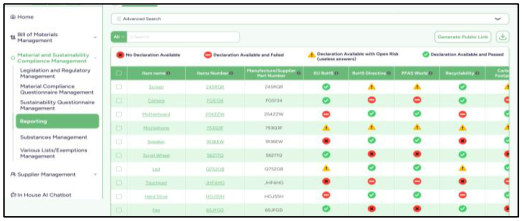
5. Components Status A list of your items from the BOM, where you can preview the legislation status for each item.
6. Materials Status A list of your items from the BOM, where you can preview the legislation status for each item.
04.13.2 Status Per Legislation
In this Report you have 3 sections:
4. Products Status A list of your legislations, where you can preview the status of each one, including the total number of suppliers and items. You can also see whether it is marked as No Declaration Available, Declaration Available and Failed, Declaration Available with Open Risk (useless answers), or Declaration Available and Passed.
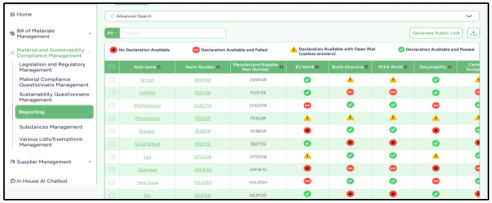
5. Components Status A list of your legislations, where you can preview the status of each one, including the total number of suppliers and items. You can also see whether it is marked as No Declaration Available, Declaration Available and Failed, Declaration Available with Open Risk (useless answers), or Declaration Available and Passed.
6. Materials Status A list of your legislations, where you can preview the status of each one, including the total number of suppliers and items. You can also see whether it is marked as No Declaration Available, Declaration Available and Failed, Declaration Available with Open Risk (useless answers), or Declaration Available and Passed.
04.13.3 Status Per Supplier
The Status per Supplier report provides a summarized overview of compliance declaration results for each supplier across all associated items. This report helps users evaluate supplier compliance performance by presenting aggregated statistics and percentages for different declaration outcomes.
At the top of the page, the system displays key summary indicators, including the Total Number of Suppliers (with Items) and the Total Number of Items with Suppliers. These indicators provide a quick snapshot of the supplier base and the number of items currently associated with suppliers in the system.
The report table lists each Supplier Name and Supplier Number, followed by a detailed breakdown of declaration results. For each declaration status category, the system presents both Per Supplier Percentage and Overall Percentage, along with the corresponding number of declarations. This allows users to easily compare
- individual supplier performance with the overall compliance situation across the system.
- The declaration categories shown in the report include:
- No Declaration Available – Indicates that required declarations have not been submitted by the supplier.
- Declaration Available and Failed – Indicates that a declaration has been submitted but does not comply with regulatory requirements.
- Declaration Available with Open Risk – Indicates that the declaration contains incomplete or potentially unreliable responses that require further review.
- Declaration Available and Passed – Indicates that the submitted declaration meets all applicable compliance requirements.
- Partially Available and Passed – Indicates that some declarations are compliant while others may still be missing or under evaluation.
The report also includes search and filtering functionality, enabling users to quickly locate specific suppliers or review compliance results. Additionally, the data can be exported using the download option, allowing users to perform further analysis or share compliance performance reports with internal teams.
By providing both detailed and aggregated insights, the Status per Supplier report enables organizations to monitor supplier compliance performance, identify suppliers requiring follow-up, and maintain transparency across compliance management processes.
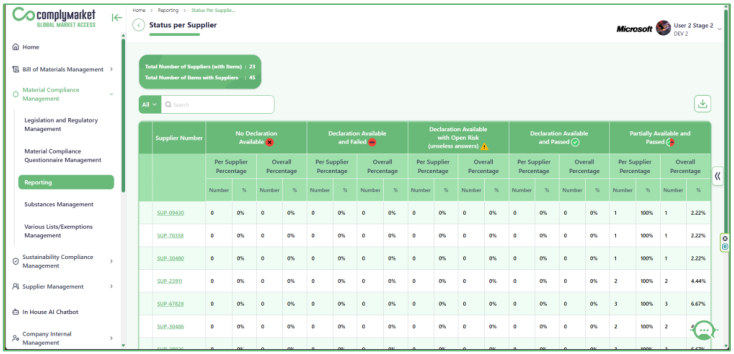
04.13.4 Status Per Supplier and Item
- The Status Per Supplier and Item report provides a consolidated overview of compliance declaration statuses submitted by suppliers for specific items and regulatory requirements. This report helps users quickly identify whether suppliers have provided the required compliance information and whether the submitted declarations meet the applicable regulatory standards.
- The page displays supplier-related information such as Supplier Name and Supplier Number, along with a set of compliance indicators for different regulations and requirements. Each column represents a specific compliance domain, such as EU RoHS, EU REACH and other regulatory frameworks. The status icons in the table visually indicate the current declaration result for each supplier and item combination.
- Users can easily recognize different declaration outcomes through status indicators, including:
- No Declaration Available – The supplier has not submitted the required declaration.
- Declaration Available and Failed – A declaration has been submitted but does not meet the compliance requirements.
- Declaration Available with Open Risk – The declaration contains incomplete or insufficient information that requires further review.
- Declaration Available and Passed – The submitted declaration meets the compliance criteria.
- Partially Available and Passed – Some declarations are available and compliant, while others may still be pending.
The report also includes search and filtering capabilities, allowing users to quickly locate specific suppliers, items, or compliance results. In addition, the Advanced Search option enables more refined filtering to support detailed analysis and reporting.
By providing a clear and structured view of supplier compliance statuses, this report helps organizations monitor supplier performance, detect missing or failed declarations, and ensure that products meet regulatory requirements before entering the market.
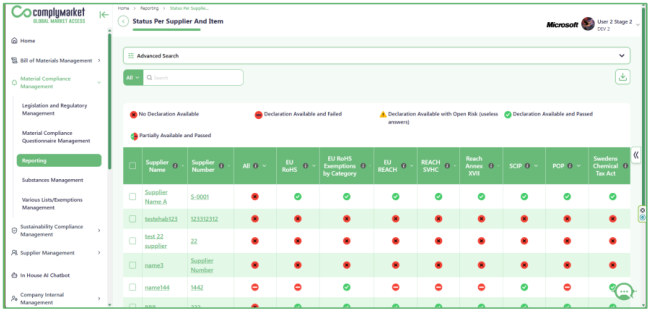
05. Supplier View
A user with a supplier account only sees one section: My Given Answers , through which they can respond to questionnaires received from companies and follow the steps to answer the questions as defined in ( 04.12 My Given Answers)
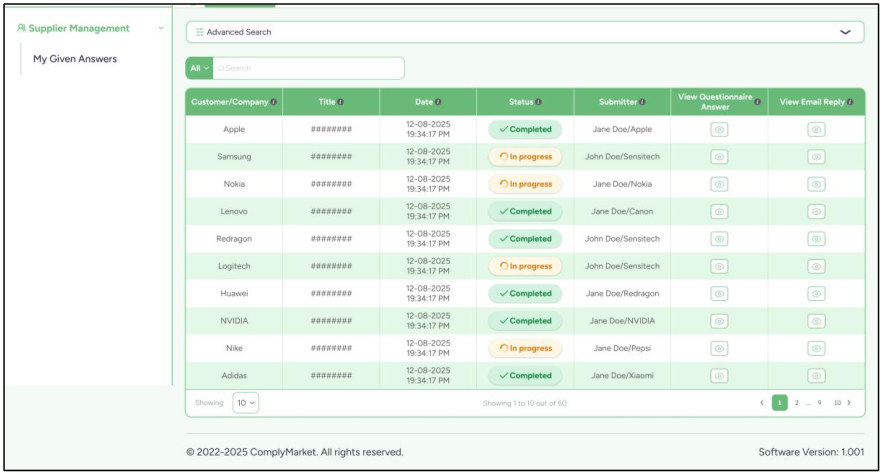
06. Compliance Requirements
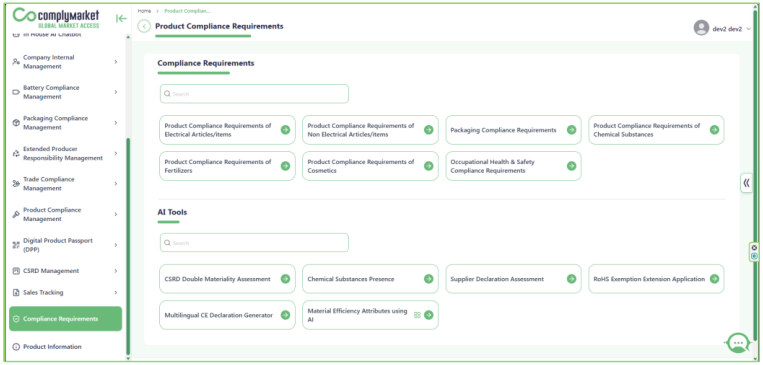
In the Compliance Requirements module, we have 13 services:
1. Product compliance requirements of electrical articles/items: Identifies the regulatory, safety, sustainability, and labeling compliance requirements applicable to electrical products based on product type and target market.
2. Product compliance requirements of non-electrical articles/items: Identifies the
regulatory, safety, and environmental compliance requirements for non-electrical devices based on product type and target market.
3. Packaging compliance requirement: Identifies the regulatory, environmental, recycling,
and labeling compliance requirements applicable to packaging based on packaging type and target market.
4. Product compliance requirements of chemical substances: Identifies the regulatory,
chemical safety, restriction, and reporting compliance requirements applicable to chemical substances based on substance type and target market.
5. Product compliance requirements of fertilizers: Identifies the regulatory, chemical safety,
labeling, and registration compliance requirements applicable to fertilizers based on fertilizer type and target market.
6. Product compliance requirements of cosmetics: Identifies the regulatory, chemical
safety, ingredient restriction, registration, and labeling compliance requirements applicable to cosmetics based on product type and target market.
7. Occupational health & safety compliance requirements: Identifies the regulatory,
workplace safety, employee health, training, and reporting compliance requirements based on industry type and country of operation.
8. CSRD double materiality assessment: Identifies ESG and sustainability disclosure
requirements under CSRD using the double materiality principle, based on business impacts and financial risks.
9. Chemical Substances Presence: Identifies the presence, concentration, and compliance
status of chemical substances within products based on applicable regulations and thresholds.
10. Supplier Declaration Assessment: Assesses supplier declarations by verifying compliance
data, substance information, and regulatory alignment against applicable requirements.
11. RoHS Exemption Extension Application: Supports preparing and submitting RoHS
exemption extension applications, including technical justification and compliance documentation aligned with EU RoHS requirements.
12. Multilingual CE declaration Generator: Generates multilingual CE Declarations of
Conformity based on product, manufacturer, and applicable EU compliance requirements.
13. Material efficiency attributes using AI:
- This service includes four sections
- Assess Durability & Reliability
- Assess Repairability, Reusability & Upgradability
- Assess Recyclability & Recoverability
- Assess Remanufacturability
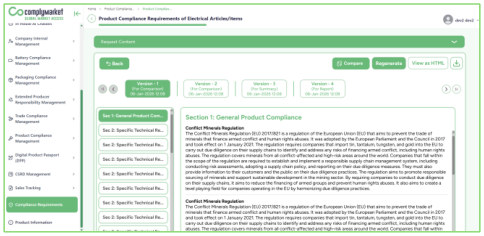
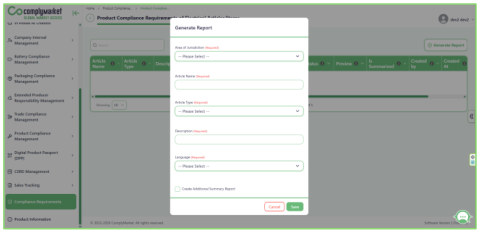
- Each service allows report generation by selecting one or more areas of jurisdiction, entering the report name, type, and description, and choosing one or multiple languages.
- After creating the report, you can regenerate it and view all the versions you have created.
You can also compare between two reports, and you have the option to download the report as a PDF or HTML file.
07. Battery Compliance Management
07.1 Batteries Inventory
The Batteries Inventory section is divided into two main categories to help users organize and review battery-related data clearly:
1. Batteries as Such
This section includes standalone batteries only.
2. Products Containing Batteries
This section includes products that have built-in or integrated batteries.
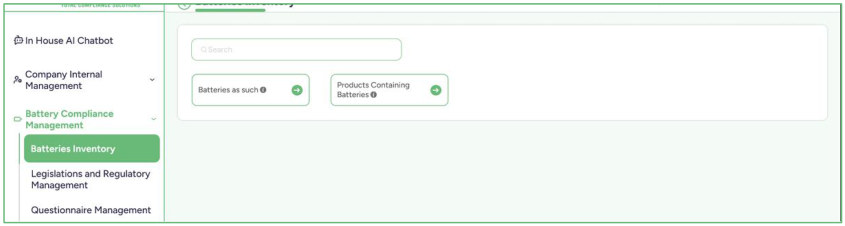
- Each section displays a list of items by Item Name/Item Number. By clicking on either one, the user can expand the entry to view detailed information related to the Battery.
- The information is organized into the following categories. Users can click on any category to open it and enter or update the required details or select “Edit All” to modify all sections at once.
- General Battery and Manufacturer Information
- Compliance, Labels & Certifications
- Battery Materials and Composition
- Carbon Footprint
- Supply Chain Due Diligence
- Circularity and Resource Efficiency
- Performance and Durability
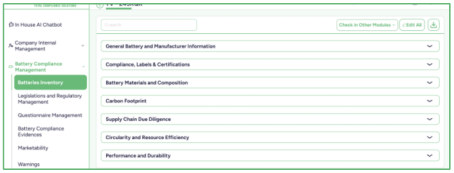
This structure allows users to select a battery or battery-containing product, open the relevant category, and fill in all necessary information in a clear and organized way.
07.2 Legislations and Regulatory Management
- The Legislations and Regulatory Management section is divided into two parts:
- Battery Compliance Legislation and Regulatory Management
- Applicable Battery Compliance Legislations and Regulatory Management
07.2.1 Battery Compliance Legislation and Regulatory Management
- This section allows users to create and organize legislation and related sub legislation. It includes two main actions:
- Add New Legislation Use this button to add a new main legislation. Enter all relevant details and, if needed, add any associated sub-legislation under it.
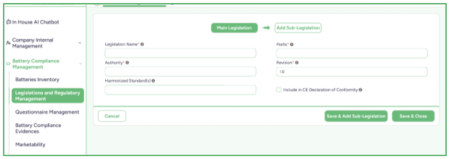
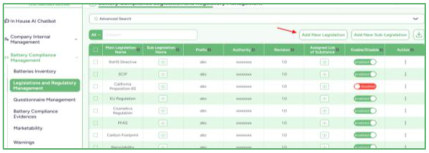
- Add New Sub-Legislation Use this button to create a sub-legislation entry and assign it to an existing main legislation.
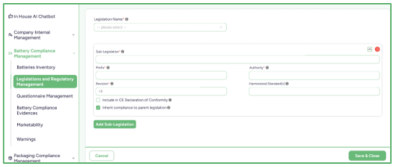
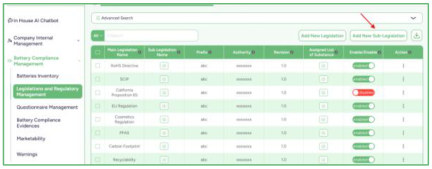
07.2.2 Applicable Battery Compliance Legislations and Regulatory Management
- This section allows users to manage specific requirements linked to applicable legislation.
- Add New Requirement Use this option to create a new requirement. Users can also attach or add the required evidence to support compliance with that requirement.
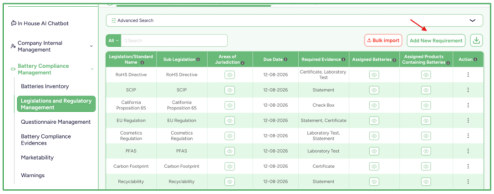
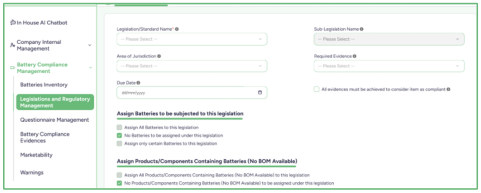
07.3 Questionnaire Management
- The Questionnaire Management section is divided into two main parts:
- Questions Groups
- Questionnaire Packages
07.3.1 Question Groups
This section allows users to create structured question groups made up of multiple pages. Each page can contain several questions. This setup helps organize questions in a clear, step-by-step format.
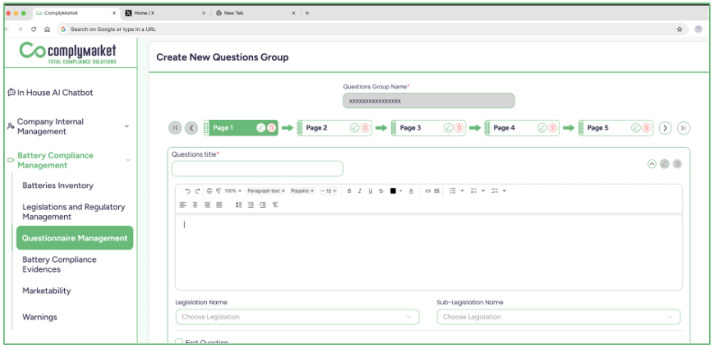
07.3.2 Questionnaire Packages
This section allows users to create packages that include one or more of the question groups previously created. These packages can then be used later to send questionnaires to suppliers.
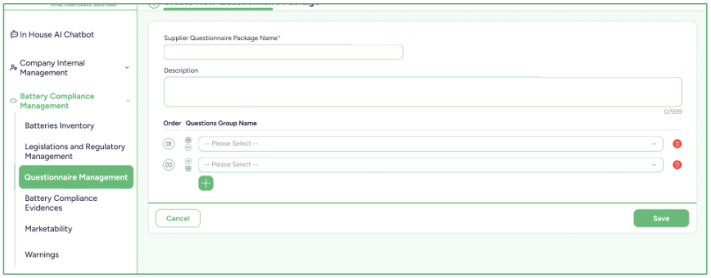
07.4 Battery Compliance Evidence
The Battery Compliance Evidence section displays all items linked to applicable battery compliance legislation and their associated evidence requirements.
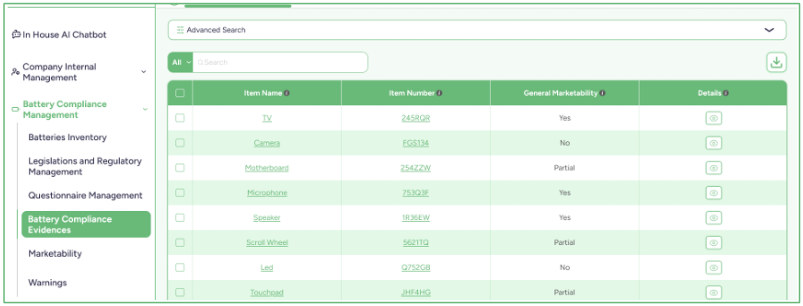
- By clicking on an item, its detailed information is shown, including:
- Legislation/Standard Name
- Sub-Legislation Name
- Area of Jurisdiction
- Due Date
- Required Evidence
- Status, which indicates one of the following:
- o Compliant o Not Compliant (Evidence is Expired) o Not Compliant o No Compliance Evidence
- Evidence Expiry Date Users can update the evidence within the Answer field by either:
- Uploading a file to provide the required documentation.
- Marking the requirement as completed using the available checkbox.
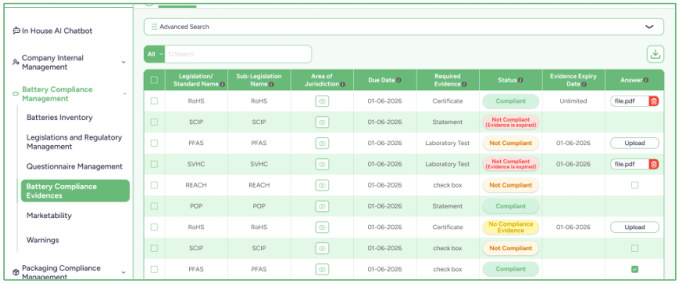
07.5 Marketability
- The Marketability section is divided into two main categories:
- Batteries as Such
- Products Containing Batteries
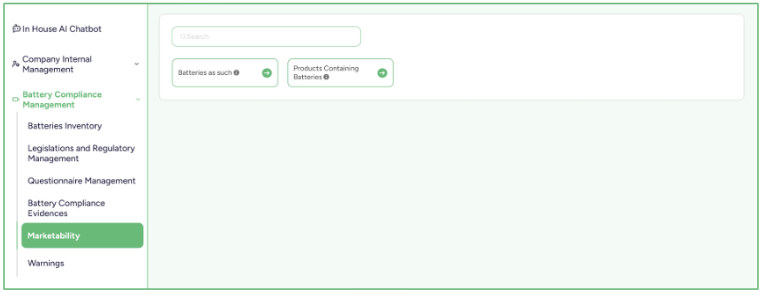
- Within each category, there are two additional views that help users review marketability status:
- General Preview
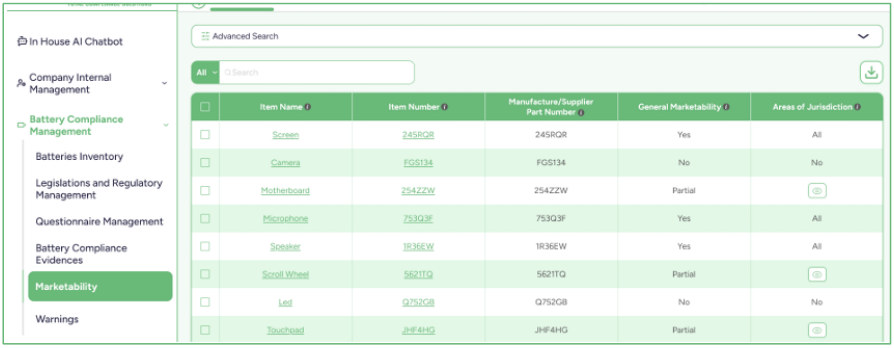
- Per Areas of Jurisdiction Preview
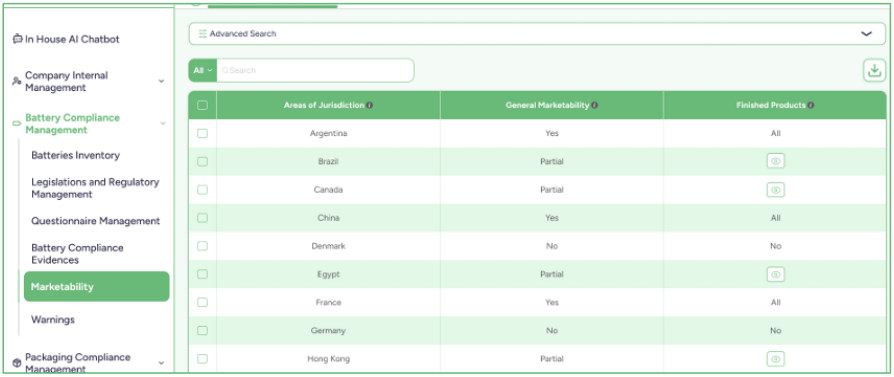
07.6 Warnings
- The Warnings section displays any items affected by updates to legislation where the related compliance evidence needs to be reviewed or updated.
- Each listed item includes an “ Update ” button. When clicked, the user is redirected to the Battery Compliance Evidence section, where the required evidence can be updated through the Answer field by either:
- Uploading a file to provide the necessary documentation.
- Marking the requirement using the available checkbox.
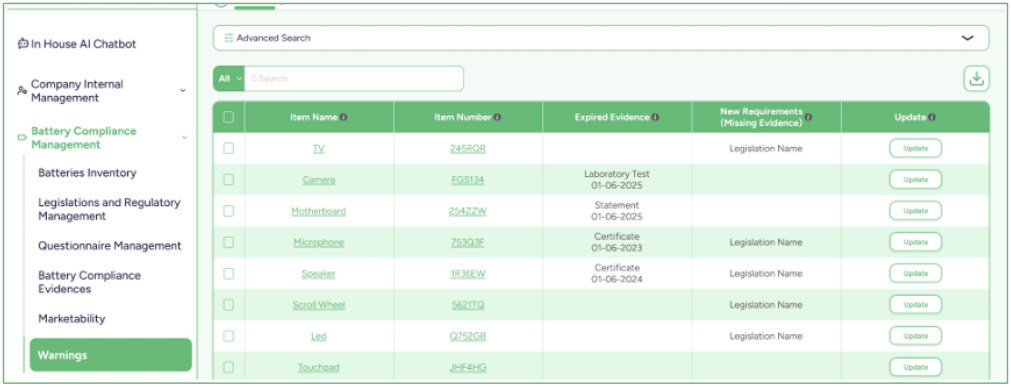
08. Packaging Compliance Management
08.1 Packaging Inventory
The Packaging Inventory section is divided into two main categories to help users organize and review Packaging-related data clearly:
1. Packaging as Such
This section includes standalone packaging items only.
2. Products Containing Packaging
This section includes products that contain or use packaging.
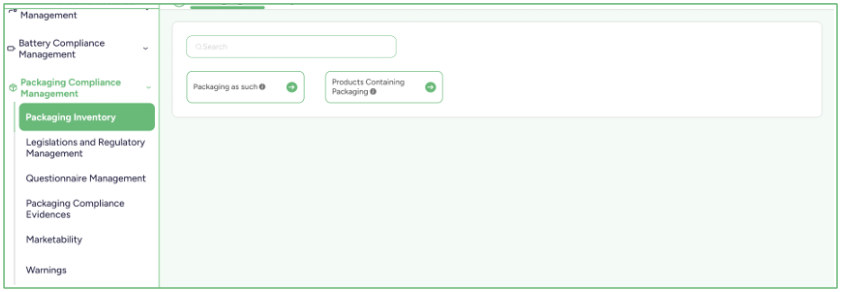
- Each section displays a list of items by Item Name/Item Number. By clicking on either one, the user can expand the entry to view detailed information related to the Packaging.
- The information is organized into the following categories. Users can click on any category to open it and enter or update the required details or select “Edit All” to modify all sections at once.
- General Packaging and Manufacturer Information
- Compliance, Labels & Certifications
- Labelling & digital carrier
- Packaging Materials and Composition
- Circularity and Resource Efficiency
- Plastic source-reduction reporting
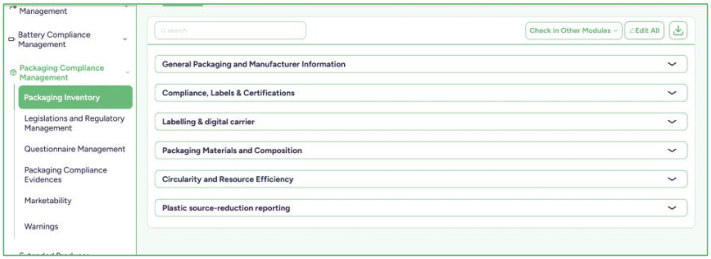
This structure allows users to select a packaging item or product containing packaging, open the relevant category, and fill in all necessary information in a clear and organized way.
08.2 Legislations and Regulatory Management
- The Legislations and Regulatory Management section is divided into two parts:
- Packaging Compliance Legislation and Regulatory Management
- Applicable Packaging Compliance Legislations and Regulatory Management
08.2.1 Packaging Compliance Legislation and Regulatory Management
- This section allows users to create and organize legislation and related sub legislation. It includes two main actions:
- Add New Legislation Use this button to add a new main legislation. Enter all relevant details and, if needed, add any associated sub-legislation under it.
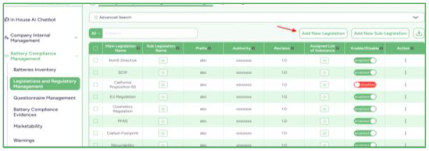
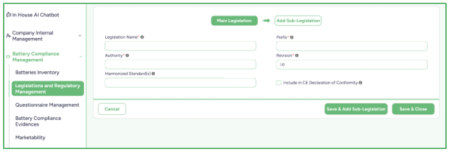
- Add New Sub-Legislation Use this button to create a sub-legislation entry and assign it to an existing main legislation.
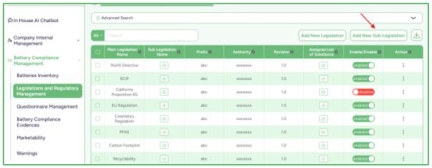
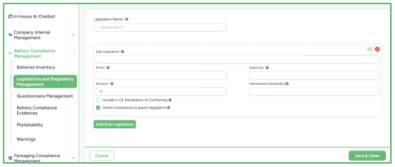
08.2.2 Applicable Packaging Compliance Legislations and Regulatory
Management
- This section allows users to manage specific requirements linked to applicable legislation.
- Add New Requirement Use this option to create a new requirement. Users can also attach or add the required evidence to support compliance with that requirement.
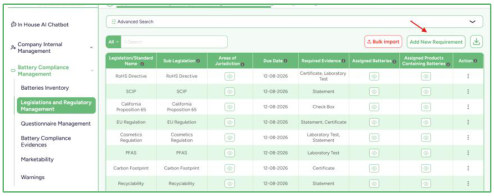
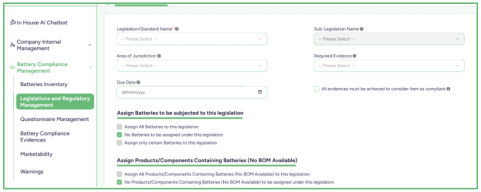
08.3 Questionnaire Management
- The Questionnaire Management section is divided into two main parts:
- Questions Groups
- Questionnaire Packages
08.3.1 Question Groups
This section allows users to create structured question groups made up of multiple pages. Each page can contain several questions. This setup helps organize questions in a clear, step-by-step format.
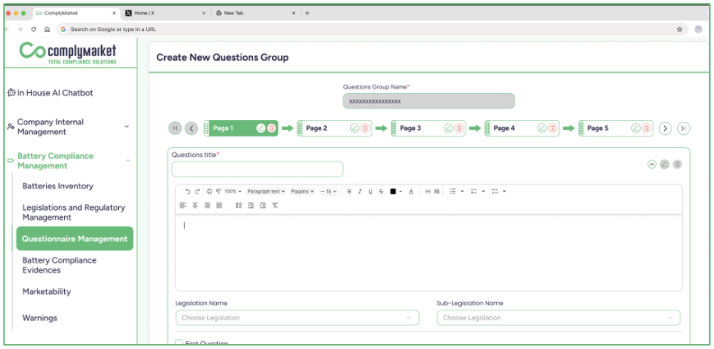
08.3.2 Questionnaire Packages
This section allows users to create packages that include one or more of the question groups previously created. These packages can then be used later to send questionnaires to suppliers.
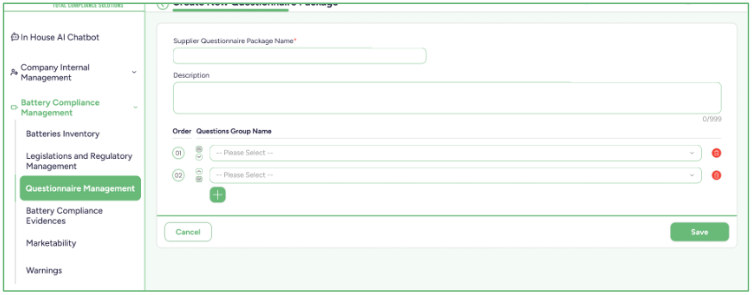
08.4 Packaging Compliance Evidence
The Packaging Compliance Evidence section displays all items linked to applicable Packaging compliance legislation and their associated evidence requirements.
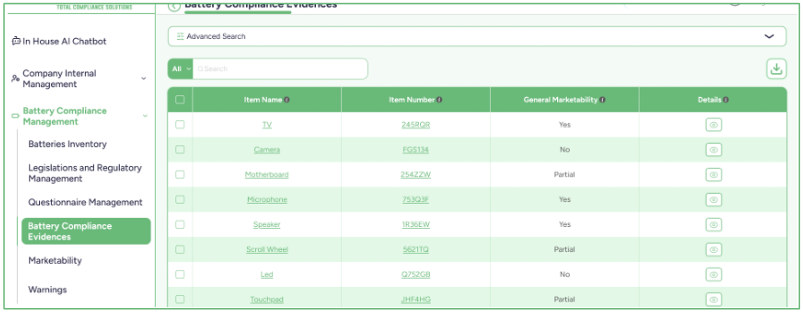
- By clicking on an item, its detailed information is shown, including:
- Legislation/Standard Name
- Sub-Legislation Name
- Area of Jurisdiction
- Due Date
- Required Evidence
- Status, which indicates one of the following:
- o Compliant o Not Compliant (Evidence is Expired) o Not Compliant o No Compliance Evidence
- Evidence Expiry Date Users can update the evidence within the Answer field by either:
- Uploading a file to provide the required documentation.
- Marking the requirement as completed using the available checkbox.
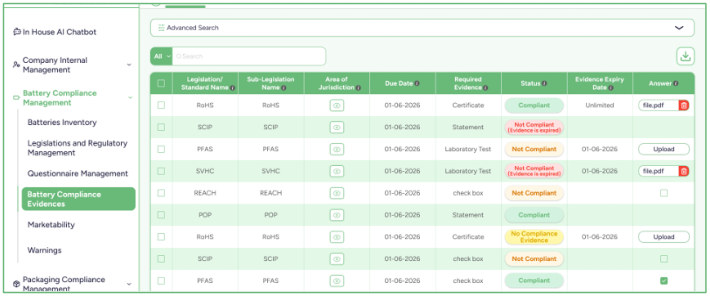
08.5 Marketability
- The Marketability section is divided into two main categories:
- Packaging as Such
- Products Containing Packaging
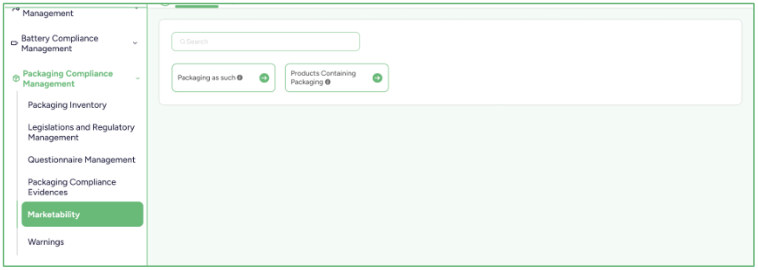
- Within each category, there are two additional views that help users review marketability status:
- General Preview
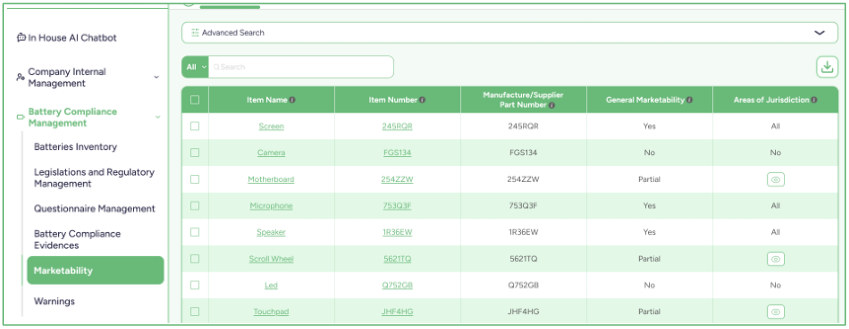
- Per Areas of Jurisdiction Preview
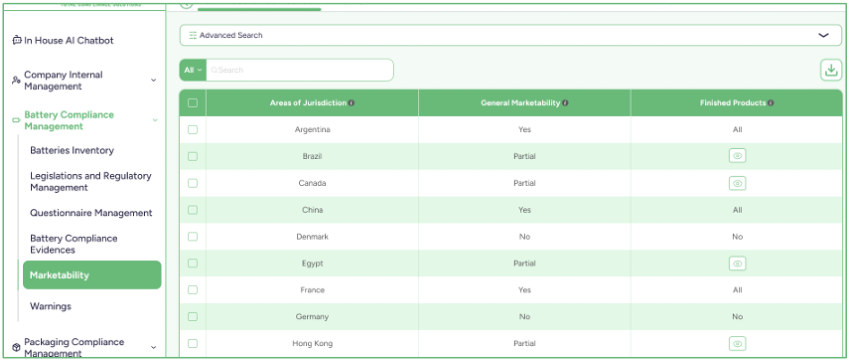
08.6 Warnings
- The Warnings section displays any items affected by updates to legislation where the related compliance evidence needs to be reviewed or updated.
- Each listed item includes an “ Update ” button. When clicked, the user is redirected to the Packaging Compliance Evidence section, where the required evidence can be updated through the Answer field by either:
- Uploading a file to provide the necessary documentation.
- Marking the requirement using the available checkbox.
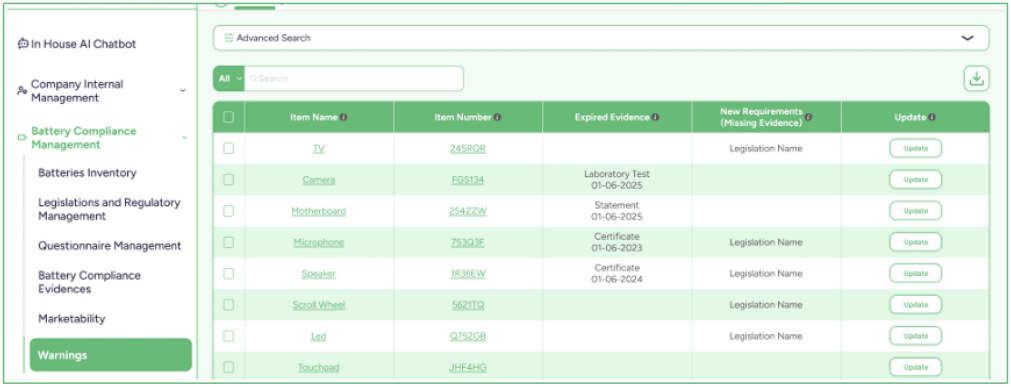
09. Trade Compliance Management
09.1 Legislations and Regulatory Management
- The Legislations and Regulatory Management section is divided into two parts:
- Trade Compliance Legislation and Regulatory Management
- Applicable Trade Compliance Legislations and Regulatory Management
09.1.1 Trade Compliance Legislation and Regulatory Management
- This section allows users to create and organize legislation and related sub legislation. It includes two main actions:
- Add New Legislation Use this button to add a new main legislation. Enter all relevant details and, if needed, add any associated sub-legislation under it.
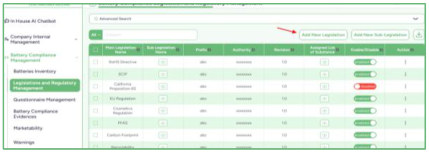
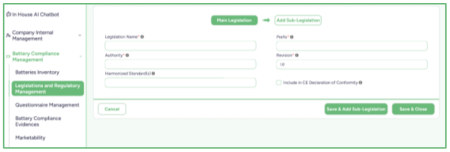
- Add New Sub-Legislation Use this button to create a sub-legislation entry and assign it to an existing main legislation.
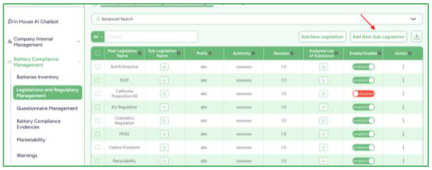
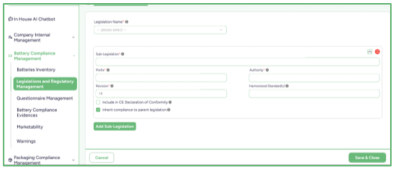
09.1.2 Applicable Trade Compliance Legislations and Regulatory Management
- This section allows users to manage specific requirements linked to applicable legislation.
- Add New Requirement Use this option to create a new requirement. Users can also attach or add the required evidence to support compliance with that requirement.
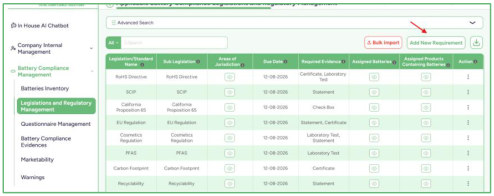
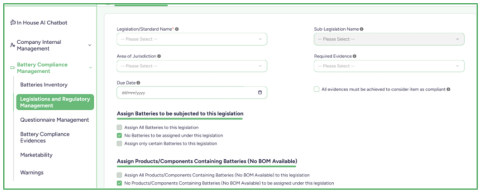
09.2 Questionnaire Management
- The Questionnaire Management section is divided into two main parts:
- Questions Groups
- Questionnaire Packages
09.2.1 Question Groups
This section allows users to create structured question groups made up of multiple pages. Each page can contain several questions. This setup helps organize questions in a clear, step-by-step format.
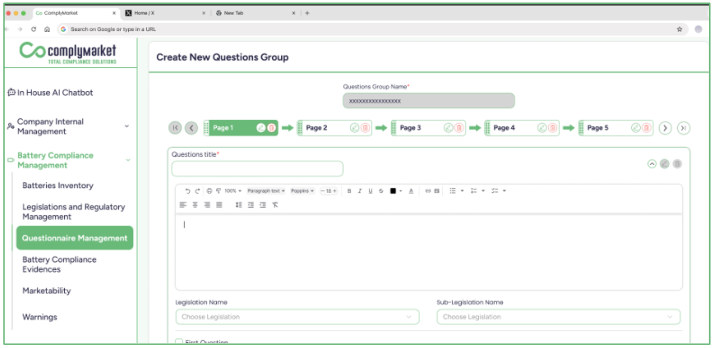
09.2.2 Questionnaire Packages
This section allows users to create packages that include one or more of the question groups previously created. These packages can then be used later to send questionnaires to suppliers.
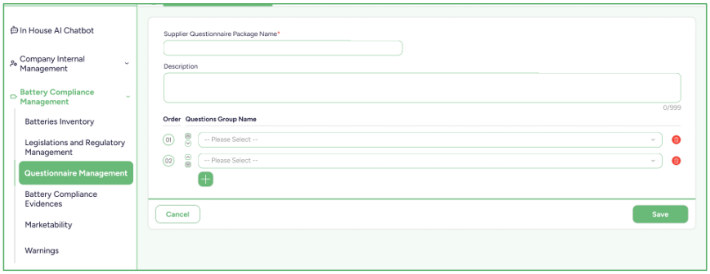
09.3 Trade Compliance Evidence
The Trade Compliance Evidence section displays all items linked to applicable Trade compliance legislation and their associated evidence requirements.
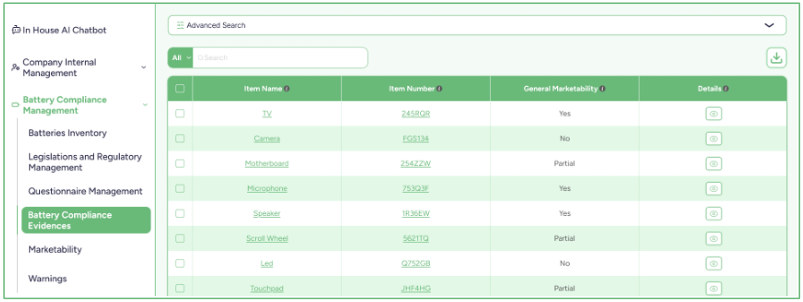
- By clicking on an item, its detailed information is shown, including:
- Legislation/Standard Name
- Sub-Legislation Name
- Area of Jurisdiction
- Due Date
- Required Evidence
- Status, which indicates one of the following:
- o Compliant o Not Compliant (Evidence is Expired) o Not Compliant o No Compliance Evidence
- Evidence Expiry Date Users can update the evidence within the Answer field by either:
- Uploading a file to provide the required documentation.
- Marking the requirement as completed using the available checkbox.
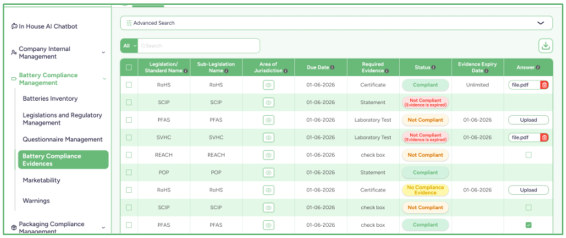
09.4 Marketability
- The Marketability section is divided into 4 main categories:
- Products
- Components
- Materials
- Substances
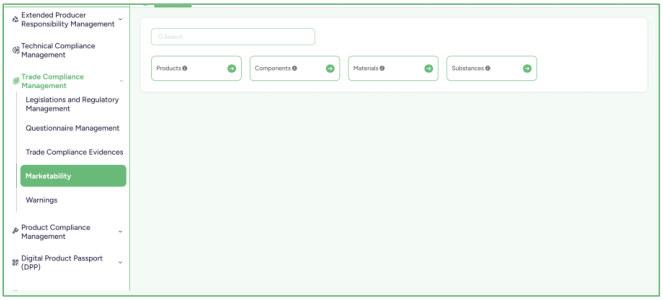
- Within each category, there are two additional views that help users review marketability status:
- General Preview
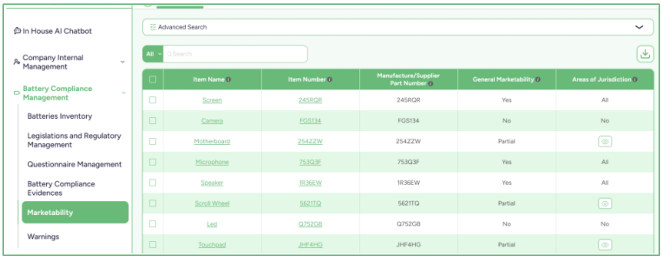
- Per Areas of Jurisdiction Preview
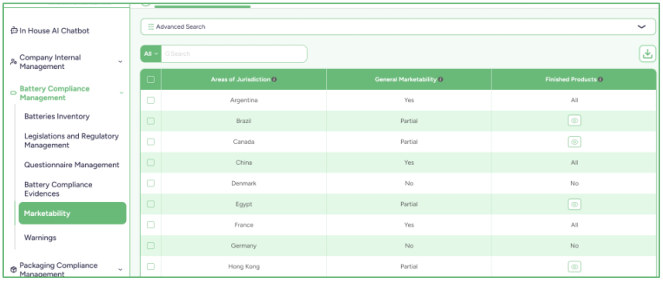
09.5 Warnings
- The Warnings section displays any items affected by updates to legislation where the related compliance evidence needs to be reviewed or updated.
- Each listed item includes an “ Update ” button. When clicked, the user is redirected to the Trade Compliance Evidence section, where the required evidence can be updated through the Answer field by either:
- Uploading a file to provide the necessary documentation.
- Marking the requirement using the available checkbox.
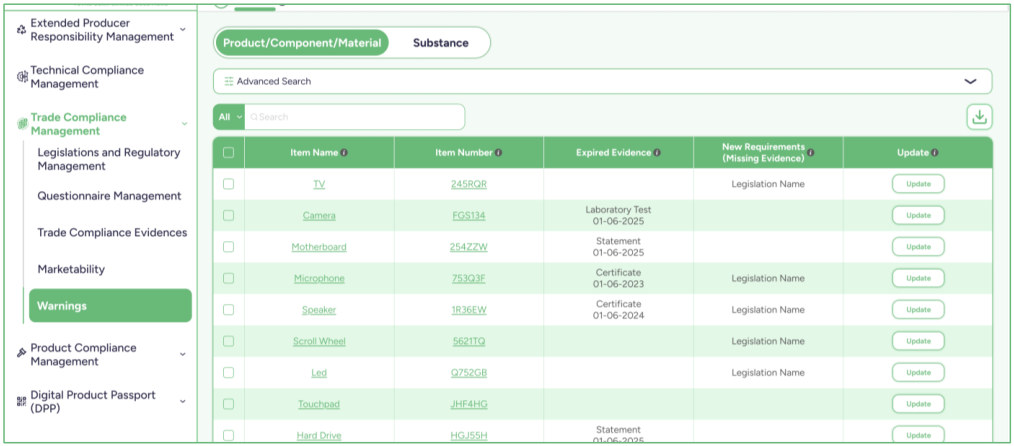
10. Technical Compliance Management
10.1 Legislations and Regulatory Management
- The Legislations and Regulatory Management section is divided into two parts:
- Technical Compliance Legislation and Regulatory Management
- Applicable Technical Compliance Legislations and Regulatory Management
10.1.1 Technical Compliance Legislation and Regulatory Management
- This section allows users to create and organize legislation and related sub legislation. It includes two main actions:
- Add New Legislation Use this button to add a new main legislation. Enter all relevant details and, if needed, add any associated sub-legislation under it.
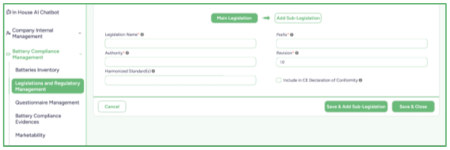
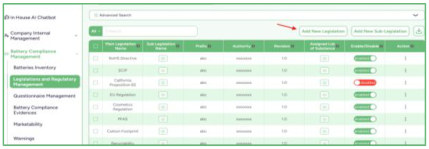
- Add New Sub-Legislation Use this button to create a sub-legislation entry and assign it to an existing main legislation.
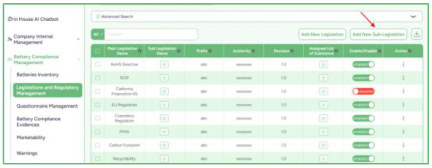
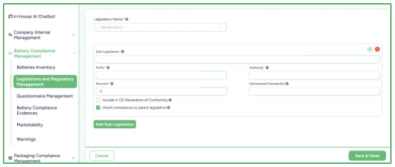
10.1.2 Applicable Technical Compliance Legislations and Regulatory Management
- This section allows users to manage specific requirements linked to applicable legislation.
- Add New Requirement Use this option to create a new requirement. Users can also attach or add the required evidence to support compliance with that requirement.
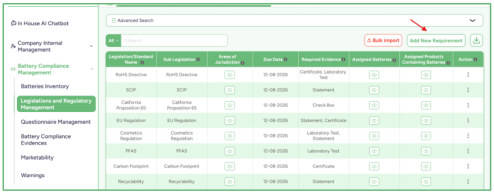
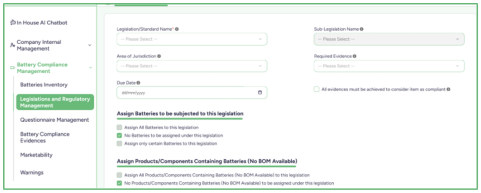
10.2 Questionnaire Management
- The Questionnaire Management section is divided into two main parts:
- Questions Groups
- Questionnaire Packages
10.2.1 Question Groups
This section allows users to create structured question groups made up of multiple pages. Each page can contain several questions. This setup helps organize questions in a clear, step-by-step format.
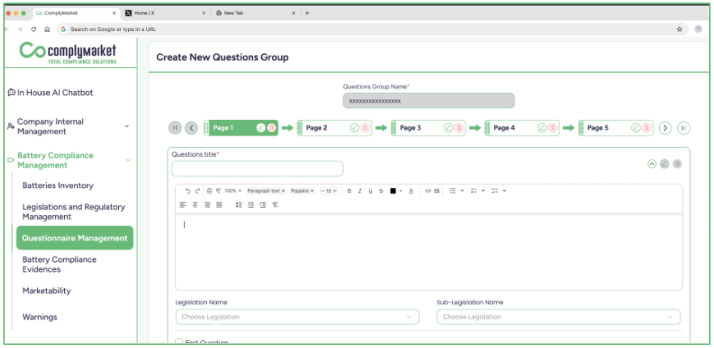
10.2.2 Questionnaire Packages
This section allows users to create packages that include one or more of the question groups previously created. These packages can then be used later to send questionnaires to suppliers.
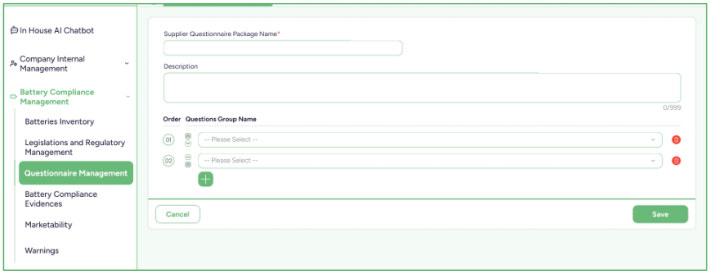
10.3 Technical Compliance Evidence
The Technical Compliance Evidence section displays all items linked to applicable Technical compliance legislation and their associated evidence requirements.
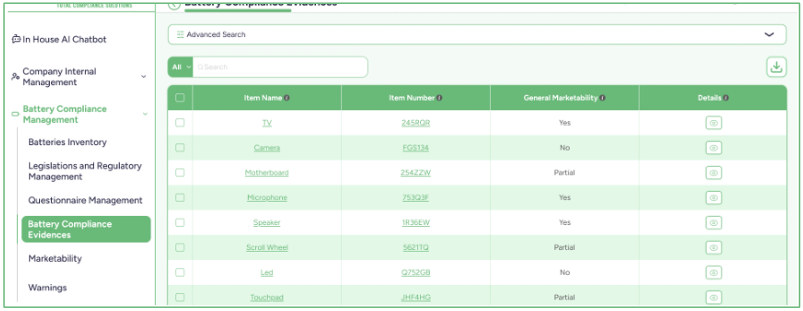
- By clicking on an item, its detailed information is shown, including:
- Legislation/Standard Name
- Sub-Legislation Name
- Area of Jurisdiction
- Due Date
- Required Evidence
- Status, which indicates one of the following:
- o Compliant o Not Compliant (Evidence is Expired) o Not Compliant o No Compliance Evidence
- Evidence Expiry Date Users can update the evidence within the Answer field by either:
- Uploading a file to provide the required documentation.
- Marking the requirement as completed using the available checkbox.
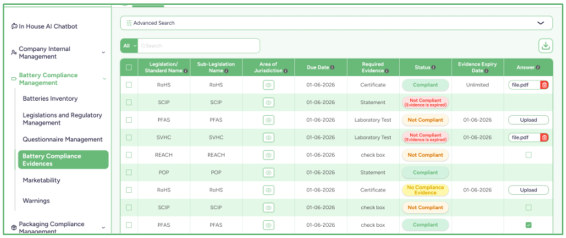
10.4 Marketability
- The Marketability section is divided into 4 main categories:
- Products
- Components
- Materials
- Substances
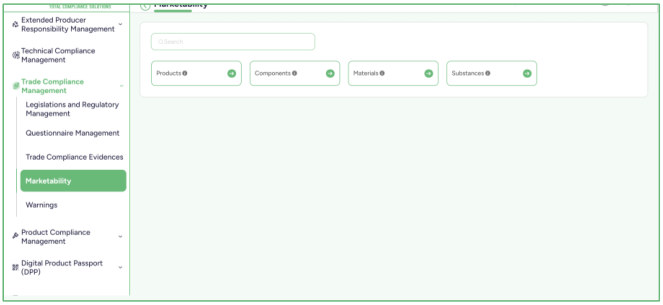
- Within each category, there are two additional views that help users review marketability status:
- General Preview
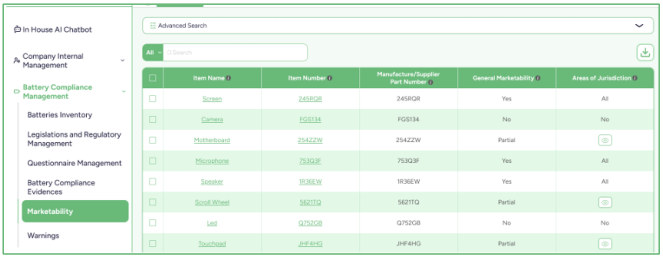
- Per Areas of Jurisdiction Preview
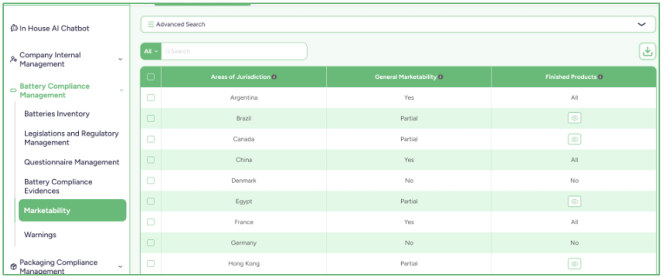
10.5 Warnings
- The Warnings section displays any items affected by updates to legislation where the related compliance evidence needs to be reviewed or updated.
- Each listed item includes an “ Update ” button. When clicked, the user is redirected to the Technical Compliance Evidence section, where the required evidence can be updated through the Answer field by either:
- Uploading a file to provide the necessary documentation.
- Marking the requirement using the available checkbox.
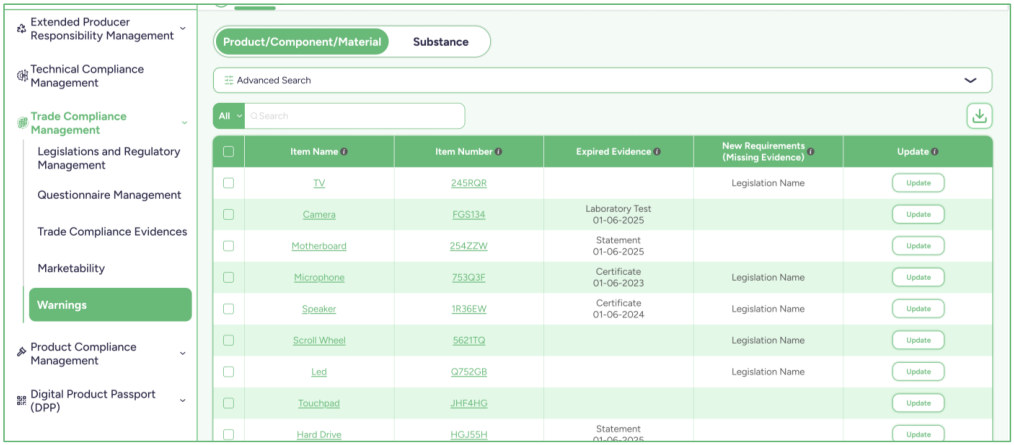
11. Product Compliance Management
- The Product Compliance Management module is an aggregated reporting module that consolidates data from multiple compliance modules
- Material Compliance
- Sustainability Compliance
- Supplier Risk Assessment
- Supplier Due-Diligence
- Battery Compliance
- Packaging Compliance
- Trade Compliance
- Technical Compliance
- Extended Producer Responsibility Compliance It provides a unified view of these modules in one place, allowing you to review:
All Legislations, Standards, and Regulatory Management
Applicable Legislations, Standards, and Regulatory Management
Finished Products Compliance Status
Marketability
Warnings
11.1 All Legislations, Standards, and Regulatory Management
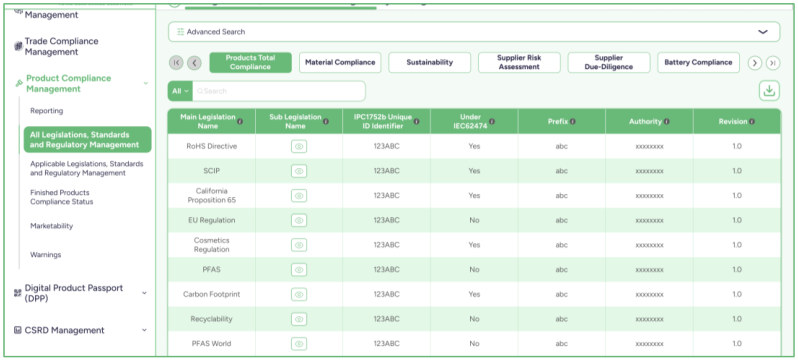
This section displays tabs, including Products Total Compliance , which shows the combined data from all modules. The remaining tabs display each module separately in case you want to review the data individually.
11.2 Applicable Legislations, Standards, and Regulatory Management
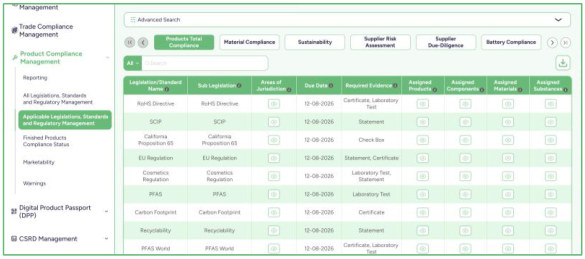
This section displays tabs, including Products Total Compliance , which shows the combined data from all modules. The remaining tabs display each module separately in case you want to review the data individually.
11.3 Finished Products Compliance Status
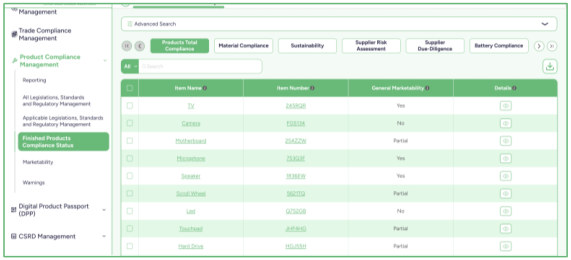
This section displays tabs, including Products Total Compliance , which shows the combined data from all modules. The remaining tabs display each module separately in case you want to review the data individually.
11.4 Marketability
- The Marketability section is divided into 4 main categories:
- Products
- Components
- Materials
- Substances
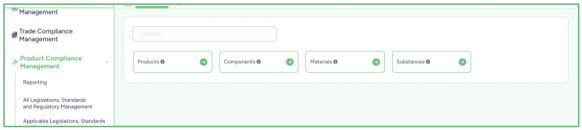
- Within each category, there are two additional views that help users review marketability status:
- General Preview This section displays tabs, including Products Total Compliance, which shows the combined data from all modules. The remaining tabs display each module separately in case you want to review the data individually.
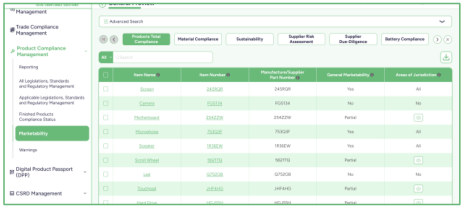
- Per Areas of Jurisdiction Preview This section displays tabs, including Products Total Compliance, which shows the combined data from all modules. The remaining tabs display each module separately in case you want to review the data individually.
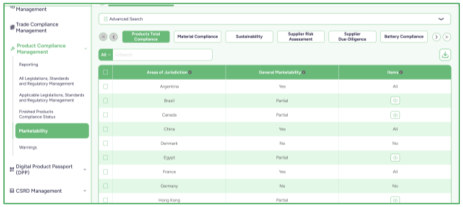
11.5 Warnings
- The Warnings section is divided into 4 main categories:
- Products
- Components
- Materials
- Substances
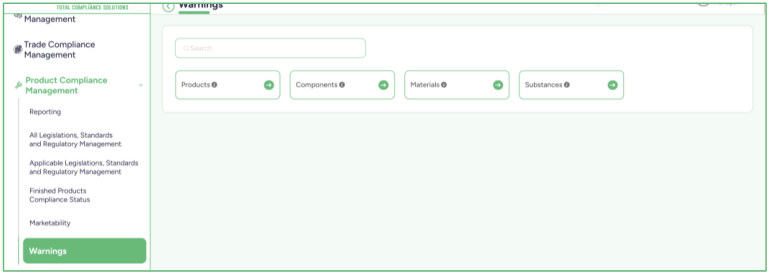
Each category displays tabs, including Products Total Compliance, which shows the combined data from all modules. The remaining tabs display each module separately in case you want to review the data individually.
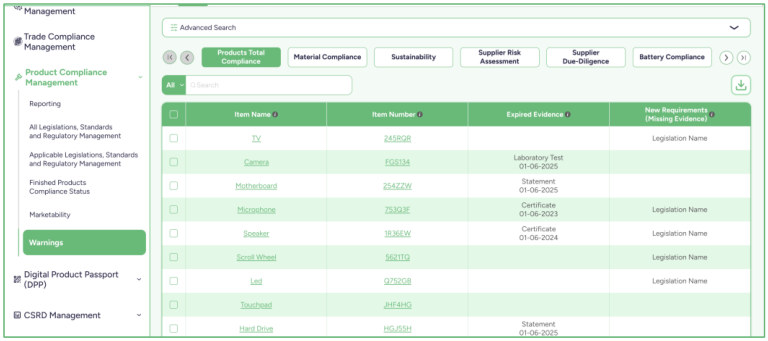
12. Sales Tracking
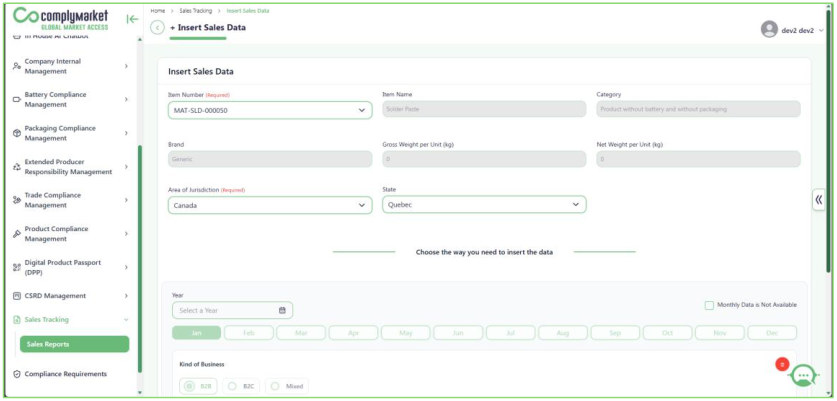
In Sales Tracking, you select the item and enter sales data separately for each country .
For each year, you provide sales information such as the number of units sold. If more detailed data is required, you can enter monthly sales details within that year. You also select the Kind of Business (B2B, B2C, or Mixed). This selection is important because it affects the item’s data within the EPR module .
The EPR Management module cannot be used until sales information is entered first.
13. Extended Producer Responsibility Management (EPR)
This module covers Extended Producer Responsibility (EPR) reports and applies to three product categories: Batteries, Packaging, and Electrical & Electronic Devices (WEEE).
This module includes:
13.1 EPR Data Maintenance
EPR Data Maintenance is divided into three sections: Batteries, Packaging, and Electrical &
Electronic Devices (WEEE).
Within each section, reports are generated for a specific country. When you select the country where you want to create the report, the system displays all product data related to that country.
This data is retrieved from the Sales Tracking module. Therefore, this module cannot be used unless sales data has already been entered in the Sales Tracking module.
After selecting the country for which the report will be created, the system displays the required input fields that must be completed to generate the report.
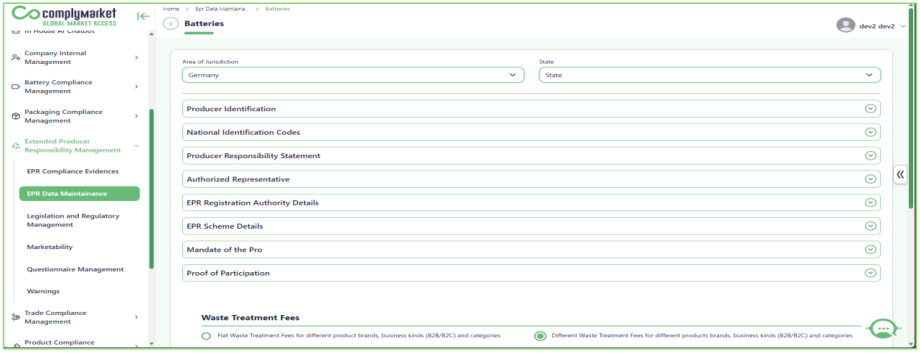
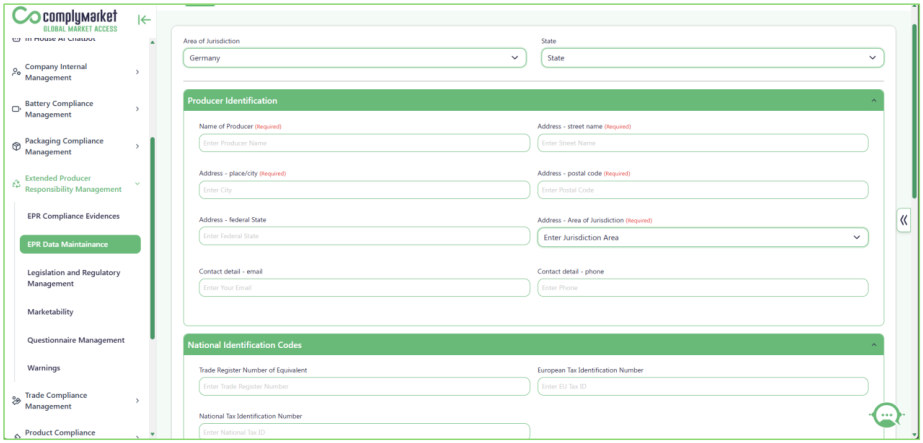
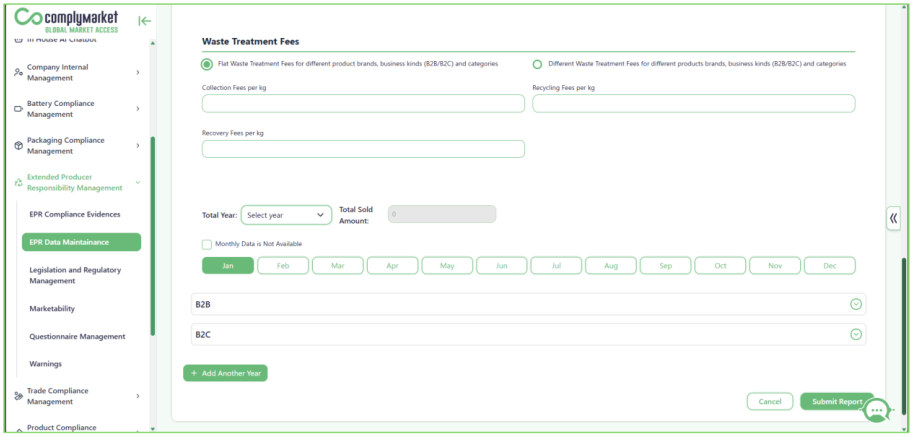
13.2 Legislations and Regulatory Management
- The Legislations and Regulatory Management section is divided into 3 parts:
- Batteries
- Electrical and Electronic Devices (WEEE)
- Packaging Each section is divided into two parts:
- Legislation and Regulatory Management
- Applicable Legislations and Regulatory Management
13.2.1 Legislation and Regulatory Management
- This section allows users to create and organize legislation and related sub legislation. It includes two main actions:
- Add New Legislation Use this button to add a new main legislation. Enter all relevant details and, if needed, add any associated sub-legislation under it.
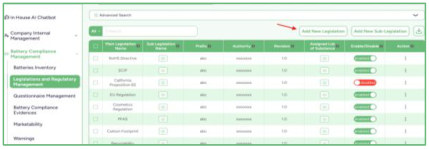
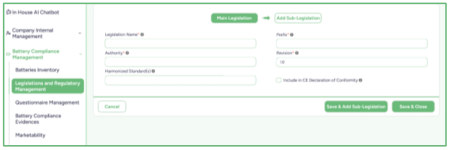
- Add New Sub-Legislation Use this button to create a sub-legislation entry and assign it to an existing main legislation.
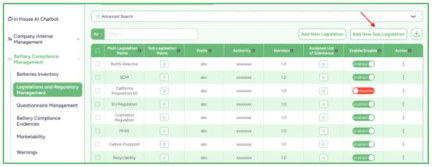
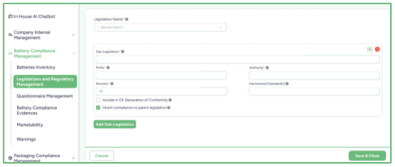
13.2.2 Applicable Legislations and Regulatory Management
- This section allows users to manage specific requirements linked to applicable legislation.
- Add New Requirement Use this option to create a new requirement. Users can also attach or add the required evidence to support compliance with that requirement.
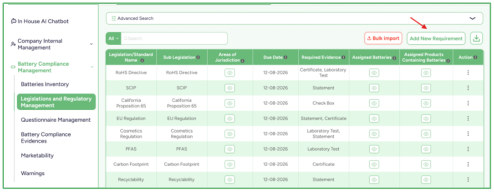
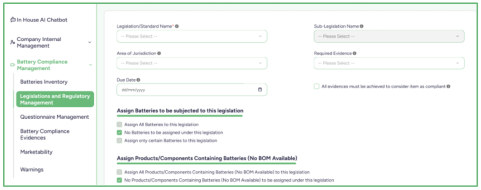
13.3 Questionnaire Management
- The Questionnaire Management section is divided into two main parts:
- Questions Groups
- Questionnaire Packages
13.3.1 Question Groups
This section allows users to create structured question groups made up of multiple pages. Each page can contain several questions. This setup helps organize questions in a clear, step-by-step format.
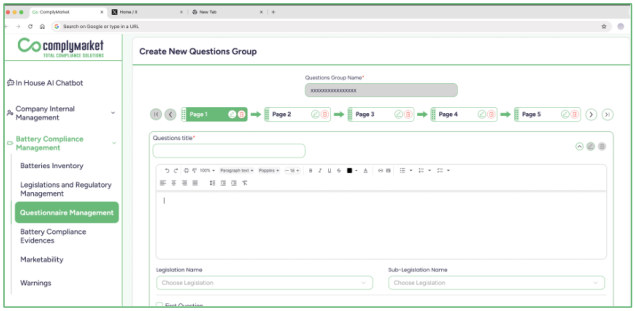
13.3.2 Questionnaire Packages
This section allows users to create packages that include one or more of the question groups previously created. These packages can then be used later to send questionnaires to suppliers.
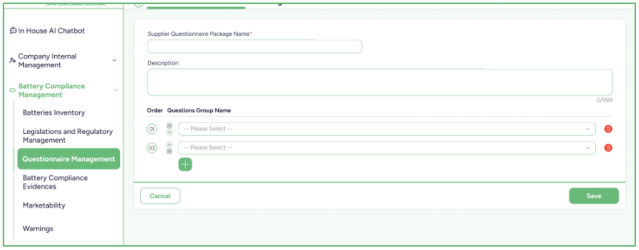
13.4 EPR Compliance Evidence
The EPR Evidence section displays all items linked to applicable EPR compliance legislation and their associated evidence requirements.
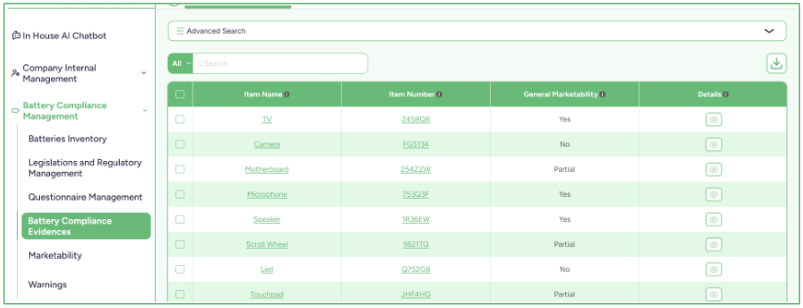
- By clicking on an item, its detailed information is shown, including:
- Legislation/Standard Name
- Sub-Legislation Name
- Area of Jurisdiction
- Due Date
- Required Evidence
- Status, which indicates one of the following:
- o Compliant o Not Compliant (Evidence is Expired) o Not Compliant o No Compliance Evidence
- Evidence Expiry Date Users can update the evidence within the Answer field by either:
- Uploading a file to provide the required documentation.
- Marking the requirement as completed using the available checkbox.
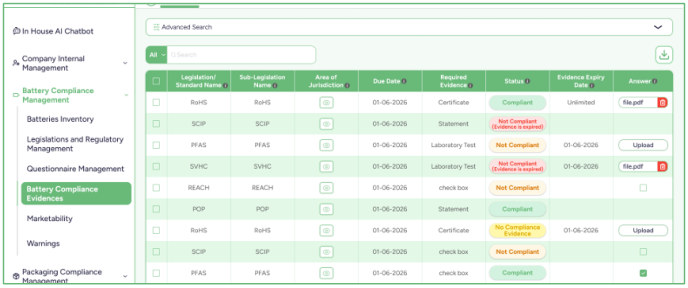
13.5 Marketability
- There are two additional views that help users review marketability status:
- General Preview
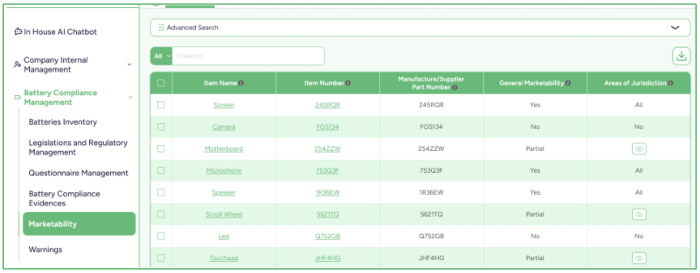
- Per Areas of Jurisdiction Preview
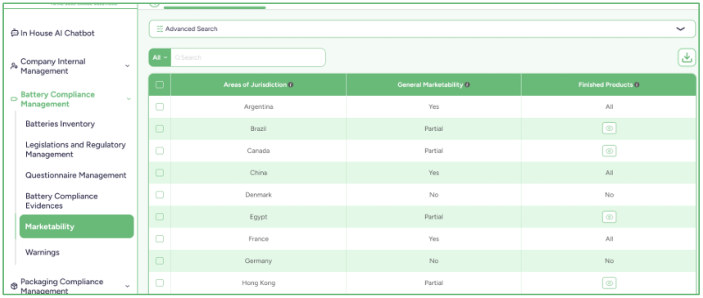
13.6 Warnings
- The Warnings section displays any items affected by updates to legislation where the related compliance evidence needs to be reviewed or updated.
- Each listed item includes an “ Update ” button. When clicked, the user is redirected to the EPR Evidence section, where the required evidence can be updated through the Answer field by either:
- Uploading a file to provide the necessary documentation.
- Marking the requirement using the available checkbox.
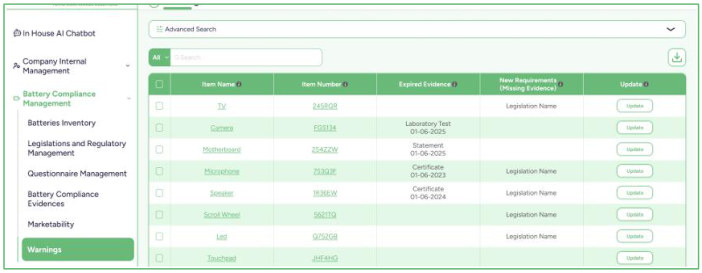
14. Product Information
The Product Information module is divided into multiple categories to help users organize and review packaging-related data clearly.
Each category contains its own items. The category in which an item appears is defined by the user during item creation in the BOM , based on the selected Product Category .
Each category contains a set of attributes for which you must enter values.
These attributes are created in the DPP module and are displayed here so you can provide their corresponding values.
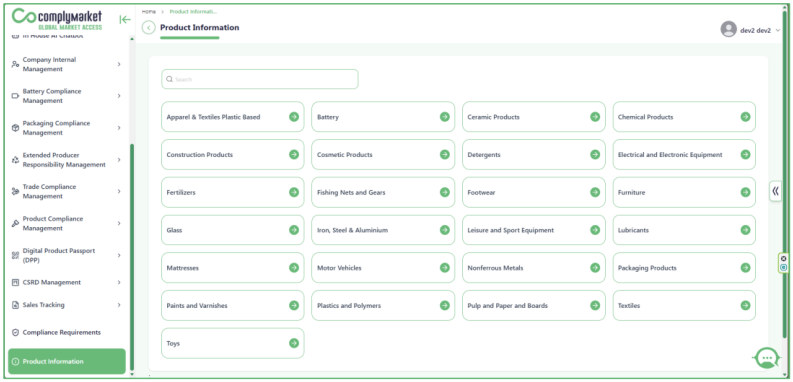
15. Digital Product Passport
The Product Information module is divided into multiple categories.
Each category contains its own items. The category in which an item appears is defined by the user during item creation in the BOM , based on the selected Product Category .
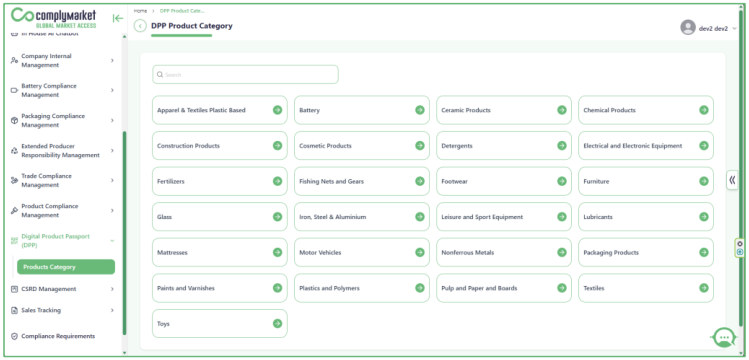
Each category is divided into two sections 1. Attributes 2. All Items in this category
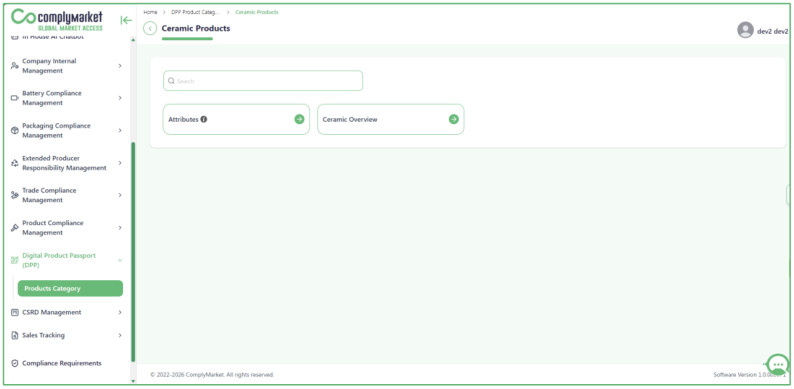
15.1 Attributes
This section contains predefined system attributes. You can disable certain attributes or add new ones as needed.
These attributes are then reflected in the Product Information module, where their corresponding values are entered.
If you delete attribute, it will be deleted from the product information for all products.
so it is better to disable it.
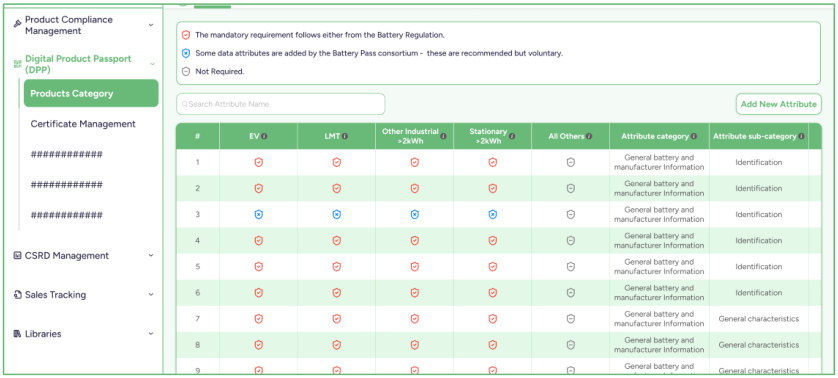
15.2 Items
- When you open any item, you have the option to generate a DPP for it.
- You can choose which identifier number you want to use to create the DPP.
- Item Number
- Batch Number
- Manufacture/Supplier Part Number
- Serial Number
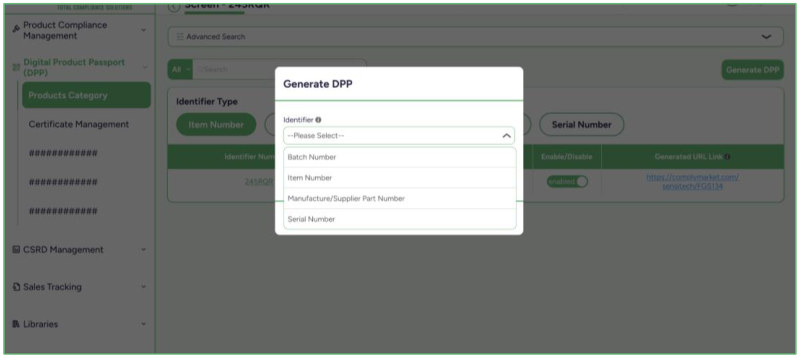
- After generating identifiers, you will see a table with tabs that filter between the four identifier types.
- Item Number
- Batch Number
- Manufacture/Supplier Part Number
- Serial Number
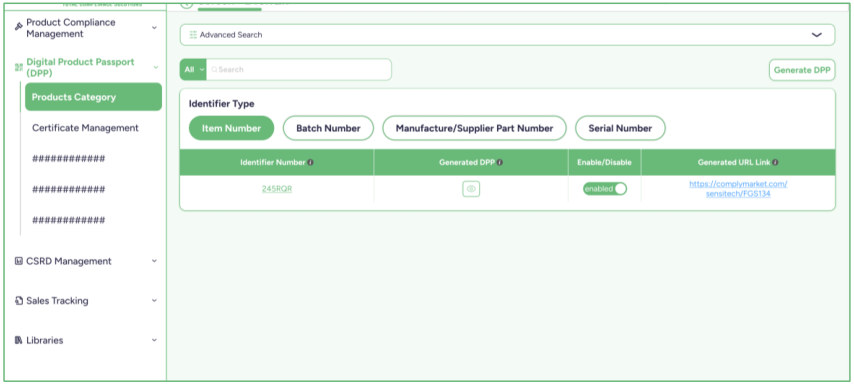
- The table is divided into four sections:
- Identifier Number This redirects you to the item’s Attributes page, where you can view the attributes and their values retrieved from the Product Information module.
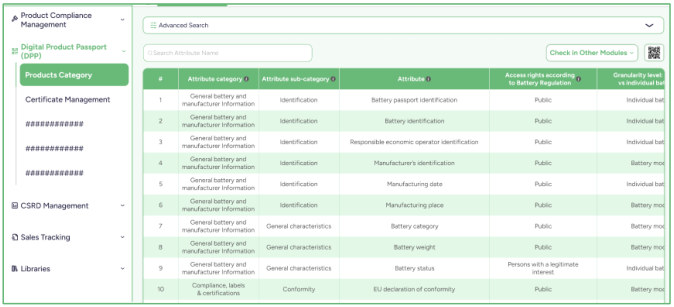
- Generated DPP This displays the item’s DPP QR code, which you can download or scan.
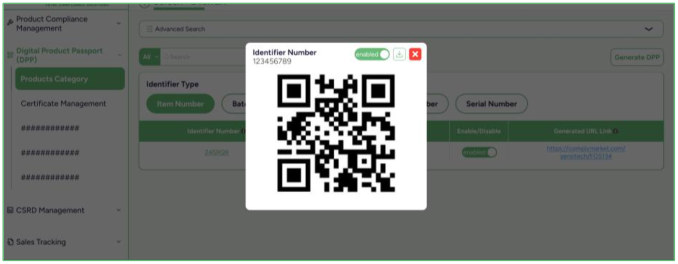
- Enable/Disable Allows you to enable or disable the DPP for this item.
- Generated URL Link This is the generated DPP link associated with the QR code. Through this link, you are redirected to the page displaying the product’s information. Anyone who scans the QR code will also be directed to the same page.
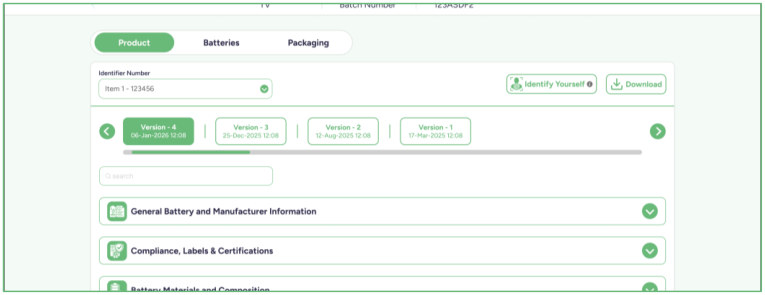
On this page, you can view the details of the selected product.
If the product includes batteries or packaging , they appear as separate tabs at the top. The default tab displays the product itself. When you select the Batteries tab, you can view the batteries associated with the product. When you select the Packaging tab, you can view all packaging related to that product.
You will also find the Identify Yourself button, which is used when certain data is restricted to specific users. Users can either scan the identifier or log in using their email to access this data.
In the Download section, you can download the displayed data.
The Versions section shows all product versions created after edits. If the product has been modified multiple times, multiple versions will appear, with the latest version being the active and accessible one.
16. In House AI Chatbot
The In-House AI Chatbot provides users with an intelligent assistant designed to support daily tasks within the compliance management system. The chatbot helps users quickly access information, navigate system features, and obtain guidance related to compliance processes, regulations, and system functionalities.
The AI chatbot is integrated directly into the platform, allowing users to interact with it through a conversational interface. Users can ask questions related to system usage, compliance requirements, or specific modules, and the chatbot provides relevant responses based on the available system knowledge and documentation.
Through the chatbot interface, users can quickly retrieve information about compliance topics, understand regulatory requirements, and receive guidance on how to perform certain actions within the system. This helps reduce the time required to search for information and improves overall productivity.
The chatbot also supports internal knowledge sharing by providing instant assistance for frequently asked questions and common compliance-related tasks. By offering quick access to information and guidance, the In-House AI Chatbot helps users work more efficiently and ensures smoother interaction with the compliance management system.
17. Company Internal Management
The Company Internal Management module allows organizations to manage internal company information and organizational structures within the system. This module helps maintain a centralized record of company-related data that supports compliance activities and internal operations.
Through this section, users can manage essential company details, including organizational units, departments, and internal responsibilities. Maintaining structured internal information ensures that compliance processes are properly aligned with the organization’s internal structure.
The module enables users to organize and maintain company records in a consistent and structured way. This information can be used across different modules in the system to support workflows, reporting, and internal coordination related to compliance management.
By centralizing internal company information, the Company Internal Management module helps improve data consistency, supports better collaboration between departments, and ensures that compliance activities are properly managed across the organization.
18. Document Center
The Document Center provides a centralized location for managing and storing documents related to compliance activities within the system. This module allows users to upload, organize, and access important files that support regulatory requirements, supplier communication, and internal compliance processes.
Through the Document Center, users can manage various types of documents such as declarations, certificates, technical documents, regulatory evidence files, and other compliance- related materials. The system ensures that all relevant documentation is stored in a structured and easily accessible format.
Users can quickly search for documents, review stored files, and maintain proper documentation records required for compliance verification and audits. Centralized document storage helps ensure that important information is available to authorized users whenever needed.
By providing a structured document management environment, the Document Center supports better document traceability, improves organization of compliance records, and helps companies maintain accurate documentation for regulatory and internal compliance purposes.